
Docs
Pixel Flow user manual and best practices
Find scanning, filtering, image details, library, export, account, and industry workflow guidance by task.
Switch the Interface Language
If you prefer to read buttons, prompts, and settings in English, you can keep Pixel Flow in English. If you need to follow a Chinese workflow, share screenshots with a Chinese-speaking teammate, or compare the interface against a Chinese guide, you can switch the extension interface to Chinese.
This setting only changes Pixel Flow’s own interface language. It does not translate the web page you are viewing or change the data you have already saved.

When You Might Use This
- You want Pixel Flow’s side panel, settings, dialogs, and prompts to use the language you are most comfortable with.
- You are following a guide and want the button names on screen to match the guide.
- You need to send screenshots to teammates, clients, or support, and everyone should see the same interface language.
- You want to briefly check the interface in another language, then switch back to your usual language.
Where to Switch It
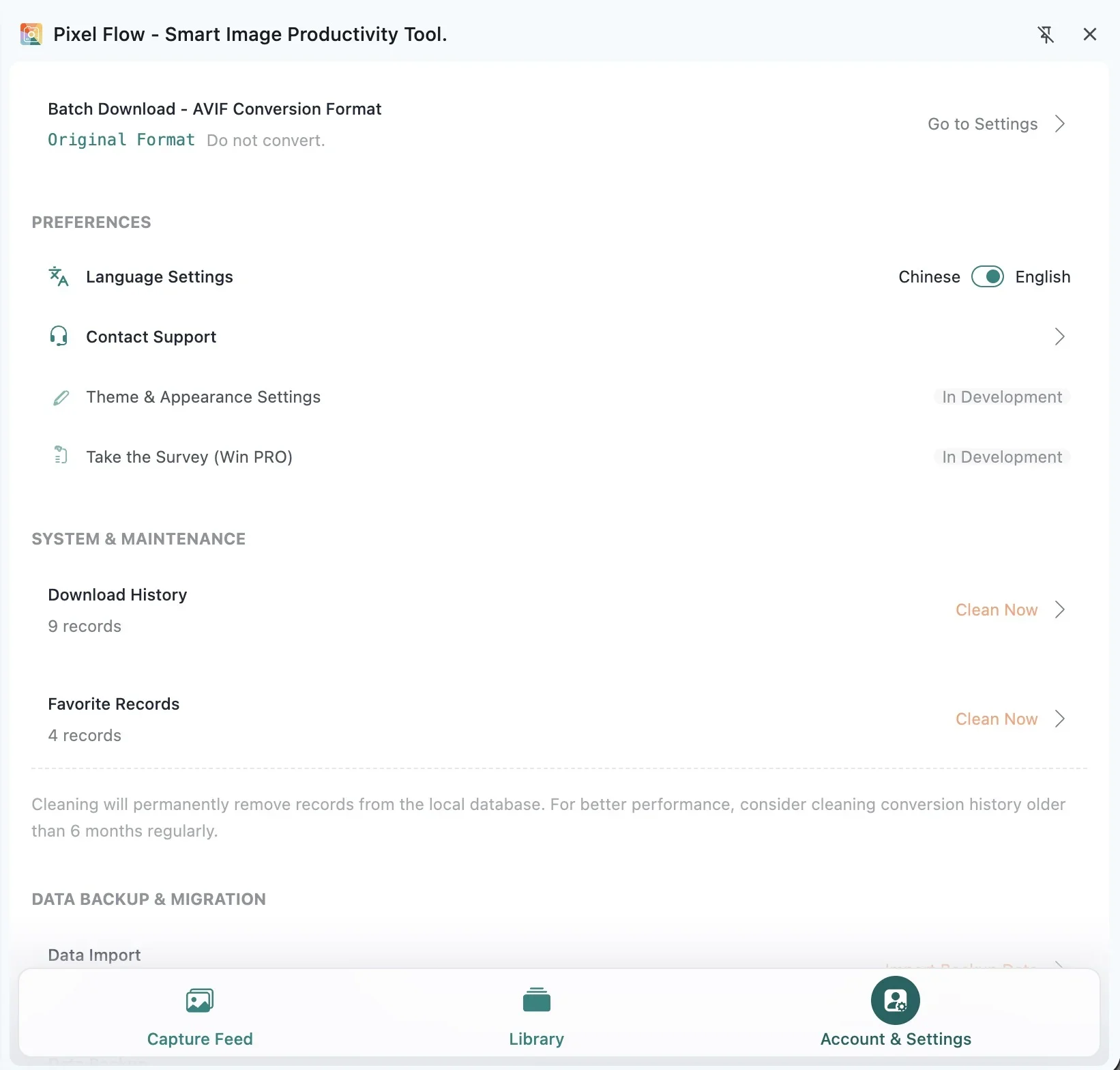
- Open the Pixel Flow side panel.
- Go to Account & Settings in the bottom navigation.
- Find the Preferences section.
- In the Language Settings row, choose Chinese or English.
- After switching, the settings page and most open Pixel Flow surfaces update right away.
What Is the Extension’s Default Language?
The first time you use Pixel Flow, it checks your browser interface language:
- If your browser interface language is Chinese, Pixel Flow defaults to Chinese.
- In other cases, Pixel Flow defaults to English.
After you change the language manually, Pixel Flow remembers your choice. The next time you open the side panel, it uses the language you selected last.
What Changes After Switching
After you switch languages, you will see the new language in places such as:
- Navigation, buttons, setting names, and descriptions in the side panel.
- Dialogs, prompts, and confirmation buttons in settings.
- Pixel Flow text shown in image preview pages.
- Pixel Flow overlays and some prompts shown on web pages.
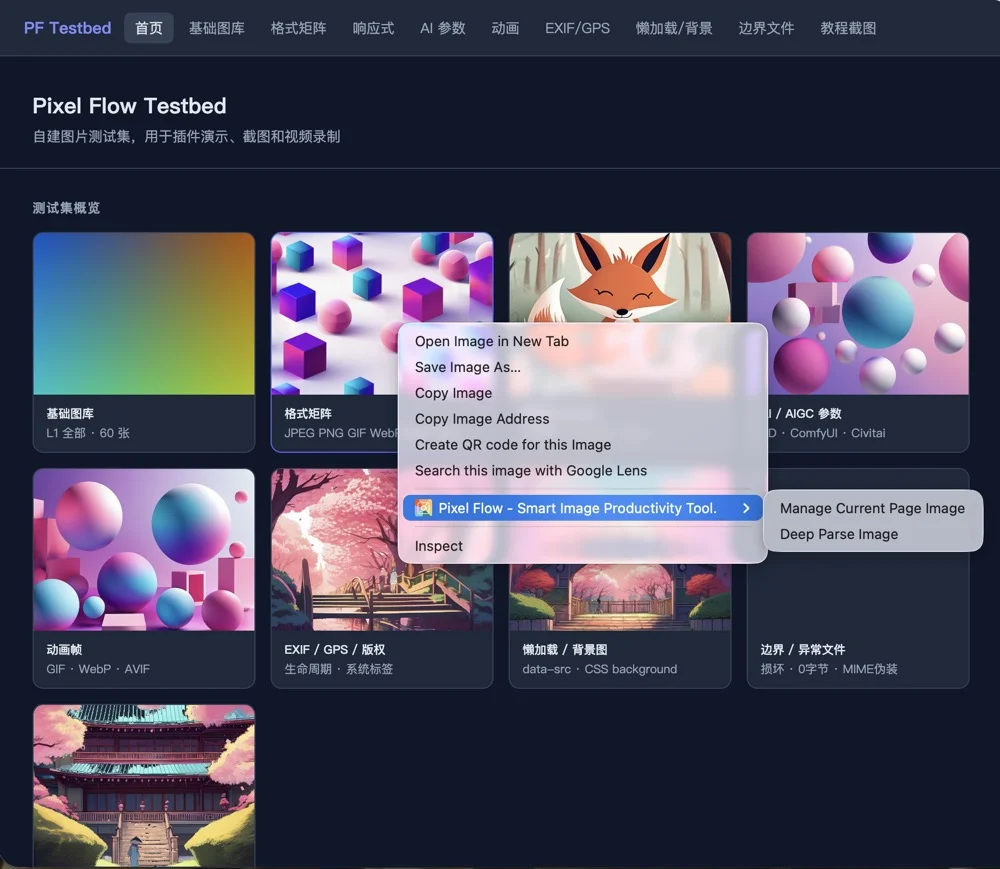
- Pixel Flow items in the browser context menu.
What Does Not Change
Language Settings do not change your content or account state:
- They do not translate the current web page.
- They do not detect or translate text inside images.
- They do not modify image source URLs, favorite records, download history, or backup data.
- They do not translate tag names you created yourself.
- They do not change filename rules, export content scope, or download format settings.
- They do not change your signed-in account, PRO access, order terms, payment currency, or region.
In short, this is an interface language preference, not an account region setting.
If Some Text Does Not Update Immediately
A few already-open pages, context menus, or browser system prompts may not refresh the instant you switch languages. You can try:
- Close and reopen the Pixel Flow side panel.
- Refresh the current web page.
- Reopen the image preview page.
- If the text comes from the browser, operating system, or a third-party website, it follows that software or website’s own language settings.
Usage Tip
Before you report an issue, record a workflow, or share screenshots, switch Pixel Flow to the language you plan to use in the explanation. This makes it easier for the other person to match your screenshot with the button and setting names on their side.
If your team uses both Chinese and English interfaces, agree separately on tag names and filename conventions. Pixel Flow does not automatically translate tags you created, and switching the interface language will not rename files you already downloaded.
Frequently Asked Questions
Do I need to sign in to switch languages?
No. Language Settings are an extension preference and do not require sign-in.
Will switching languages affect my PRO access?
No. Your PRO status, expiration time, purchase records, and reward records do not change when you switch languages.
Will Pixel Flow translate tags I created?
No. Tags are your saved data, so Pixel Flow keeps the original text.
Will switching languages change downloaded files?
No. Files already downloaded to your computer are not renamed. Future filenames still follow your filename format settings.
Why is some text still not in the language I selected?
Some prompts come from the browser, operating system, or third-party websites and are not fully controlled by Pixel Flow. If Pixel Flow’s own interface has not refreshed, reopen the side panel or refresh the current page.