
Docs
Pixel Flow user manual and best practices
Find scanning, filtering, image details, library, export, account, and industry workflow guidance by task.
Account and Settings
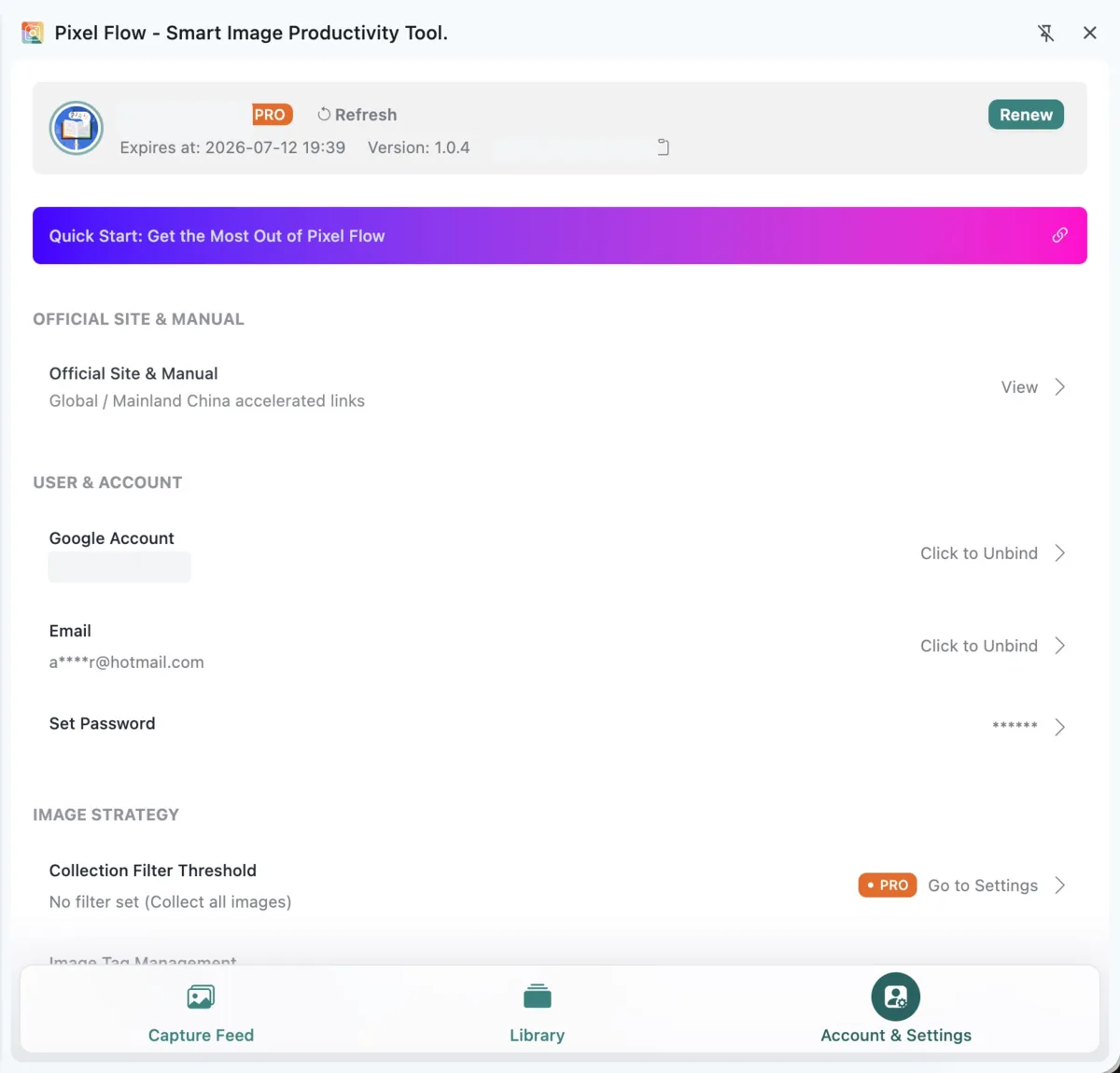
Account & Settings is the place where Pixel Flow manages your account, PRO status, and long-term workflow preferences. It is not where you run a one-time scan or download. Instead, it controls the rules Pixel Flow will use later, including login identity, PRO status, capture thresholds, tags, source records, filename format, WebP/AVIF conversion, language, support, data cleanup, backup, and import.
What You Can Manage
Account and PRO
The account area shows your current login identity, PRO status, expiration time, version, and invite code. It also provides entries for Google account, email, and password settings. Basic scanning, previewing, and simple filtering do not require login; favorites, tags, PRO access, account records, backup ownership checks, and some advanced download rules work best after you sign in.
Settings in Account & Settings are saved under the current account. In other words, the account you sign in with determines which preferences, tags, favorite records, and download records you see and use. If you switch to another account, Pixel Flow switches to that account’s data scope. When you are not signed in, Pixel Flow stores local data under a guest identity in the current browser. This is not the same as automatic cloud sync, so export a backup before changing devices or reinstalling.
If you just purchased, redeemed, or received PRO time, refresh your account status here first, then open View PRO Status and Records to check the record. A Free account usually stays signed in on 1 device at a time, while a PRO account can stay signed in on up to 3 devices. If you sign in on more devices than the limit allows, the device you have not used for the longest time will be signed out automatically.
Image Workflow Settings
Image workflow settings affect how Pixel Flow scans, organizes, downloads, and exports images later:
| Setting | What it affects | Default |
|---|---|---|
| Collection Filter Threshold | Affects scan results. Images below the minimum width or height will not enter the capture feed. | No filter set. Pixel Flow collects all recognizable images on the current tab page. |
| Image Tag Management | Adds custom tags to favorite images. When you export Excel, those tags are included with the image records. | Free users can add up to 6 custom tags. PRO users can add up to 60 custom tags. |
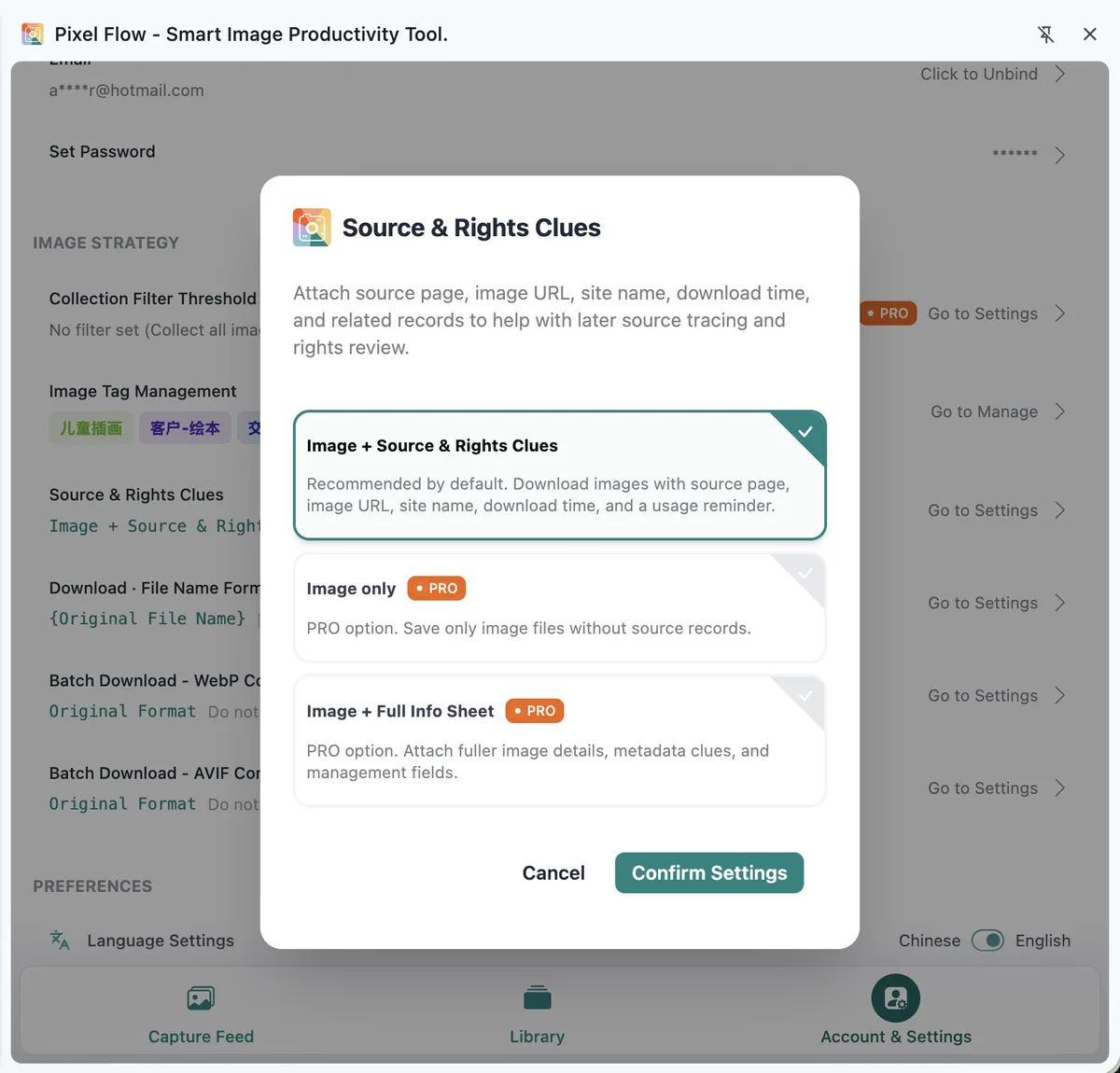
| Source and Rights Clue Records | Sets whether exports include a source and rights clue Excel file. The Excel file includes source page, image URL, site name, download time, and related fields. | Image + Source and Rights Clues |
| Download Filename Format | Affects how image files are named when you download one image or download in batch. | Original file name |
| WebP / AVIF Batch Conversion | During batch downloads, decides whether WebP and AVIF images keep their original format or are converted to PNG/JPEG before download. | Original format |
Preferences
Preferences include Language Settings and Contact Support.
Language Settings lets you switch the Pixel Flow interface language. Pixel Flow follows Chrome’s display language by default: when Chrome is in Chinese, Pixel Flow prefers Chinese; otherwise it prefers English. If you want to keep using one language, you can switch it manually in settings.
Language settings only change how Pixel Flow itself is displayed. They do not modify original webpage images, source website content, Chrome settings, or files already downloaded to your computer.
Contact Support is for account, download, analysis, or page compatibility issues. When something goes wrong, open the support entry here and add the details requested on the page.
System Data Maintenance
System data maintenance includes data cleanup, backup, and import. Much of Pixel Flow’s working data is stored locally in your browser. Before uninstalling the extension, reinstalling the browser, moving to a new device, or clearing records, read Data Safety, Backup, and Cleanup first, then use Data Backup and Import to export a backup package.
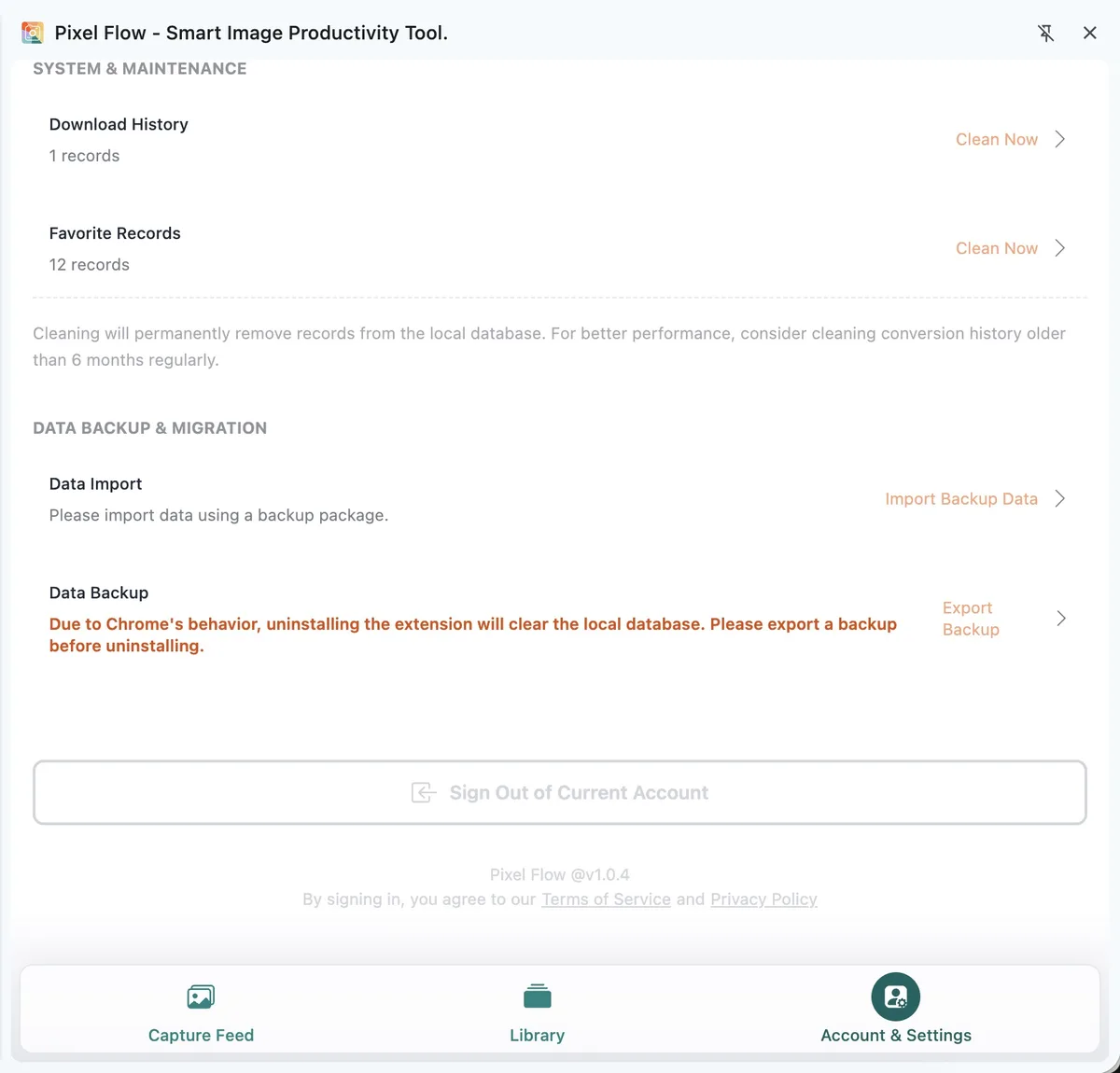
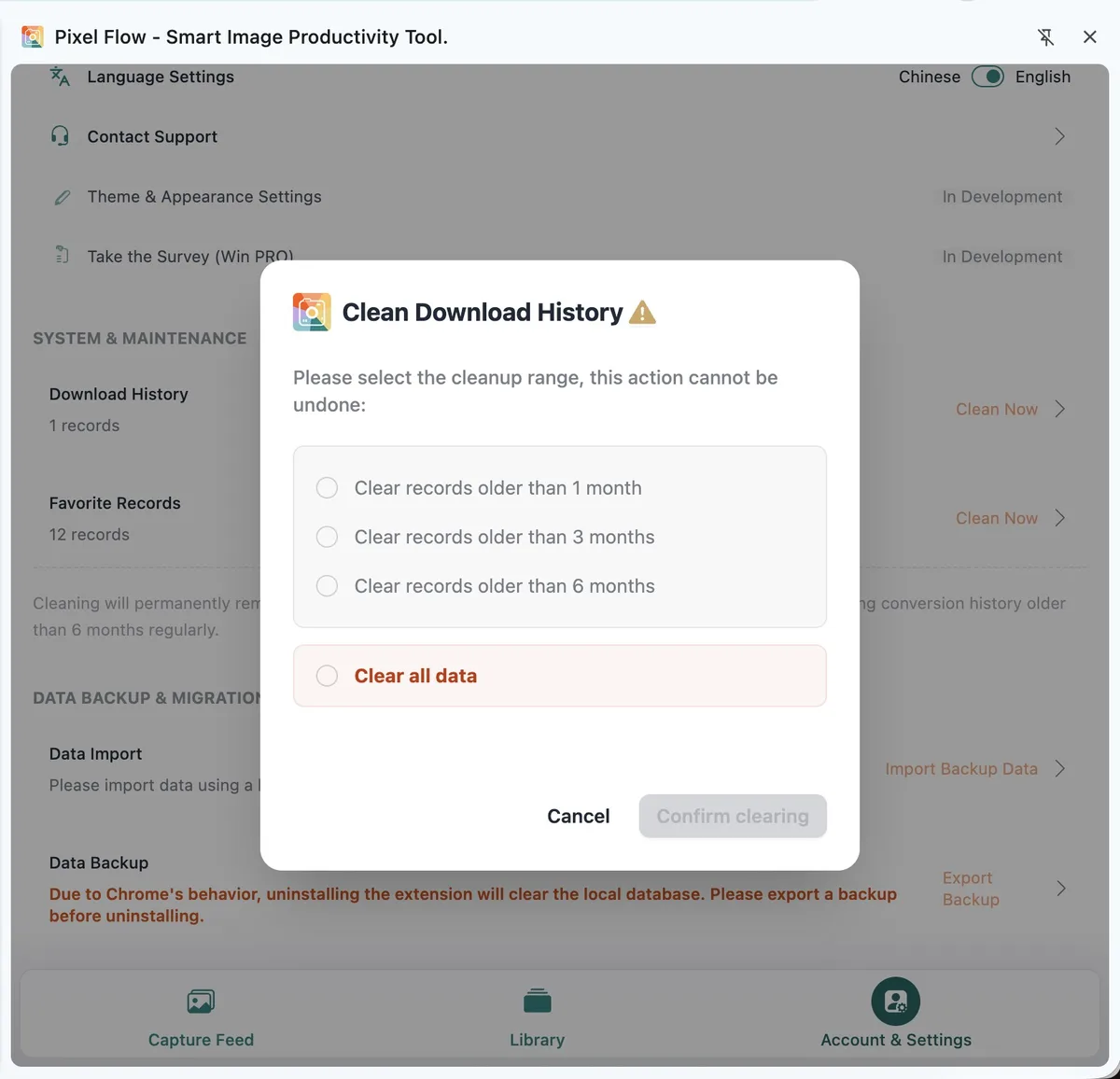
Data cleanup permanently deletes selected records from Pixel Flow’s local database. The current settings page mainly cleans Download History and Favorite Records. Cleanup ranges include records older than 1 month, 3 months, 6 months, or all data. Cleanup does not delete original image files that you already saved to your computer’s download folder.
Settings vs Feature Pages
Account & Settings configures long-term rules. Other pages perform specific tasks:
| What you want to do | Main page | Related setting |
|---|---|---|
| Scan images on the current webpage | Capture Feed | Collection Filter Threshold decides which images enter the capture feed |
| Favorite, tag, and organize assets | Library | Image Tag Management decides which tags are available |
| Download images and export records | Capture Feed / Library | Source records, filename format, and WebP/AVIF conversion affect download results |
| Review format, dimensions, AI fingerprint, AIGC parameters, and other clues | Image Details | PRO status affects some deeper analysis features |
| Keep data before changing devices or uninstalling | Account & Settings | Back up first, then clean up or import |
Default Settings
| Setting | Default | Note |
|---|---|---|
| Collection filter threshold | No filter set. Pixel Flow collects all recognizable images on the current tab page. | PRO can set minimum width and minimum height |
| Download included data | Image + Source and Rights Clues | Image only and Full Info Sheet are PRO options |
| Download filename format | Original file name | Other naming rules are PRO options |
| WebP batch download | Original format | PNG/JPEG conversion is a PRO option |
| AVIF batch download | Original format | PNG/JPEG conversion is a PRO option |
| Language | Follows Chrome’s display language | Can be switched manually between Chinese and English |
Where To Start
If you just installed Pixel Flow, start with Login Methods and View PRO Status and Records to check your current account, access status, and limits.
If you often organize images, start with Image Tag Management, Collection Filter Threshold, and Download Filename Format. These settings affect how you filter, name, favorite, and reuse assets later.
If you need team handoff, commercial review, or dataset pre-screening, start with Source and Rights Clue Records. Pixel Flow keeps source clues only. It does not provide image authorization, commercial-use permission, or legal conclusions.
Before uninstalling the extension, changing devices, reinstalling the browser, or clearing local records, read Data Backup and Import first, then decide whether to use Data Cleanup.
Pages
Account and PRO
- Login Methods
- Bind Google Account and Email
- Invite Code and Referral Rewards
- View PRO Status and Records
- Redeem PRO Access with a Redemption Code
Image Workflow Settings
- Collection Filter Threshold
- Image Tag Management
- Source and Rights Clue Records
- Download Filename Format
- WebP / AVIF Batch Conversion Settings
Preferences and Data Maintenance
Frequently Asked Questions
Does Account & Settings change original webpage images?
No. Settings only affect how Pixel Flow scans, displays, names, downloads, records, and cleans up data. They do not modify the original webpage, webpage images, or source website content.
Which settings affect scan results?
Collection Filter Threshold affects scan results. After you set a minimum width or minimum height, images below either threshold will not enter the capture feed. Filename format, source records, WebP/AVIF conversion, and language do not change which images are detected.
Which settings only affect downloads or exports?
Source and Rights Clue Records mainly affect the Excel information sheet inside download packages. Download Filename Format affects image filenames when you download one image or download in batch. WebP/AVIF Batch Conversion affects image format during batch downloads. These settings do not change images already saved in Library, and they do not modify images on source websites.
Can I use Account & Settings without signing in?
You can open the settings page and use some basic features. Favorites, tags, PRO access, account records, backup ownership checks, and some advanced download rules require login. If something appears locked, check whether you are signed in first, then review your PRO status.
Why are some settings locked?
Some features require login or PRO. Common PRO limits include higher tag limits, higher batch download limits, collection filter threshold, PRO filename formats, image-only or full-info download data options, and WebP/AVIF to PNG/JPEG conversion. The exact state depends on what your current settings page shows.
Do Account & Settings sync across devices?
Do not treat the settings page as a cloud sync center. Much of Pixel Flow’s working data is stored locally in the browser. Before changing devices, reinstalling the browser, or uninstalling the extension, export a backup package first, then import it in the new environment.
Does data cleanup delete image files from my computer?
No. Data cleanup deletes Pixel Flow local database records such as download history or favorite records. It does not delete original files that you already saved to your computer’s download folder. Cleanup cannot be directly restored from the settings page, so export a backup first when the records matter.