
Docs
Pixel Flow user manual and best practices
Find scanning, filtering, image details, library, export, account, and industry workflow guidance by task.
Manage Current Page Images
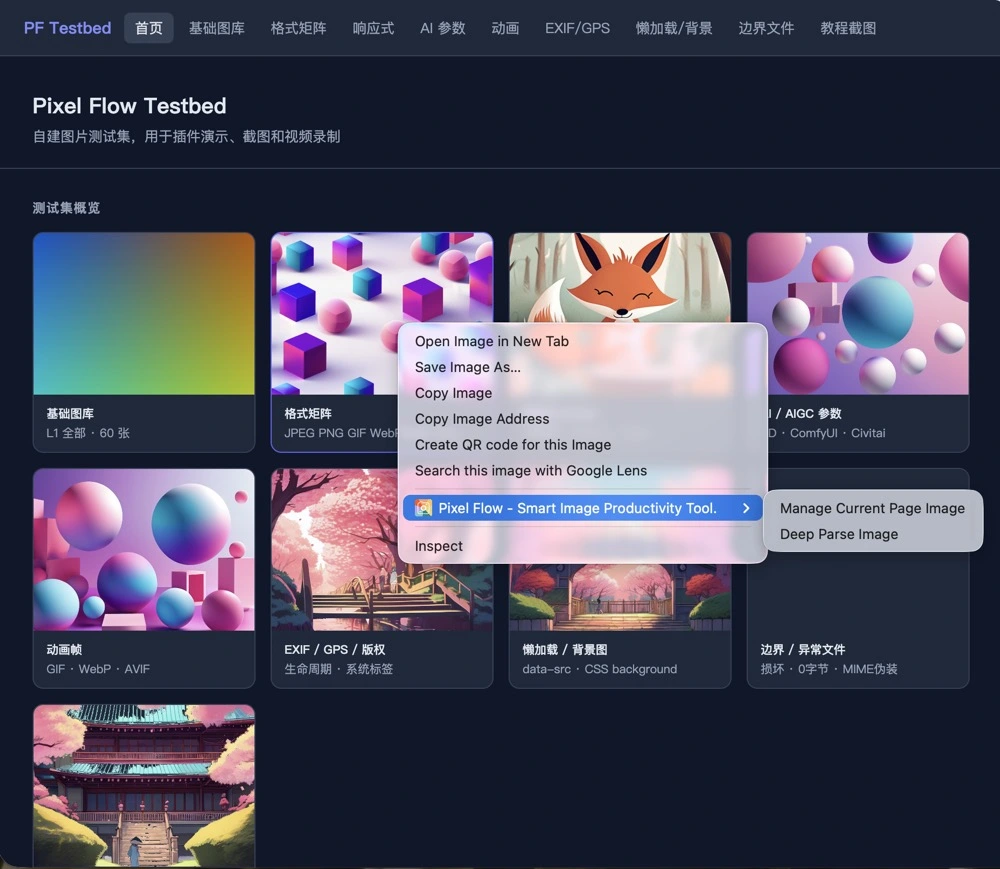
Manage Current Page Image is the page-level capture entry in the Pixel Flow context menu. After you choose it, Chrome opens the Pixel Flow side panel on the right, and the capture feed reads images that are already rendered on the current page. It then organizes those images into a list you can filter, preview, favorite, download, and export.
When To Use This
Use Manage Current Page Image when you want to work with all detectable images on the current page first. It is not the single-image deep-parse entry; it sends page images into the capture feed so you can filter and process them in bulk.
Common situations include:
- You want to see which images a page contains.
- You want to remove icons, tiny assets, unwanted formats, or images below a target size.
- You need to favorite, download, or export multiple images.
- A right-click deep parse did not identify one image, so you want to scan the whole page first and open details from the feed.
- You are collecting design references, archiving content images, checking ecommerce pages, reviewing competitor pages, or preparing source records before delivery.
If you already know that you only want to inspect the image under the pointer, use Deep Parse Current Image and review the result in Image Details.
How To Use It
- Open a webpage whose images you are allowed to access and handle.
- Right-click a blank area, page content area, or near an image.
- Choose Manage Current Page Image from the Chrome context menu.
- Wait for the Pixel Flow side panel to open on the right side of the browser.
- Review image cards, formats, dimensions, source types, and available actions in the capture feed.
- Continue with filtering, previewing, favoriting, downloading, or exporting to Excel.
This entry is very similar to clicking the Pixel Flow icon in the Chrome toolbar. Both open the side panel and start current-page image collection. The main difference is where you start: the context menu is faster when your pointer is already on the webpage, while the toolbar icon is faster when you prefer opening the extension from Chrome’s top bar.
What You See After It Opens
After the side panel opens, Pixel Flow enters the capture feed. The feed displays detectable images from the current page as image cards, with format, dimensions, source type, filters, and basic action controls. You do not need to click a separate scan button; collection starts when the side panel opens.
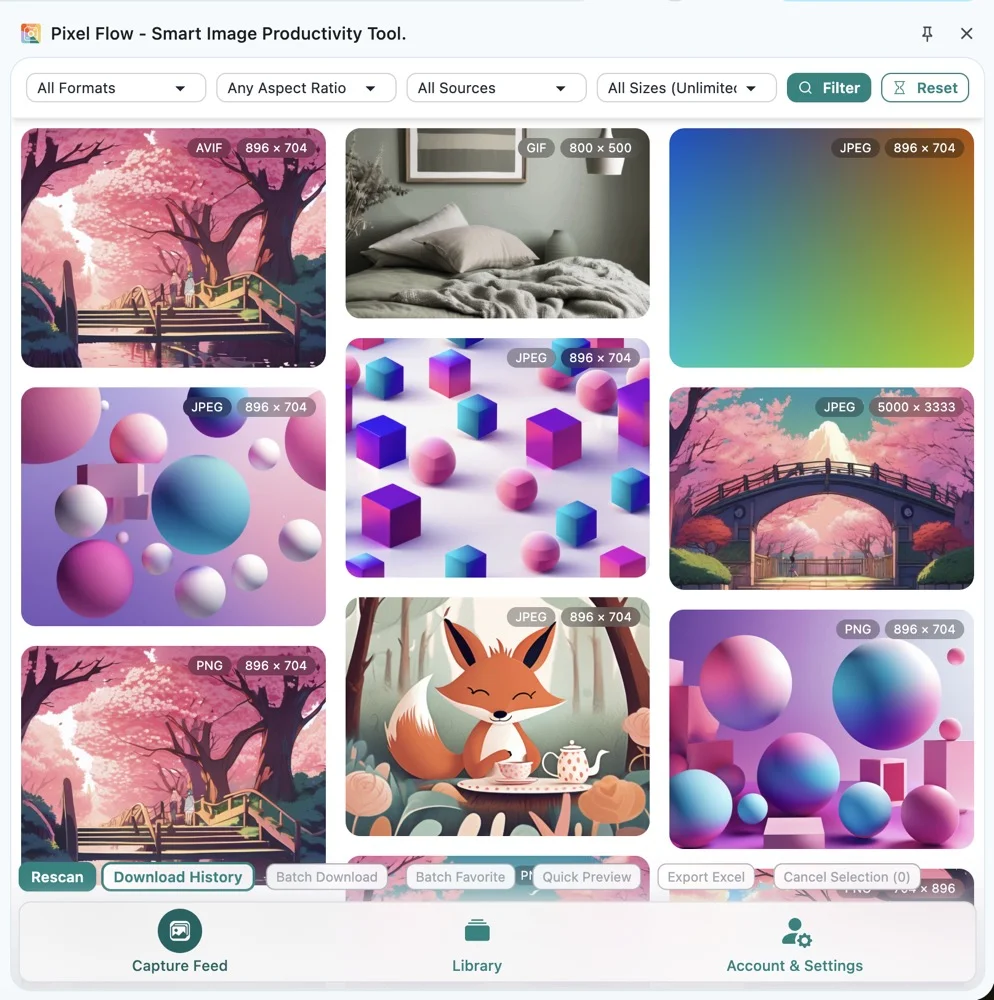
From the capture feed, you can:
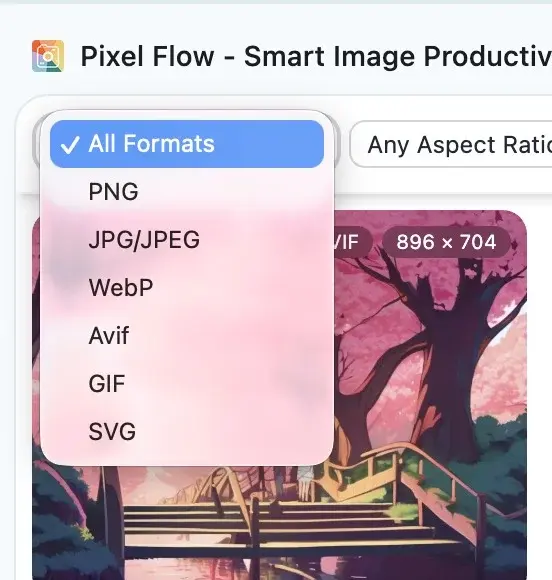
- Narrow results by format, aspect ratio, source type, and size.
- Open Image Details to inspect URL, dimensions, format, source clues, and available metadata.
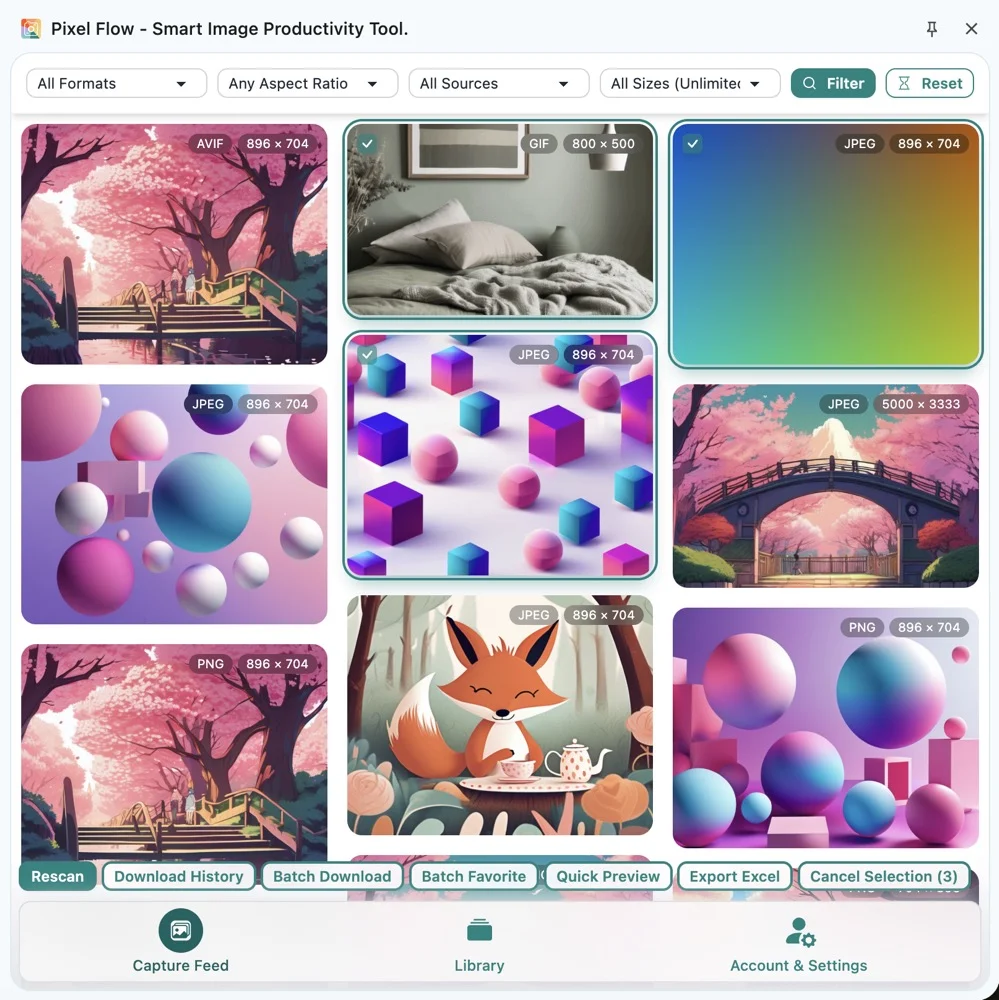
- Select multiple images for batch favoriting, batch downloading, quick preview, or Excel export.
- Use rescan when the page content changes and the feed needs to sync with the current page.
What Images It Can Detect
Pixel Flow tries to read image resources that are already rendered on the current page and accessible to a browser extension. Common detectable sources include:
- Standard
<img>images. - Responsive images from
pictureandsrcset. - CSS
background-imageassets. - Inline SVG or SVG referenced through image tags.
- Images that render after scrolling, expanding sections, or lazy loading.
Many sites load images only after you scroll. Scroll normally; newly rendered images usually join the capture feed automatically. Use rescan only when the page has visibly changed and the feed has not synced.
Notes
- This entry is for full-page image management, not single-image deep parsing.
- Images must be rendered on the page; lazy-loaded images do not appear before they load.
- Images inside cross-origin iframes usually cannot be read directly.
- Canvas-rendered visuals are not normal image nodes and may not appear in the feed.
- Authentication, hotlink protection, temporary URLs, special request headers, or resource-protection rules may prevent access.
- If you configured a minimum width and height threshold in settings, smaller images may be filtered out during collection.
- Pixel Flow helps you preserve source and technical clues, but it does not grant reuse, commercial-use, training, or redistribution rights.
What To Do Next
After you enter the capture feed from Manage Current Page Image, typical next tasks include:
- Use filter by format, aspect ratio, source type, and resolution to reduce noise.
- Use quick preview to inspect multiple candidate images before downloading.
- Use batch favorite to save images you want to organize long term.
- Use batch download to save multiple images at once.
- Use export Excel to keep a structured image inventory.
- Use rescan and missing-image troubleshooting for dynamic pages or incomplete results.
Related Pages
- Context Menu
- Capture page images
- Image Details
- Open the side panel and scan page images
- Filter by format, aspect ratio, source type, and resolution
- Batch download
- Export Excel
- Page images are not entering the capture feed
FAQ
Q: Is Manage Current Page Image different from clicking the toolbar icon?
The result is mostly the same: both open the Pixel Flow side panel and start collecting images from the current page. The context menu is convenient when you are already working inside page content; the toolbar icon is convenient when you prefer opening the extension from Chrome’s top bar.
Q: Why are some images missing after I use the context menu?
Common reasons include images that have not rendered yet, images inside cross-origin iframes, Canvas-rendered visuals, resources restricted by login or hotlink protection, or images filtered out by the minimum width and height threshold in settings. Scroll to the relevant area first, then use rescan if needed. If the image is still missing, continue with Page images are not entering the capture feed.
Q: Does this entry download images automatically?
No. It opens the side panel and organizes detectable images from the current page. Downloading, favoriting, exporting, or opening details requires a separate action from the capture feed.
Q: Will new images appear after I scroll?
Usually yes. Many webpages use lazy loading, so images render only when you scroll near them. Pixel Flow watches page changes, and newly rendered images usually join the capture feed automatically. If results do not update, use rescan.
Q: Does this feature require login or PRO?
Basic opening, collection, and page-image viewing are available to all users. Some batch features, advanced analysis, quotas, or PRO-only features may show a locked state, upgrade prompt, or quota message depending on your account state.