
Docs
Pixel Flow user manual and best practices
Find scanning, filtering, image details, library, export, account, and industry workflow guidance by task.
Organize Favorite Images With Tags
When you need to keep web images for the long term, the hard part is usually not whether an image can be favorited. It is whether those images can later be organized by project, use case, status, and source, then quickly found again when you need them. Image Tag Management is built for that scenario: you can add project, use case, status, source, and other tags to favorite images, so images are not only saved, but also organized and searchable through tag filters.
Tags are best for lightweight classification and later filtering. They are not a place for long notes, license files, or approval records. Tags do not change the original image, and they do not prove that you own copyright or commercial usage rights; they simply help you keep your saved images clearer.

Create Tags First
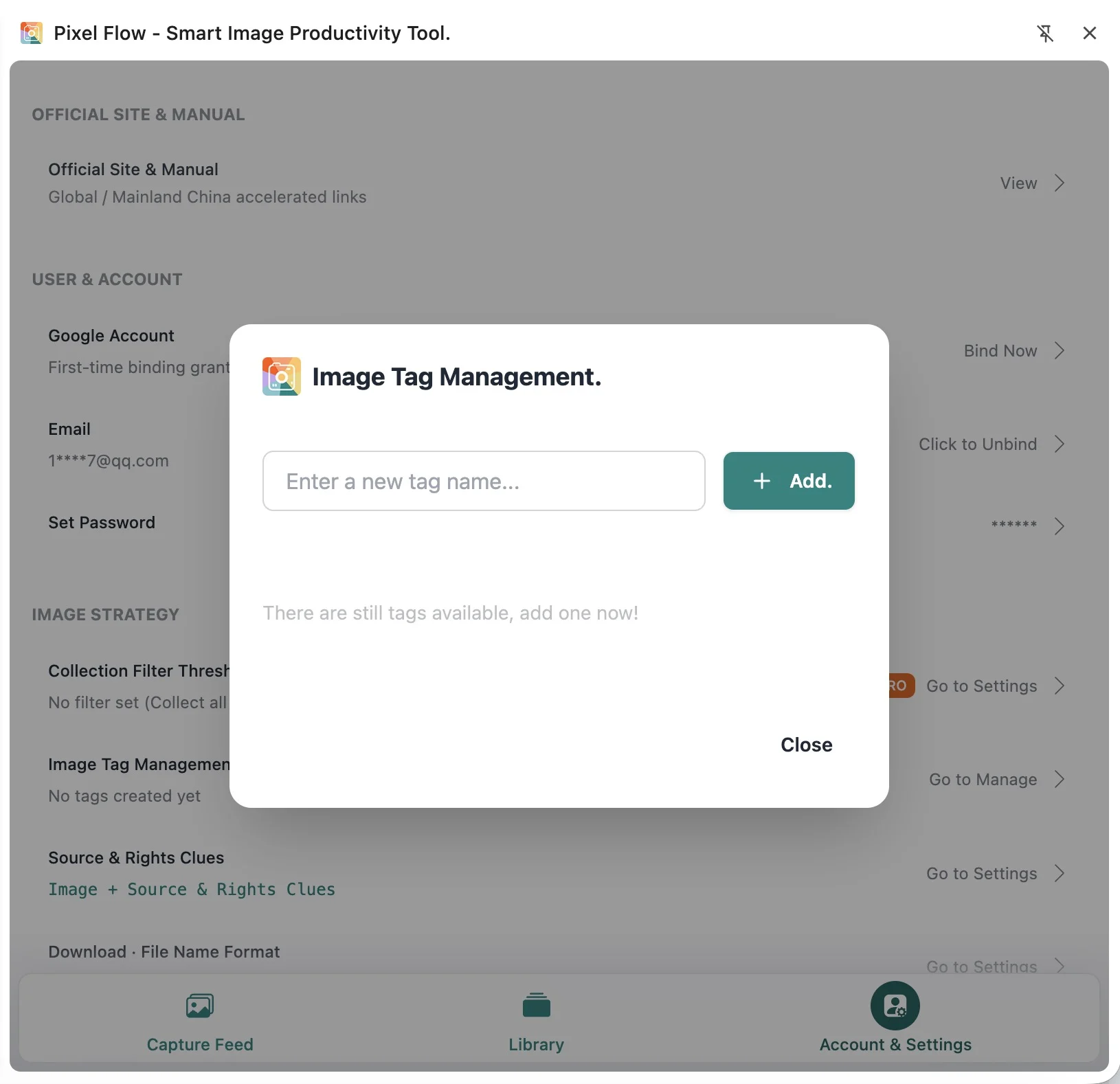
Image Tag Management in the settings page is where you create and maintain tags. To actually tag an image, go back to the Library, open a favorite image detail page, or use the batch add tags action in the Library.
The tag management and image tagging flow is:
- Open the Pixel Flow side panel.
- Go to Account & Settings from the bottom navigation.
- Find Image Tag Management, then click Manage.
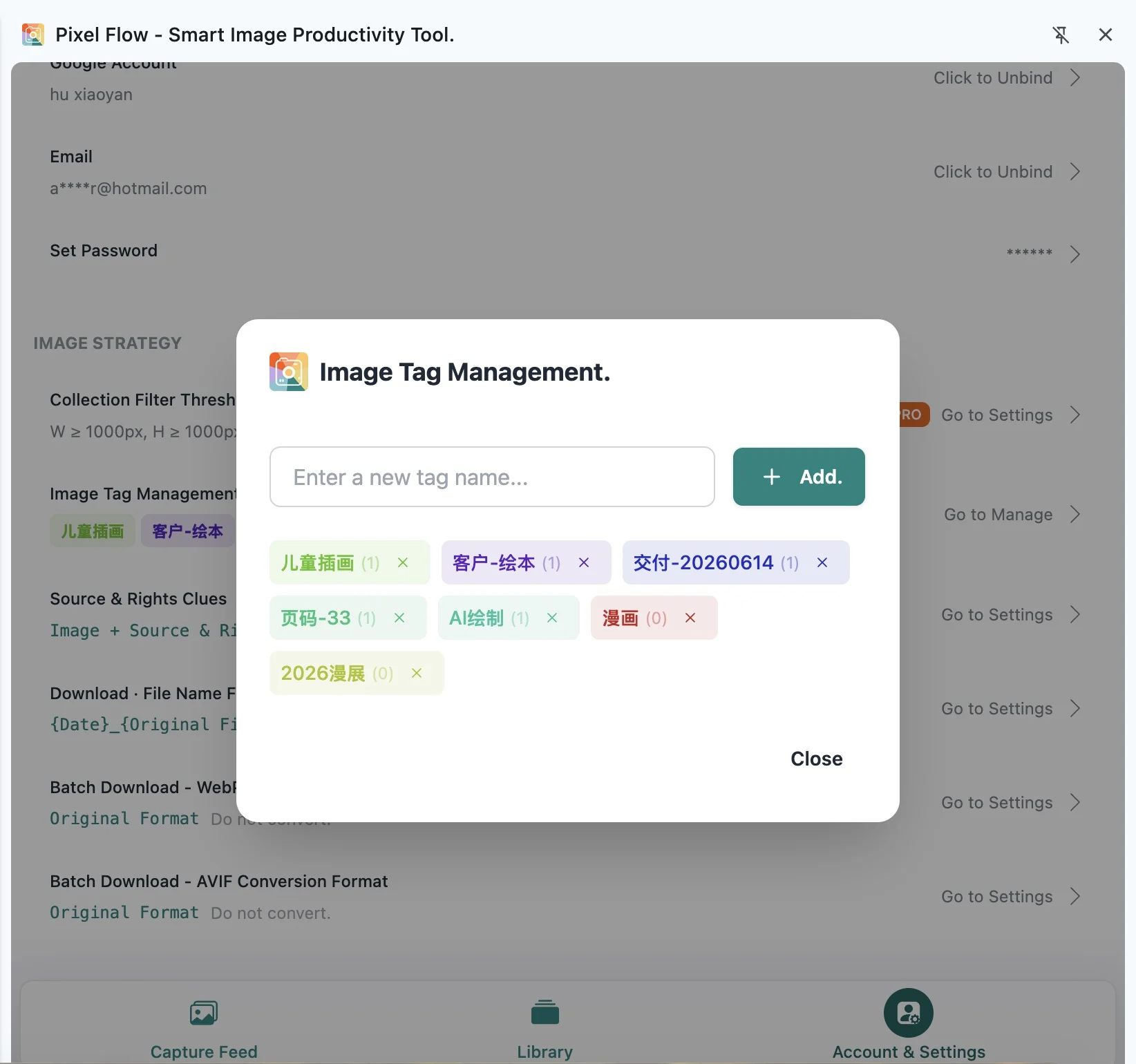
- Enter a tag name with 1-20 characters.
- Click Add.
- Return to the Library and choose those tags from an image detail page or a batch action.
If you are not signed in yet, clicking the tag management entry will take you to the sign-in page first. Tags, favorite images, and backup ownership are tied to the current signed-in identity, so it is worth confirming that you are using the right account before organizing your library.
Tag Limits
| Item | Free | PRO |
|---|---|---|
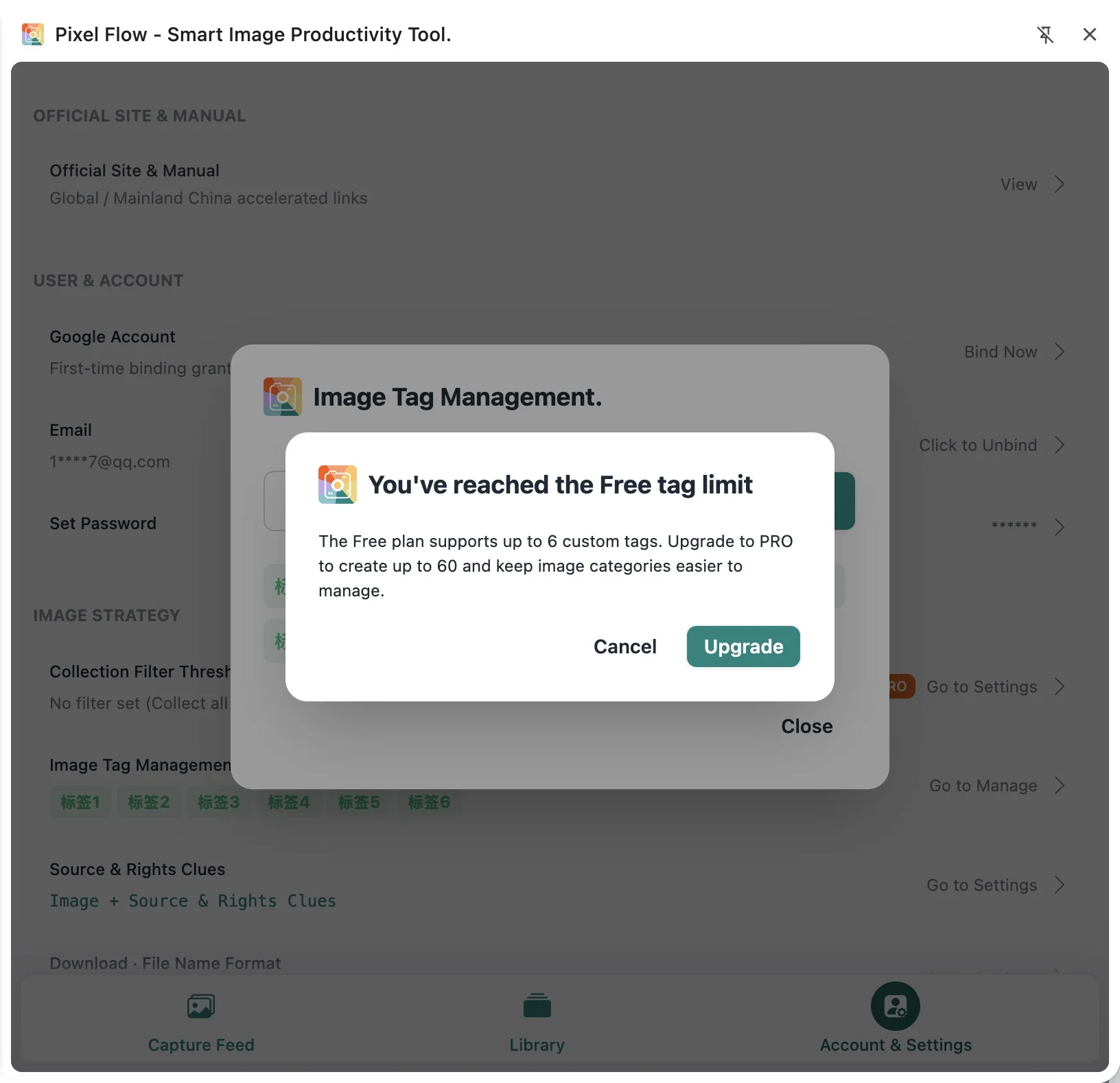
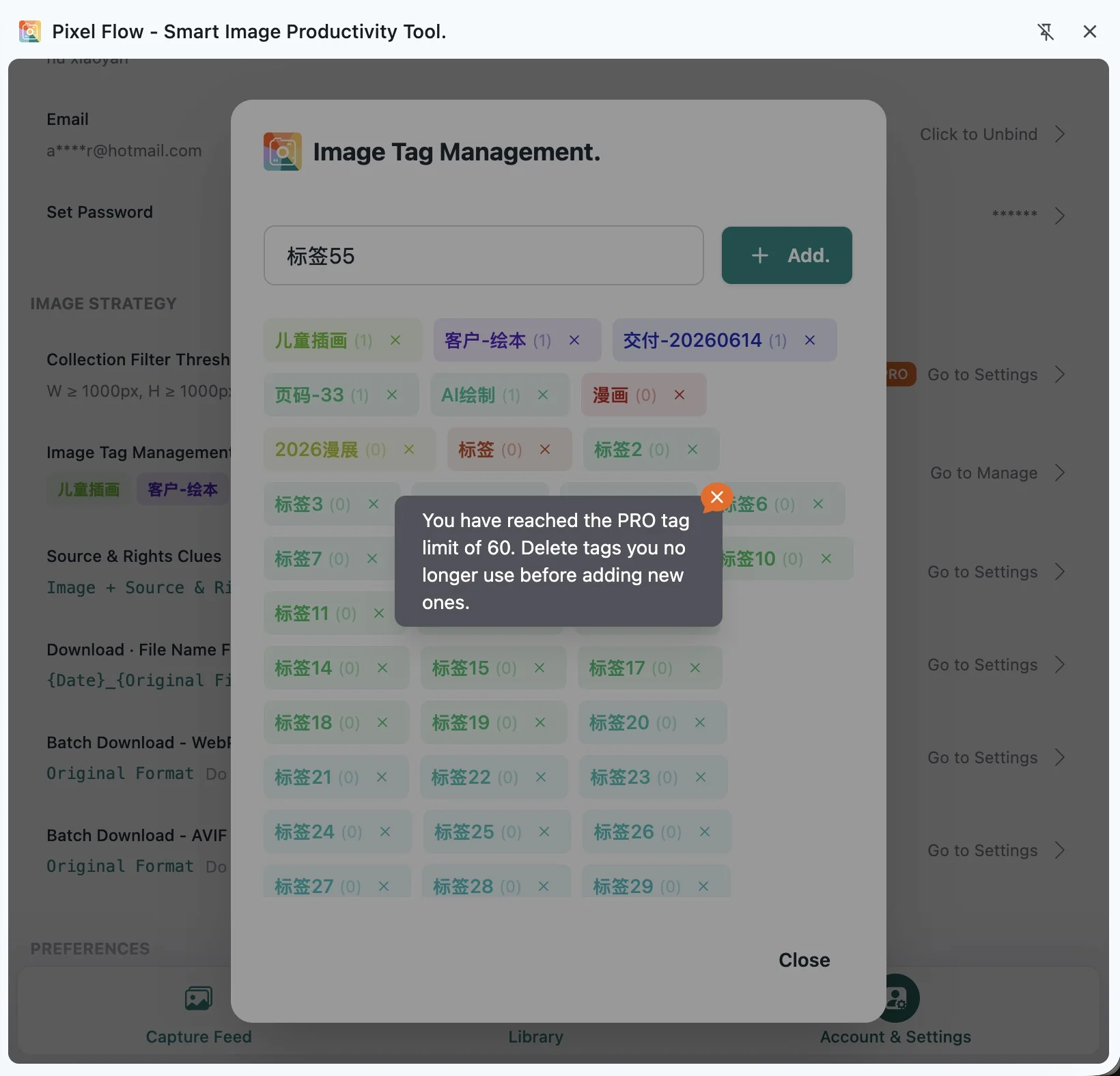
| Custom tags you can create | Up to 6 | Up to 60 |
| Tags on one favorite image | Up to 6 | Up to 6 |
| Tag name length | 1-20 characters | 1-20 characters |
Tag names cannot duplicate existing tags. When a Free account reaches 6 tags, adding another tag opens an upgrade guide. When a PRO account reaches 60 tags, you need to delete tags you no longer use before adding new ones.
Tag One Image
Custom tags apply to images that have already been saved to the Library. Images in the capture feed are temporary scan results, so you need to favorite them first before using custom tags for long-term organization.
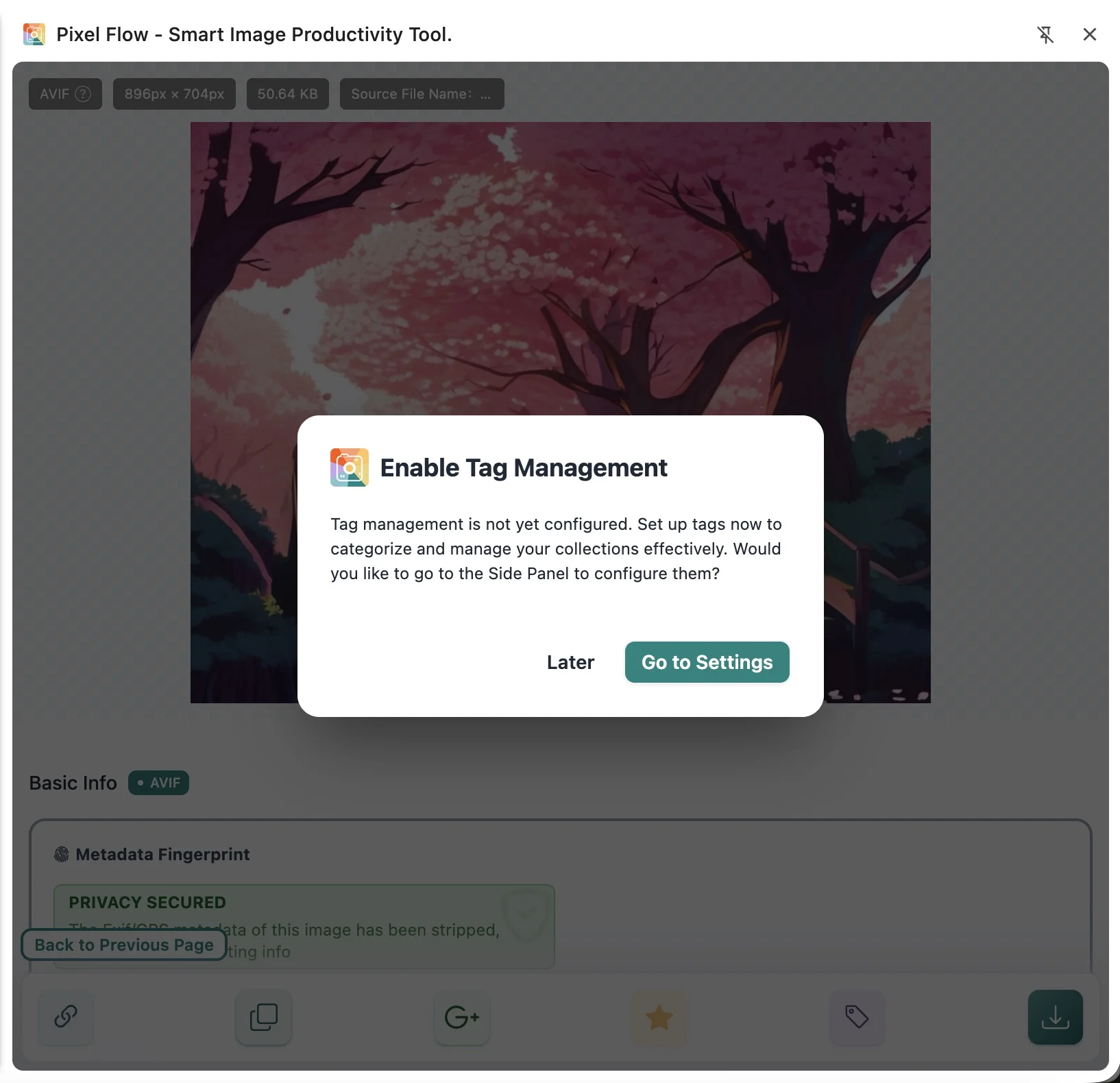
When you click to set tags from a favorite image detail page, Pixel Flow will guide you to create tags first if you do not have any tags yet. After creating tags, return to the image detail page, select the tags you need, and confirm.
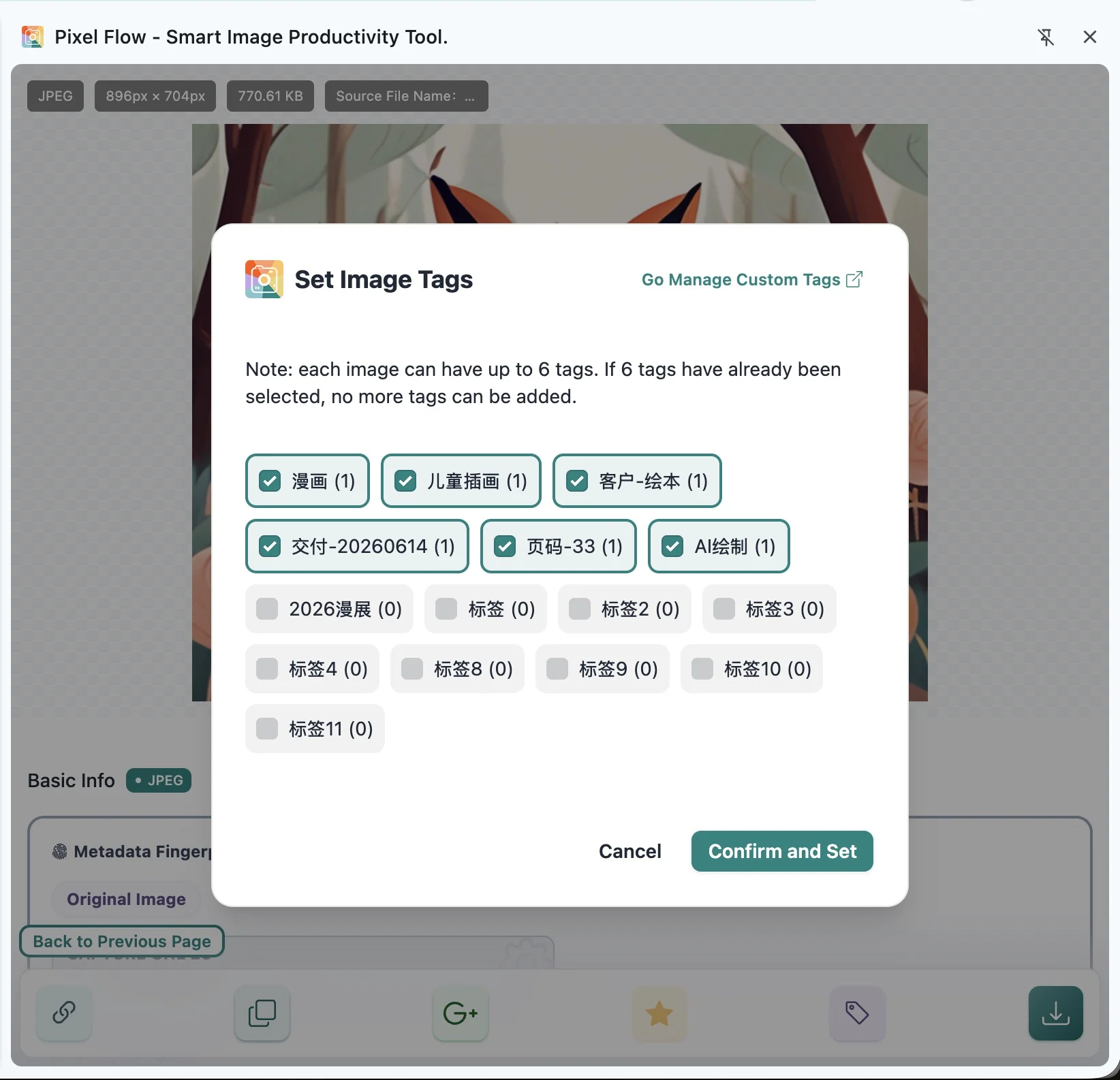
One favorite image can have up to 6 tags at the same time. When 6 tags are already selected, other unselected tags cannot be selected for the moment. If you unselect one selected tag, the other tags become selectable again.
If you delete a tag from Image Tag Management in the settings page, favorite images that use that tag will also lose that tag. For example, if an image had 6 tags and you delete 1 of those tags, that image will go from 6 tags to 5 tags. The next time you open tag settings for that image, you can add 1 new tag again.
Batch Add Tags
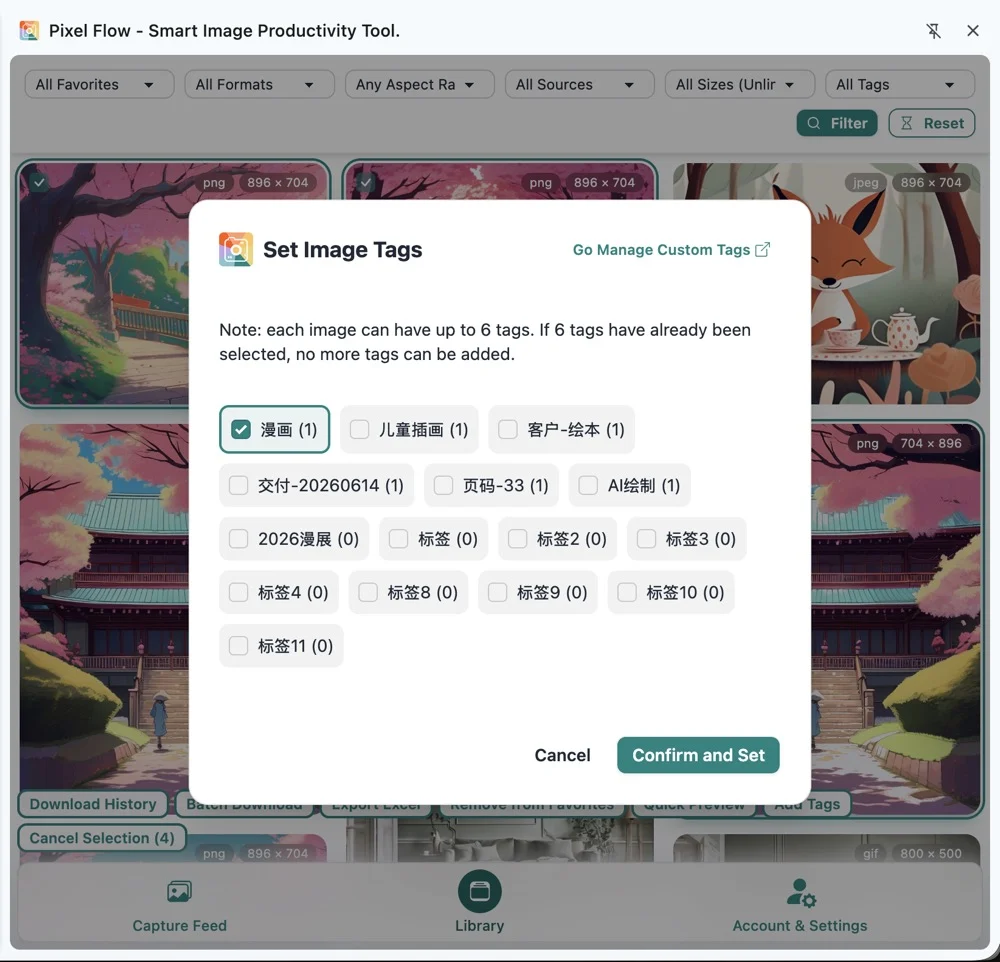
If multiple images belong to the same project, reference set, or processing status, select them in the Library and batch add tags. Batch adding keeps each image’s existing tags as much as possible, then adds the newly selected tags.
One image still cannot exceed 6 tags. During a batch action, if an image has already reached the limit, the batch action will not bypass that limit.
For example, suppose an image already has 4 tags, and you select 3 new tags during batch add. Pixel Flow keeps the original 4 tags and adds 2 of the new tags up to the 6-tag limit. The remaining 1 new tag is not added to that image.
Filter the Library by Tags
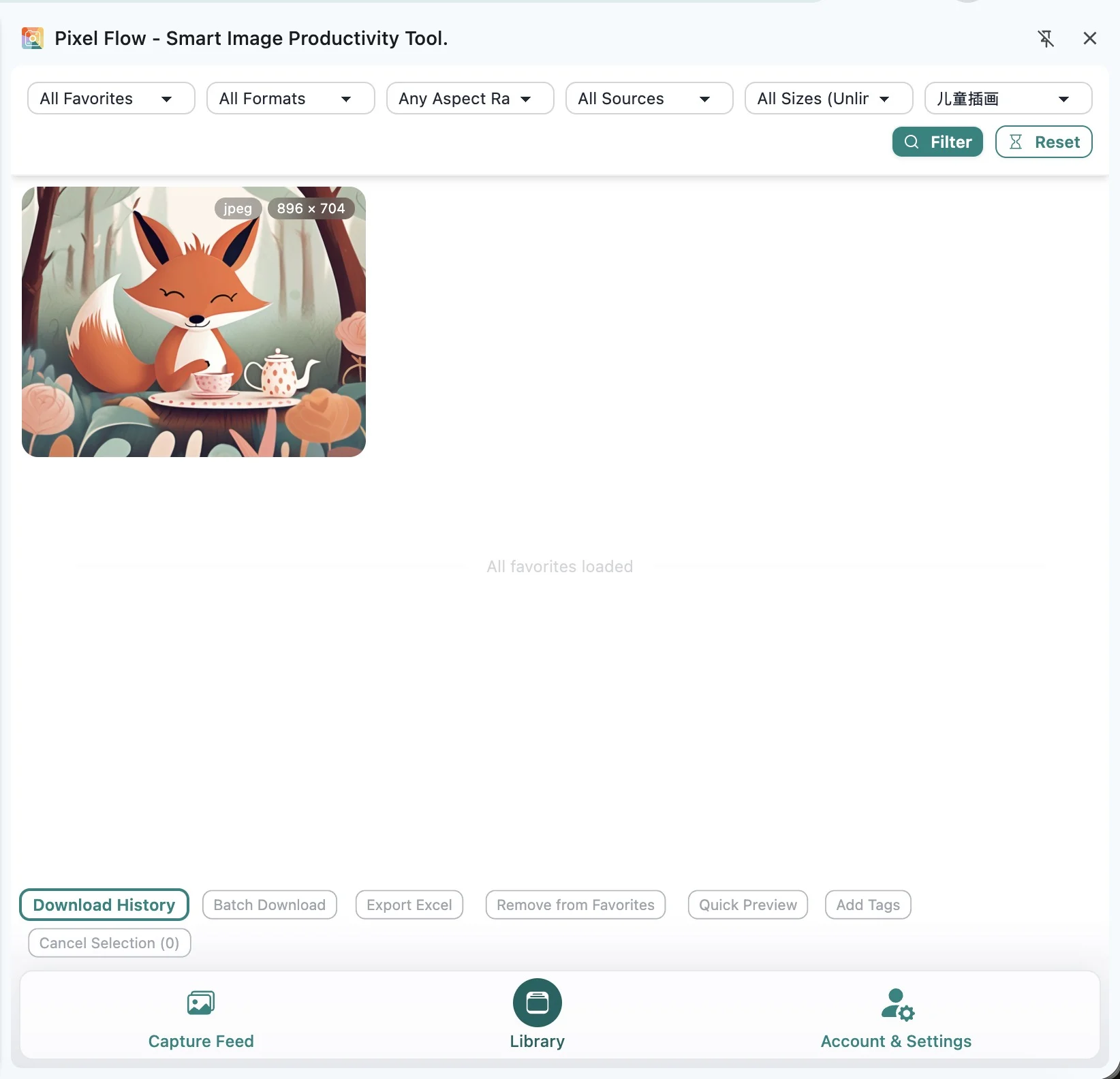
After tags are created and added to favorite images, you can use them to filter the Library. For example, if you tag images as “Project A”, “Needs review”, or “Source confirmed”, you can select the corresponding tag in the filter area to narrow the list.
Before Deleting a Tag
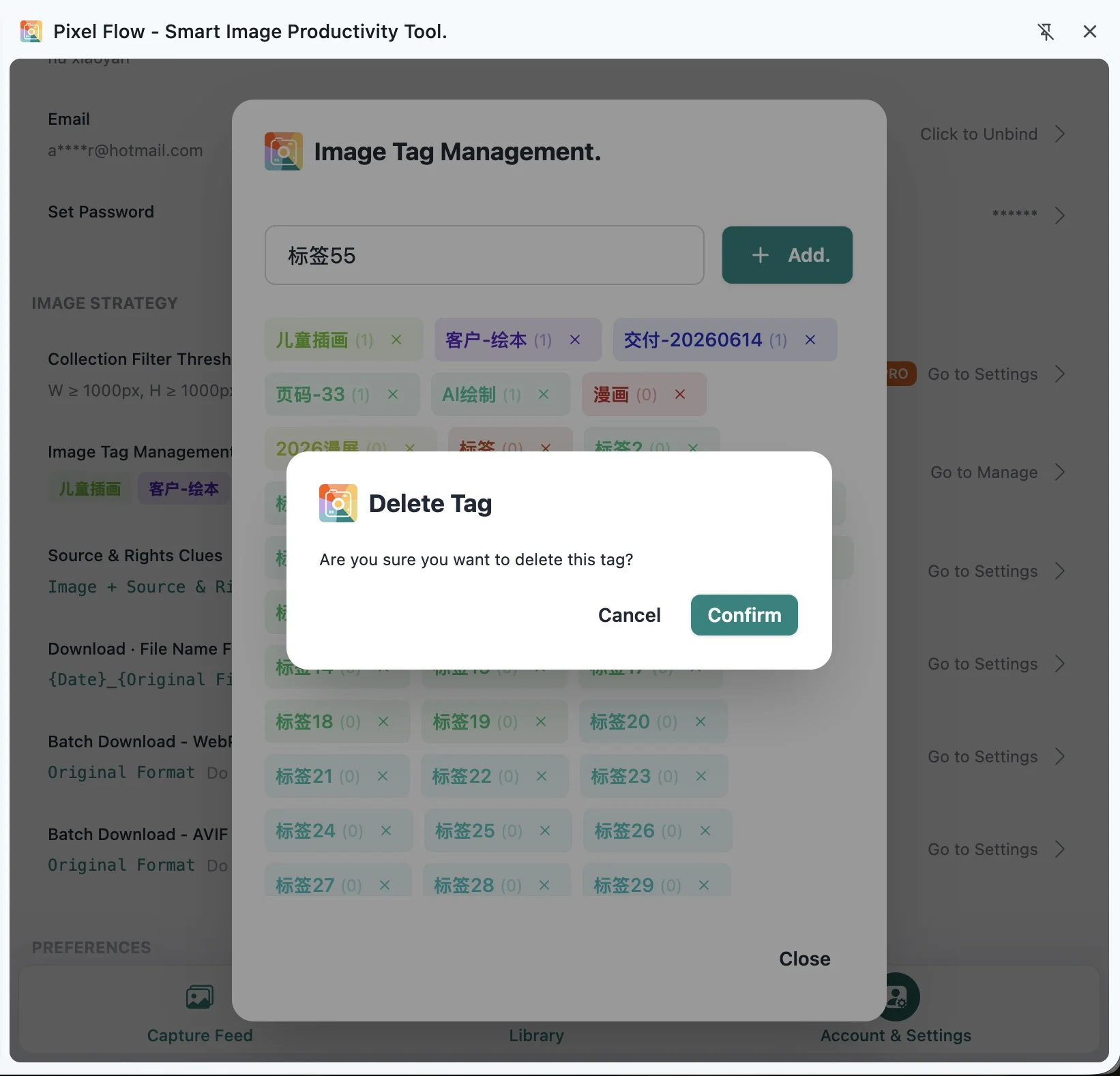
Deleting a tag opens a confirmation dialog first. After you confirm, the tag is removed from the tag list and also removed from favorite images that used it.
If an image already had the maximum of 6 tags, deleting 1 of those tags leaves the image with 5 tags. The next time you open tag settings for that image, you can add 1 new tag again.
Deleting a tag does not delete the image itself, and it does not delete files you have already downloaded to your computer. It affects the tag definition in Pixel Flow, the tag bindings on favorite images, and the tag usage count.
Naming Tips
Use short, stable category names for tags. For example:
- Project or client:
618-campaign,client-a - Use case:
cover-candidate,product-main - Status:
needs-review,source-confirmed - Workflow:
to-download,delivered - Source type:
brand-site,social-reference
Avoid putting long notes, license agreement details, or client approval comments into tags. Those belong in team documents, exported sheets, or rights records. Tags should stay focused on grouping and filtering.
Data and Backup Notes
Tag definitions and tag bindings on favorite images are stored in Pixel Flow local data and separated by the current user identity. Before switching devices, reinstalling the browser, or uninstalling the extension, use Data Backup & Import to export a backup package if you want to keep your Library and tags.
The backup package includes custom tags and the tag bindings on favorite images. Importing still follows the current account limits: Free accounts can keep up to 6 custom tags, so extra imported tags may be skipped if the backup contains more new tags than the current account allows.
Frequently Asked Questions
Do tags change the original image on the web page?
No. Tags are only stored in Pixel Flow’s Library data. They do not modify the source website image, and they do not modify image files you have already downloaded to your computer.
Why can’t I tag images directly in the capture feed?
The capture feed shows temporary scan results from the current web page. Custom tags are for long-term organization of favorite images in the Library, so you need to favorite an image first, then set tags from the Library or image detail page.
What happens to images that used a deleted tag?
That tag is removed from those images as well. If an image had 6 tags and you delete 1 of them, the image will have 5 tags left, and you can add 1 new tag later.
What does the number next to a tag mean?
It shows how many favorite images currently use that tag. The count updates as images are deleted, unfavorited, or as tags are removed.
Can a tag prove copyright or usage rights?
No. A tag such as “source-confirmed” or “needs-review” only represents your internal organization status. It cannot replace website terms, license files, portrait rights confirmation, trademark usage rules, or client approval.
Will tags disappear after PRO expires?
They do not automatically disappear just because PRO expires. However, when your account is no longer in PRO status, creating new tags is limited by the Free quota again. Existing tags and tags already added to images remain based on the actual local data state.