Docs
Pixel Flow user manual and best practices
Find scanning, filtering, image details, library, export, account, and industry workflow guidance by task.
Contact Support
If Pixel Flow runs into issues with image detection, downloads, sign-in, PRO access, backup import, or data recovery, use Contact Support in Account & Settings to find the support email and the recommended feedback details. Clear context helps support reproduce and resolve the issue faster.

When to Contact Support
Try the relevant troubleshooting page first. If the issue still happens consistently, contact support when:
- You can see images on the page, but Pixel Flow detects none or far fewer than expected.
- Image downloads fail, a download package is missing files, or download history looks incorrect.
- Sign-in, email binding, invitation codes, invitation rewards, or PRO records need manual review.
- PRO access does not refresh after payment, or the expiration time looks inconsistent.
- Backup import fails, or the restored library, tags, or download history are incomplete.
- You have already tried the FAQ steps, but the issue still reproduces.
Where to Open It
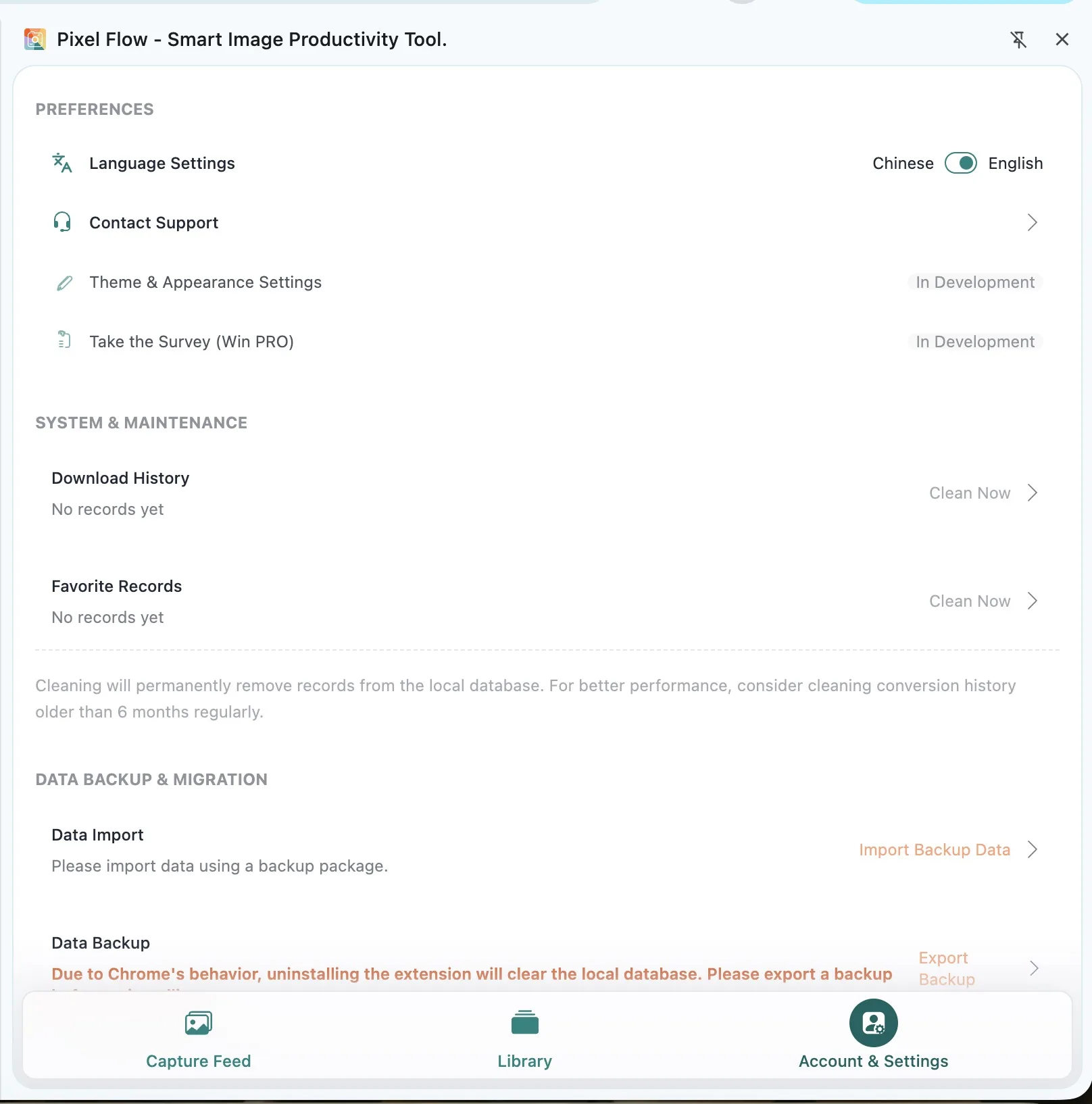
- Open Pixel Flow in the Chrome side panel.
- Go to Account & Settings.
- Find Contact Support.
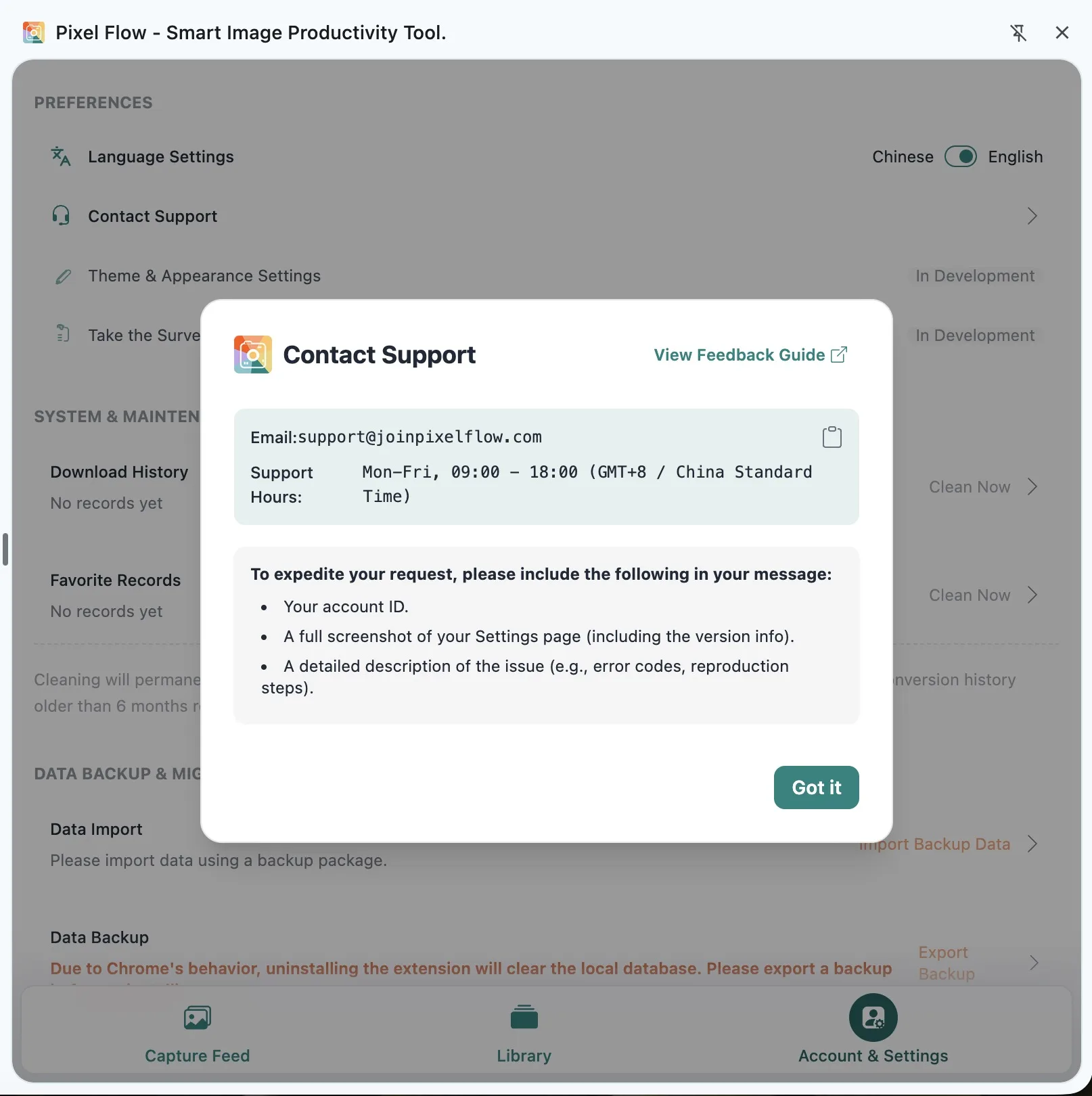
- Open the support dialog and copy the support email.
- Prepare your account information, a settings-page screenshot, and a clear issue description.
What to Include
To help support reproduce the issue, include these details in your email:
-
The current sign-in email, or the email address of your Google account.
-
A full screenshot of the Pixel Flow settings page, ideally including account status and version information.
-
The webpage URL where the issue happened.
-
The action you were taking, such as scanning, filtering, downloading, exporting, signing in, refreshing PRO status, or importing a backup.
-
The abnormal behavior, error message, or result you saw. A screenshot or screen recording is fine.
-
Chrome version, system version, and Pixel Flow version.
How to check your Chrome version: enter
chrome://settings/helpin the address bar and press Enter. The top of the page shows the current Chrome version. You can also click the three-dot menu in the upper-right corner of Chrome, then choose Help → About Google Chrome. The version appears on that page, and Chrome also checks for updates automatically. -
Whether the issue reproduces consistently, plus 2 to 5 short reproduction steps.
If the issue involves webpage images, first make sure you are allowed to access and process the images on that page. Then send the page URL, screenshots, and a short issue description.
What Not to Send
- Do not send passwords, email verification codes, sign-in codes, or full payment card details.
- Do not send unredacted customer data, internal pages, private images, or sensitive order information.
- If a screenshot includes an email address, order ID, invitation code, customer name, or internal business information, redact it before sending.
- Do not send a Pixel Flow backup package to any non-official support email address.
How to Describe Common Issues
Images Are Missing From Scan Results
Describe the page URL, how many images you can see, how many Pixel Flow detected, and whether you already tried rescanning or deep parsing from the context menu.
Download Results Look Wrong
Say whether the issue happened during single-image download, batch download, or library download. Attach a download-history screenshot and explain which files are missing from the package.
PRO Status Did Not Update
First return to Account & Settings and click refresh. If the status still does not update, include an account-status screenshot, the approximate payment or redemption time, and any order or record information that helps support verify the request. Redact unnecessary payment-sensitive details before sending.
Backup Import Failed
Explain where the backup package came from, whether the import account matches the backup owner, the failure message, and the steps you took. Do not modify files inside the backup package before importing it again.
Notes
- Contacting support does not change the original webpage, and it does not grant copyright or reuse permission for any image.
- Pixel Flow support mainly helps with extension behavior, account status, download records, local data, and issues on pages you are allowed to use.
- Third-party site limits, anti-bot behavior, login permissions, and image licensing still depend on the rules and permissions of the original website.
- The support email is support@joinpixelflow.com. Confirm the recipient before sending.
Related Pages
- Rescan and handle missing images
- Why some images are missing
- View PRO status and records
- Backup import
- Free limits