
Docs
Pixel Flow user manual and best practices
Find scanning, filtering, image details, library, export, account, and industry workflow guidance by task.
Context Menu
Pixel Flow’s context menu lets you start image work directly from the current webpage. Choose Manage Current Page Images to open the side panel and collect images from the current page, or choose Deep Parse Image on a specific image to inspect that image in detail.
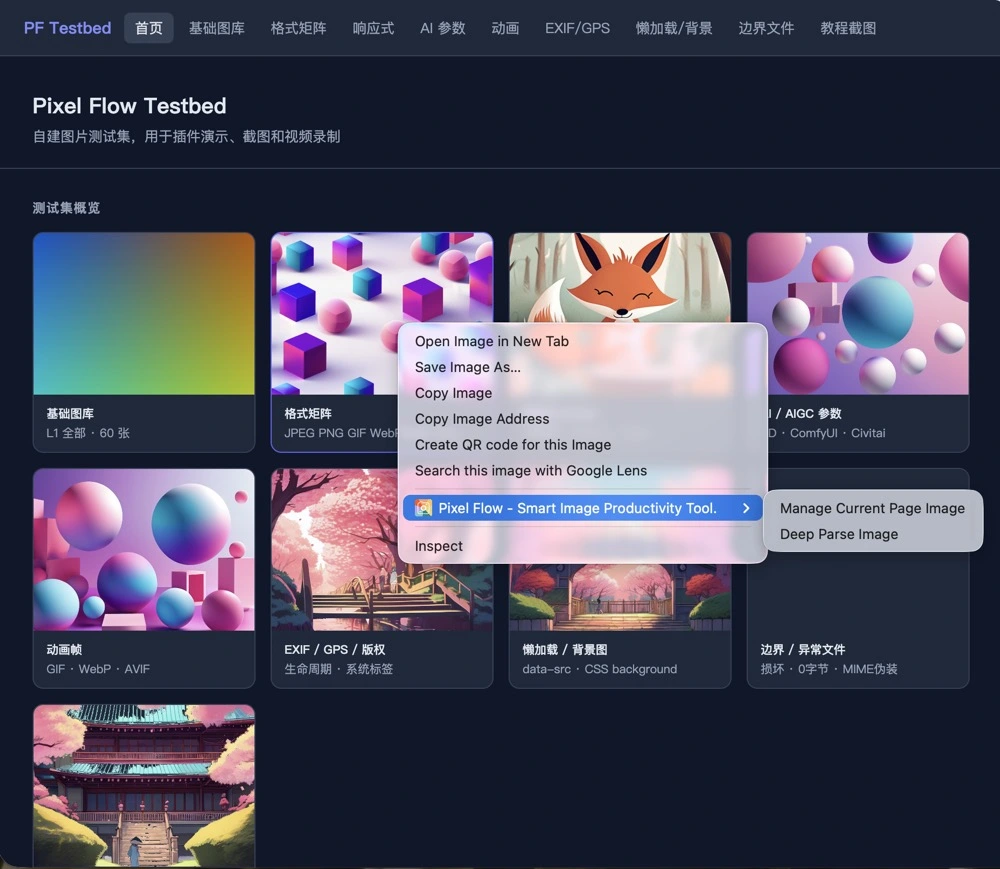
What Each Option Does
| Menu option | Where to right-click | Result | Best for |
|---|---|---|---|
| Manage Current Page Images | A page area, text area, blank area, or near an image | Opens the Chrome side panel and shows collected images from the current page | Filtering, favoriting, downloading, exporting, and organizing page images |
| Deep Parse Image | On the target image, or after the mouse has hovered over the target image | Opens image details in the side panel if it is already open; otherwise opens preview.html | Checking one image’s dimensions, format, source clues, EXIF, AI fingerprint, and AIGC parameter clues |
Choose Manage Current Page Image when you want to collect and compare many images from a page. Choose Deep Parse Image when you already know which image you want to inspect.
Manage Current Page Image
Manage Current Page Image is similar to clicking the Pixel Flow icon in the Chrome toolbar. It opens the right-side panel and lets the capture feed read images that are already rendered in the current tab. The feed then shows image cards with format, dimensions, source type, filters, and batch actions.
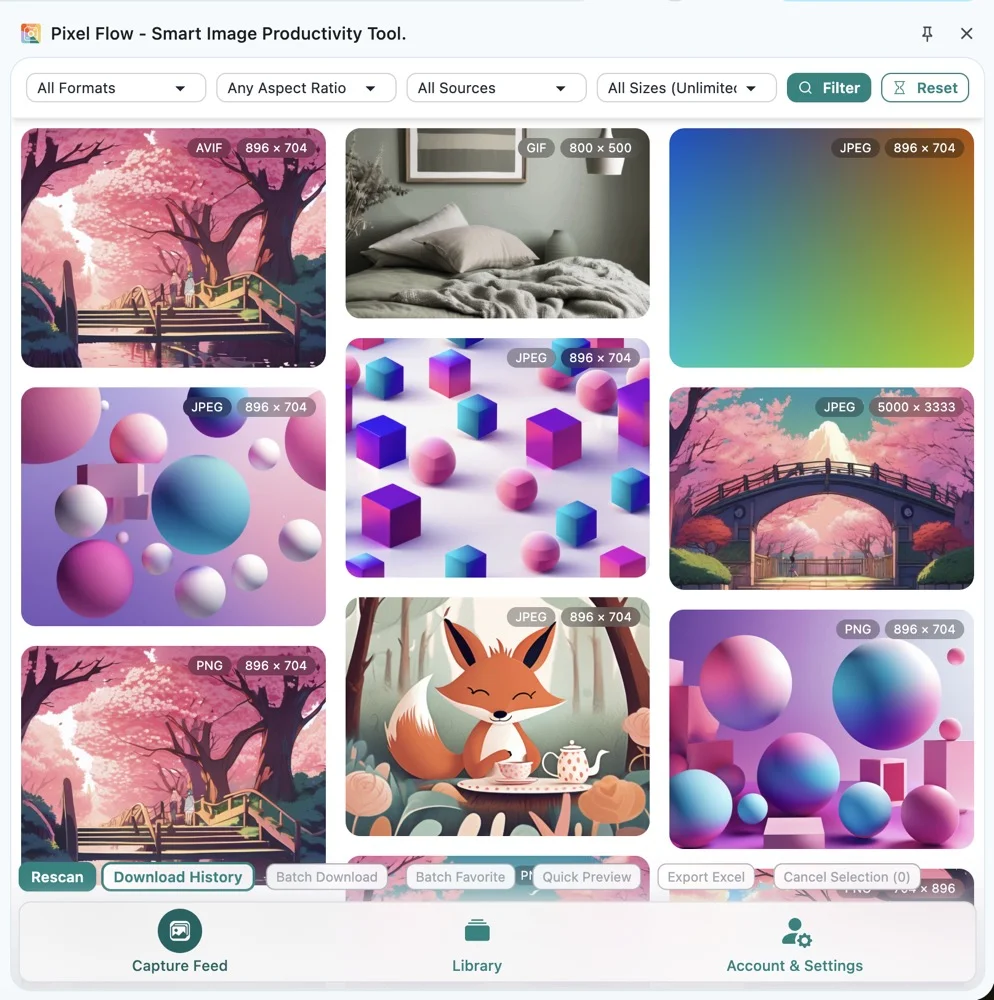
This option is for page-level work rather than the image under your pointer only. It is useful for design reference collection, ecommerce page checks, content-image archiving, competitor-page review, and source-record preparation before delivery.
Pixel Flow tries to detect <img>, picture/srcset, CSS background-image, inline SVG, SVG referenced through image tags, and lazy-loaded images after they render. Cross-origin iframes, Canvas-rendered graphics, images that have not rendered yet, and protected resources may not appear in the capture results.
Deep Parse Image
Deep Parse Image works on the single image currently identified by the mouse position. Pixel Flow reads the last image metadata captured from hover detection and sends that image into the Image Details analysis flow.
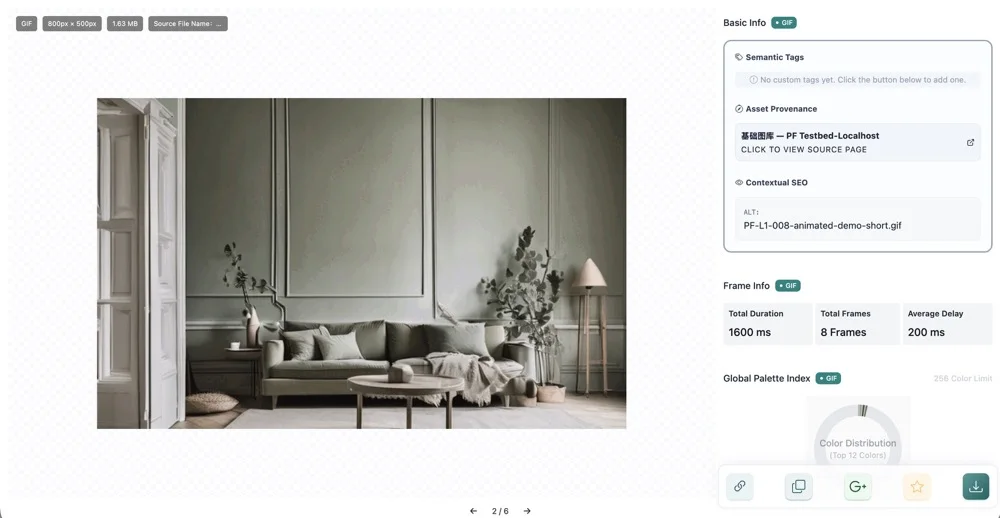
If the side panel is already open and only one image is being parsed, Pixel Flow opens the detail view inside the side panel. If the side panel is not open, Pixel Flow opens the preview.html detail page. The analysis content is the same in both places; only the display location changes.
Deep parsing supports common web image types including JPEG, PNG, WebP, GIF, AVIF, and SVG. The available fields vary by format. A photo may contain EXIF, camera, or rights fields; an image exported from Stable Diffusion or a similar tool may contain AIGC parameters; an SVG is more likely to show vector-structure and accessibility clues. If the file does not contain a data field, Pixel Flow does not invent one.
Why Deep Parse May Fail
Both context-menu options can appear on a webpage, but Deep Parse Image must identify a specific image. When it fails, the cause is usually page structure or browser access rather than account status.
Common causes include:
- The pointer is on an overlay, button, link wrapper, or blank area instead of the image itself.
- The image is inside a cross-origin iframe, where the extension cannot read the inner DOM directly.
- The image has not rendered yet because of lazy loading or scroll position.
- The visual is drawn through Canvas and no readable source image node is available.
- The image URL requires authentication, a temporary signature, hotlink protection, or special request headers.
- The page script replaced the image node after hover detection, so the cached hover target is stale.
If Pixel Flow says the current mouse position is not on an image, move the pointer slowly over the target image, pause briefly, and right-click again. If it still fails, use Manage Current Page Images first, let the side panel scan the page, and open details from the capture feed.
Permissions And Boundaries
The context menu works only when you actively use it on the current webpage. Pixel Flow uses browser extension permissions to read rendered image nodes, background images, and source clues from the current page. It does not bypass site login, paywalls, cross-origin restrictions, copyright limits, or browser security rules.
AI fingerprint, AIGC parameter, EXIF, and source results in Image Details are clues. They can help with review and record keeping, but they are not reuse permission, commercial-use permission, or a legal conclusion.
Related Pages
- Manage Current Page Images
- Deep Parse Current Image
- Open the side panel and scan page images
- Context-menu parsing does not open details
FAQ
Q: Is Manage Current Page Image different from clicking the toolbar icon?
Both entries open the Pixel Flow side panel and start the current-page image collection flow. The context menu is convenient when your pointer is already on the page; the toolbar icon is convenient when you prefer opening the extension from Chrome’s top bar.
Q: Why does Pixel Flow say the mouse is not on an image even when I right-clicked an image?
The visual image may not be the exact element under the pointer. It may be covered by an overlay, wrapped in a complex container, placed inside a cross-origin iframe, or drawn through Canvas. Hover slowly over the visible image and retry; if that still fails, scan the full page first.
Q: Does Deep Parse Image download the image automatically?
No. Deep parsing opens Image Details and analyzes readable image information. Downloading, favoriting, copying information, or opening source links requires a separate action from the detail view.
Q: Which image types does the context menu support?
Pixel Flow tries to cover common web-image cases, including <img>, picture/srcset, CSS background images, SVG, GIF, WebP, AVIF, JPEG, and PNG. Actual results depend on whether the image has rendered, whether the resource is accessible, and whether the current site allows browser extensions to read it.