
Docs
Pixel Flow user manual and best practices
Find scanning, filtering, image details, library, export, account, and industry workflow guidance by task.
Collection Filter Threshold
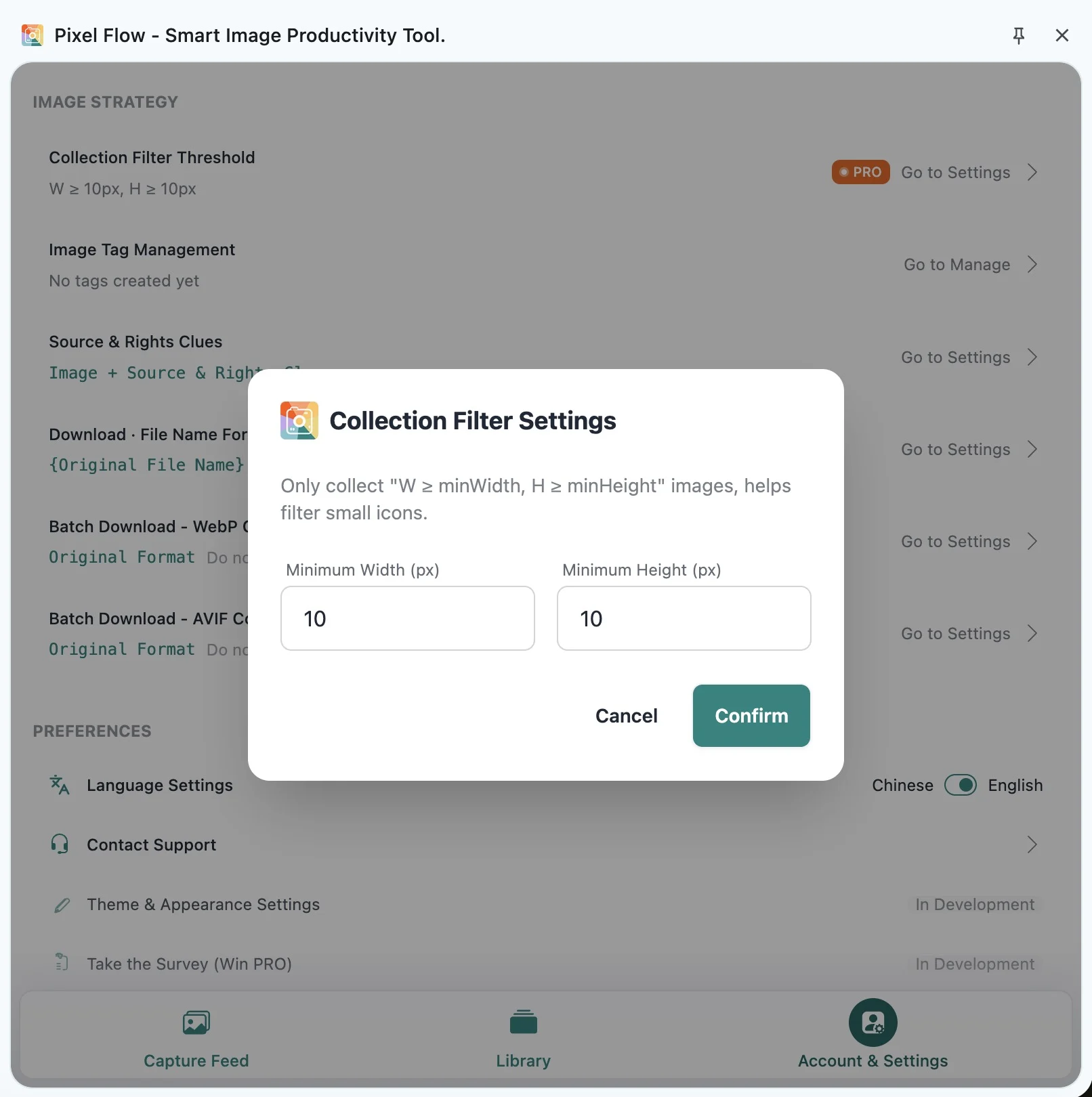
When you open a page, the capture feed may include tiny icons, avatars, button images, tracking pixels, or decorative assets. Collection Filter Threshold helps reduce that noise before it reaches your capture results: set a minimum width and height, and images below those limits will stay out of the feed.
Use it as a long-term preference. If you only want to tidy up the current page, start with the filters at the top of the capture feed. If the same small-image noise keeps showing up across pages, set a Collection Filter Threshold.
What It Filters
Collection Filter Threshold checks both image width and image height. If an image is narrower than your minimum width, or shorter than your minimum height, it will not enter the current capture feed results.
For example, if you set W >= 1000px, H >= 1000px, a 1200 x 800 landscape image, an 800 x 1200 portrait image, and a 500 x 500 small image will all be excluded. Only images that meet both width and height requirements will remain.
If Pixel Flow cannot read an image’s width or height yet, it keeps the image instead of excluding it immediately. This helps avoid hiding useful images just because a page loads them in an unusual way.
How to Set It
- Open the Pixel Flow side panel.
- Go to Account & Settings.
- Open Collection Filter Threshold in the image strategy section.
- Enter Minimum Width (px) and Minimum Height (px).
- Confirm the setting, then return to the capture feed to check the result.
Minimum width and minimum height both support values from 0 to 10000. The higher you set them, the fewer images will remain in the capture feed.
Choosing a Value
If you are not sure where to start, begin with a smaller number and raise it after checking the capture feed.
| Your Goal | Starting Point | Possible Effect |
|---|---|---|
| Remove tracking pixels and tiny icons | 50 x 50 | Most content images will still remain |
| Reduce avatars, button images, and small decorations | 100 x 100 | Small thumbnails may be excluded |
| Focus on larger page images or product images | 200 x 200 | Small logos, avatars, and some thumbnails may disappear |
| Keep only very large or high-resolution assets | 1000 x 1000 | Many landscape, portrait, and normal content images will be excluded |
If your work involves collecting avatars, logos, icons, thumbnails, or small-format assets, avoid setting the threshold too high.
What Changes After Setting It
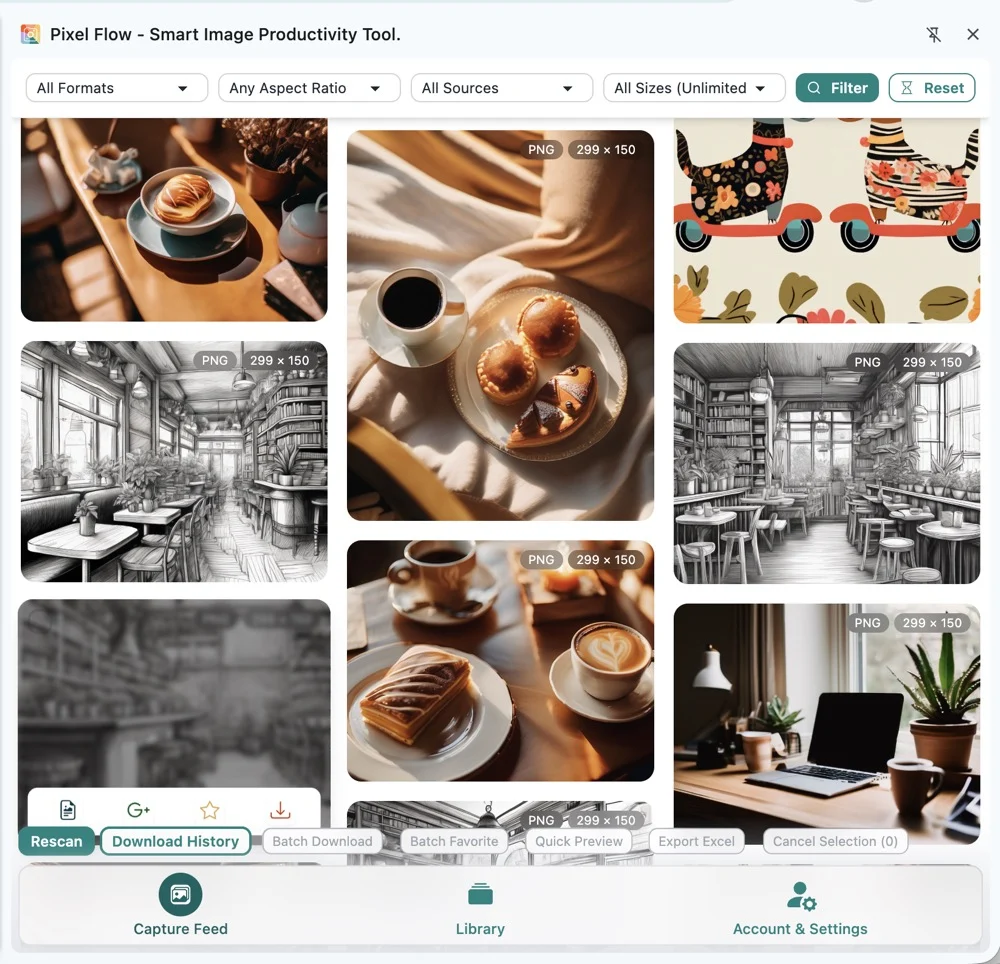
With no threshold set, the capture feed tries to show all recognizable images on the current page, so large images, small images, and decorative assets may appear together.
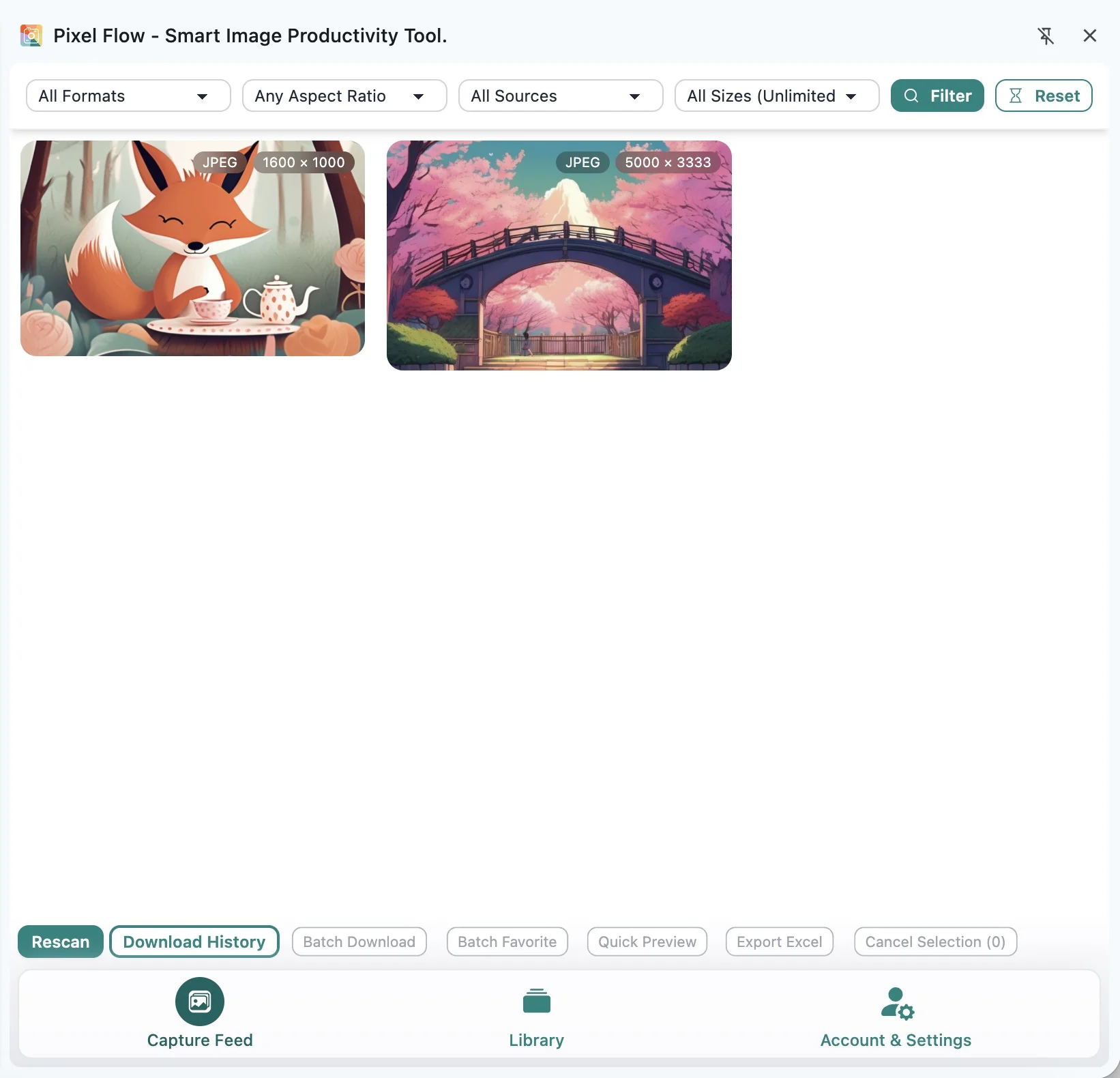
After you set a higher threshold, the capture feed becomes cleaner, but you are also more likely to miss useful small images.
Difference From Capture Feed Filters
The filters at the top of the capture feed are for temporary viewing. They hide or show images that are already in the current result list, and they do not change what enters the next capture.
Collection Filter Threshold is a longer-term preference. It affects which images appear in the capture feed at all, and it also affects which images can later be selected, favorited, batch downloaded, or exported.
| Feature | Best For | Effect on Results |
|---|---|---|
| Capture feed filters | Temporary cleanup on the current page | Changes only the current view |
| Collection Filter Threshold | Reducing small-image noise over time | Images below the threshold do not appear in the capture feed results |
PRO Access and Storage
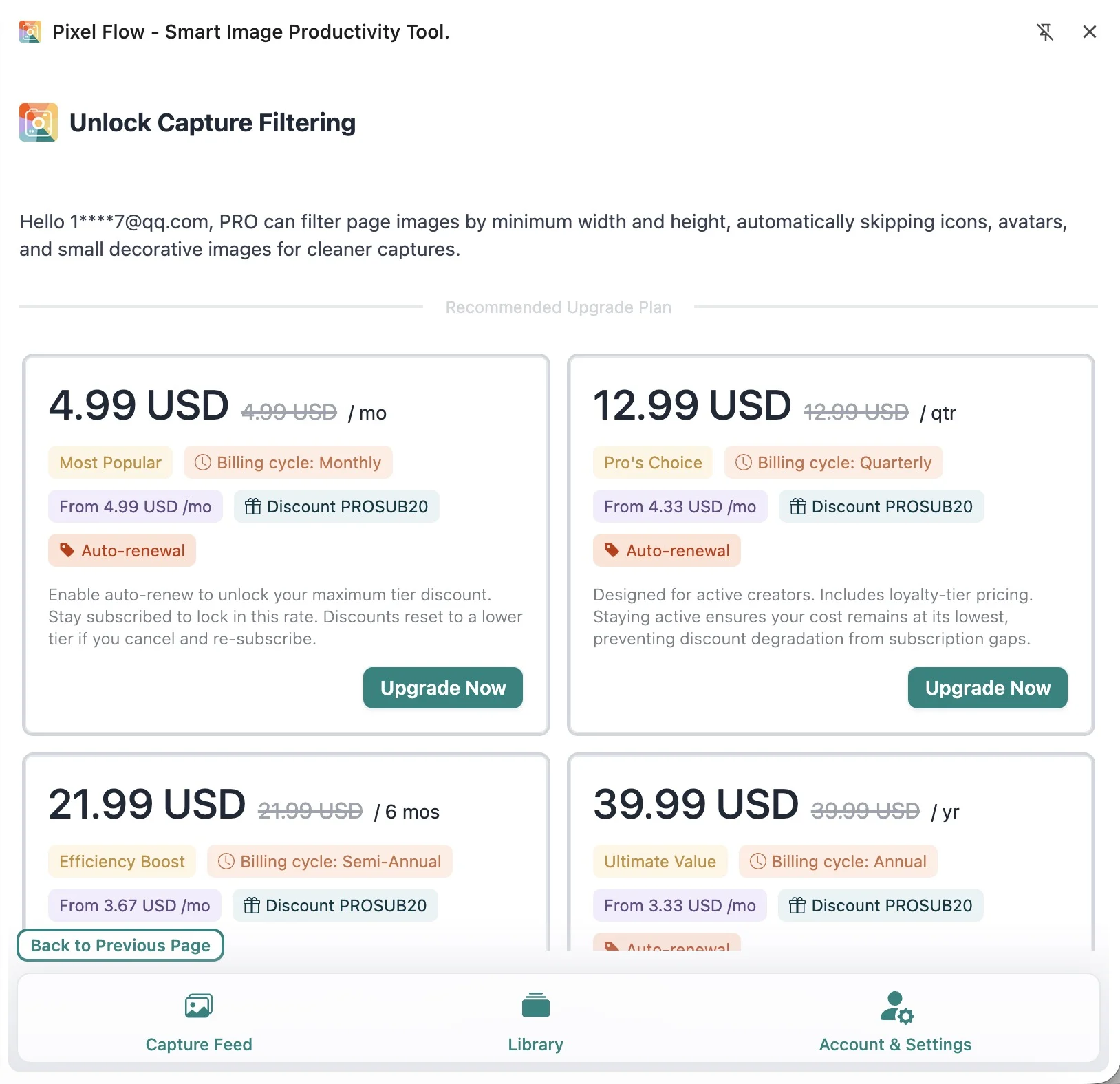
Collection Filter Threshold is a PRO feature. Free users can see the entry, but clicking it opens the upgrade flow. If the current account does not have PRO access, Pixel Flow will not apply this filtering rule.
The setting is saved in Pixel Flow’s local browser preferences and read under the current user data scope. The server handles sign-in status and PRO entitlement checks; image-size filtering itself happens inside the extension, not by uploading page images to the server for filtering.
If Images Suddenly Disappear
First check whether Collection Filter Threshold is set too high. Many “missing image” cases happen because the image width or height is below the value you set.
Lower the minimum width and height, then rescan the current page. If you do not want size-based filtering, set both values to 0. By default, when no threshold is set, the interface shows “No filter set (Collect all images)”.
Frequently Asked Questions
Does Pixel Flow filter images by default?
No. By default, no threshold is set, and Pixel Flow tries to show all recognizable images on the current page.
What does 0 mean?
0 means that direction effectively does not limit normal image dimensions. For example, if minimum width is 0 and minimum height is 100, the rule mainly filters by height.
Why did landscape or portrait images disappear after I set 1000?
Because both width and height must meet the threshold. A 1200 x 800 image is wide enough, but its height is below 1000, so it will be excluded.
Does it delete images from Library?
No. It only affects capture feed results and later candidates. It does not delete images already saved to Library, and it does not delete files already downloaded to your computer.
Why are some small-looking images still visible?
If the page does not provide stable width and height information, Pixel Flow keeps the image first to avoid excluding it by mistake. You can still use the capture feed filters to narrow the current view manually.
Will it keep working after PRO expires?
No. If the current account does not have PRO access, Pixel Flow will not apply Collection Filter Threshold. After renewing or regaining PRO, check the current values in settings again.