
Docs
Pixel Flow user manual and best practices
Find scanning, filtering, image details, library, export, account, and industry workflow guidance by task.
Browser Permissions and Page Access
When you install Pixel Flow, Chrome may say that the extension needs access to website content. You see this prompt because Pixel Flow needs to read image clues that are already visible on the current page when you actively open the side panel or use the context menu. These clues can include image URLs, dimensions, formats, page titles, source pages, and some background image information.
This permission is not for continuous background crawling, and it is not for reading information from websites you have never opened. Pixel Flow works on the page you are currently browsing and the content that Chrome has already rendered there.

When Pixel Flow Reads Webpage Information
Pixel Flow does not initiate webpage information reading on its own. Usually, it only starts reading image clues from the current page after one of these actions:
- You click the Pixel Flow toolbar icon and open the side panel.
- You right-click a page and choose “Manage Current Page Images”.
- You right-click an image and choose “Deep Parse Image”.
- The side panel is already open, and you switch tabs or the current page reloads.
- You scroll the page, lazy-loaded images appear, and Pixel Flow adds the newly rendered images to the capture results.
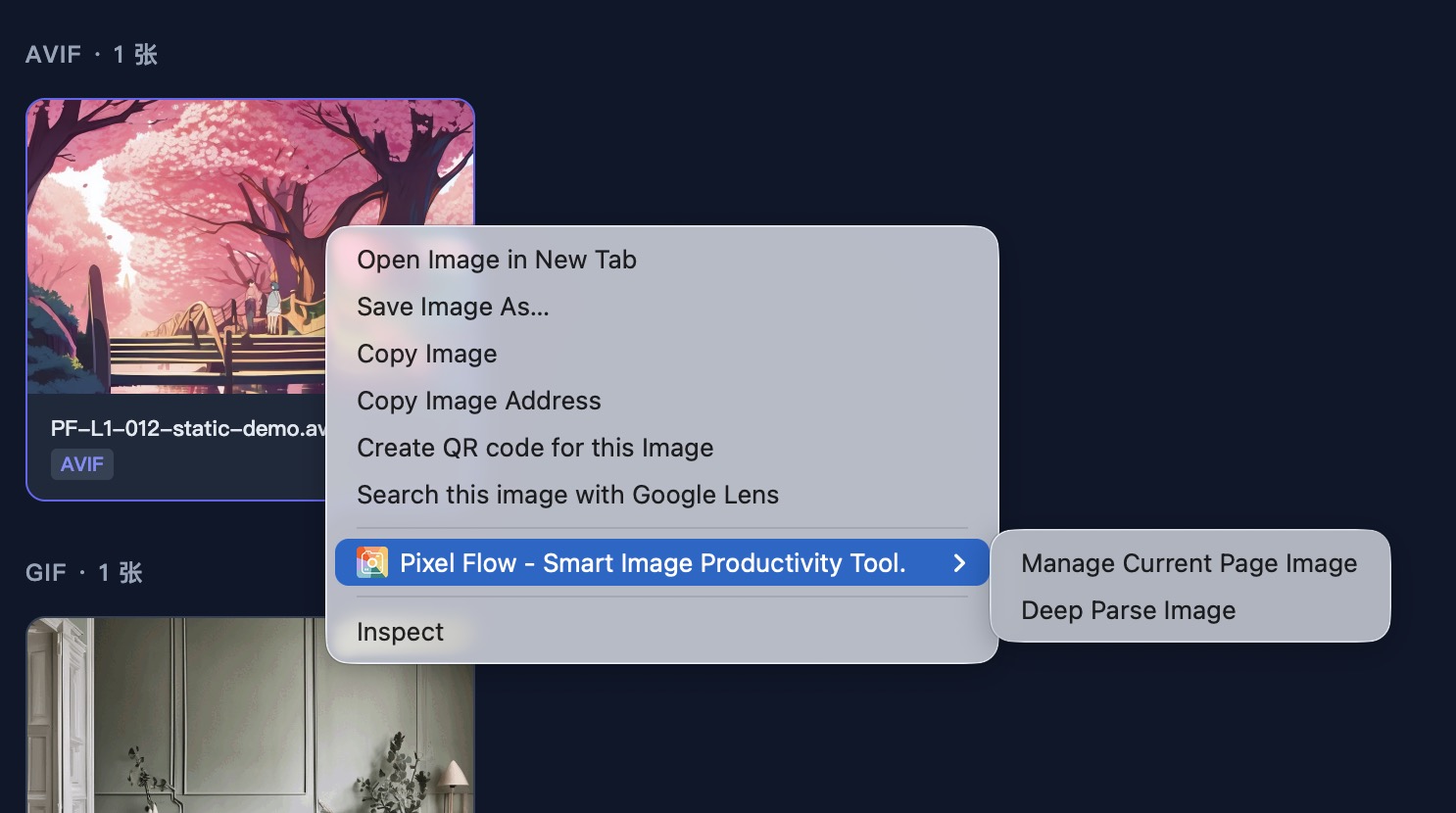
What Pixel Flow Reads
Pixel Flow tries to detect common image forms on the current page, including regular images, responsive images, vector images, and some images set through CSS backgrounds. The information it reads is used to show thumbnails, formats, dimensions, source pages, and available actions in the capture feed.
It also listens for scrolling and noticeable page content changes. Many websites load images only after you scroll. If the side panel is open, Pixel Flow will try to add those newly rendered images to the capture feed. If the result clearly looks incomplete, you can use “Rescan”.
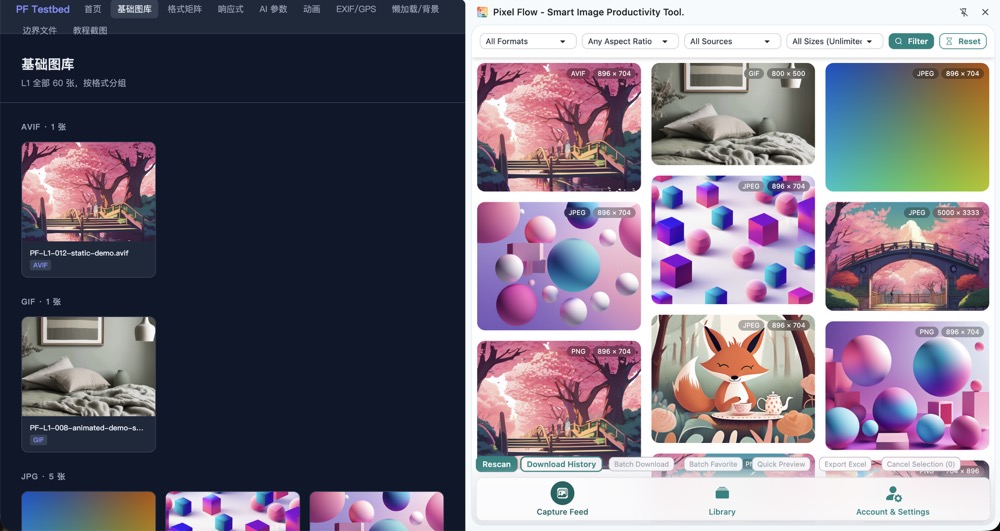
What Pixel Flow Does Not Do
Pixel Flow does not automatically scan every website just because it has page access permission. If you do not open the side panel, use the context menu, or trigger a related action, it does not collect images from websites you have not visited.
Pixel Flow also does not bypass browser or website security boundaries. Even after installation, some images may not be fully readable in cases like these:
- The image is inside a cross-origin frame, and Chrome blocks extensions from reading the internal page structure.
- The image is drawn on a canvas and is not exposed as a normal image element.
- The image requires sign-in, a temporary signature, or special access.
- The website uses resource protection, anti-automation behavior, hotlink restrictions, or dynamic script obfuscation.
- The image has not entered the viewport and has not actually been loaded by the page.
Permission Is Not Copyright Permission
Page access permission only means Chrome allows the extension to read technical clues on the current page. It does not mean you have usage rights for the image. Before downloading, favoriting, exporting, or reusing images, check the source site terms, license files, or rights holder permission.
Frequently Asked Questions
Q: Why not request permission for only one website?
Pixel Flow is designed for organizing images from the pages you browse. You may move between your company site, asset libraries, ecommerce pages, design references, and client pages. Asking for each site one by one would make normal use very clumsy. Pixel Flow requests broad page access, but its actual work is still bounded by your active action and the current page.
Q: Will capture continue after I close the side panel?
After the side panel is closed, Pixel Flow no longer needs to maintain capture results for the current page. When you open the side panel again, it starts from the current page again.
Q: Why can I see an image on the page, but it does not appear in the capture feed?
Common reasons include the image not actually being loaded yet, being inside a cross-origin frame, being drawn on canvas, being protected by the site, or not being exposed as an image clue Pixel Flow can detect. Try scrolling first, then use “Rescan”. If it still does not appear, the page’s technical structure is usually the boundary.