
Docs
Pixel Flow user manual and best practices
Find scanning, filtering, image details, library, export, account, and industry workflow guidance by task.
Manage Your Sign-in Methods
After you sign in to Pixel Flow, you can add or adjust the sign-in methods connected to your account from Account & Settings. We recommend keeping at least two available sign-in methods: one Google account and one email address. This makes it easier to confirm your account when you switch devices, reinstall the extension, check PRO access, or contact support.
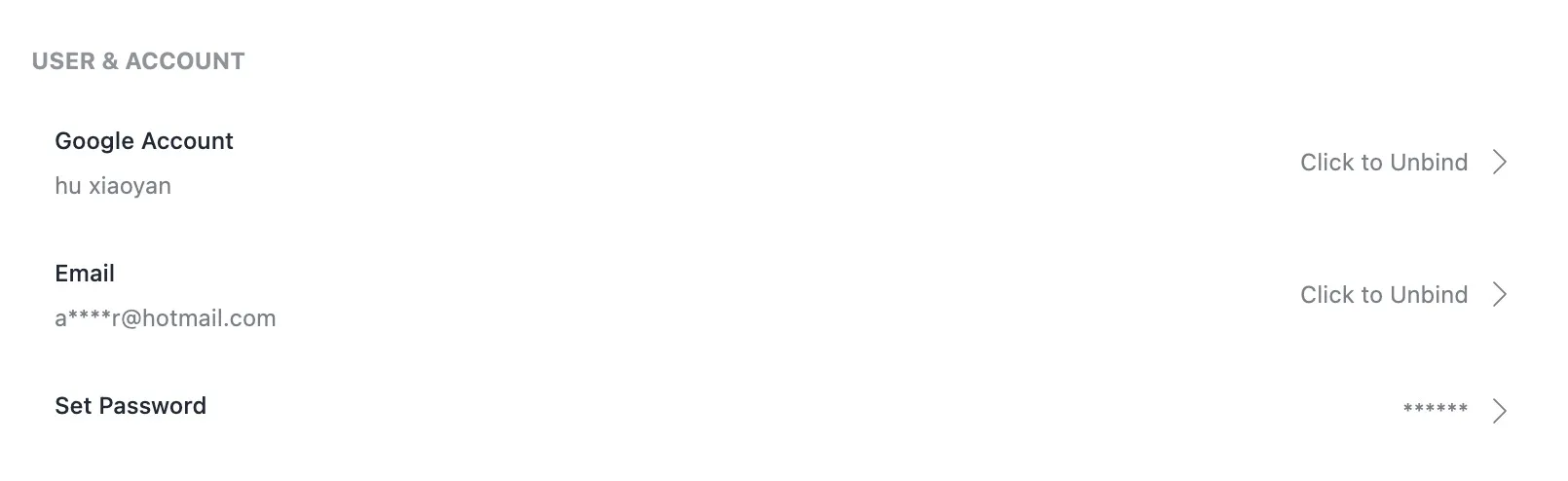
Find the Entry
- Open the Pixel Flow side panel.
- Click Account & Settings in the bottom navigation.
- Find the User & Account section.
- Choose Bind Now or Click to Unbind based on the current state.
If you are not signed in yet, account-related actions will take you to the sign-in page first.
Bind a Google Account
If your Pixel Flow account has not been connected to a Google account, click Bind Now on the Google Account row. Pixel Flow will open Google authorization. After authorization finishes, you can use that Google account to sign in to the current Pixel Flow account.
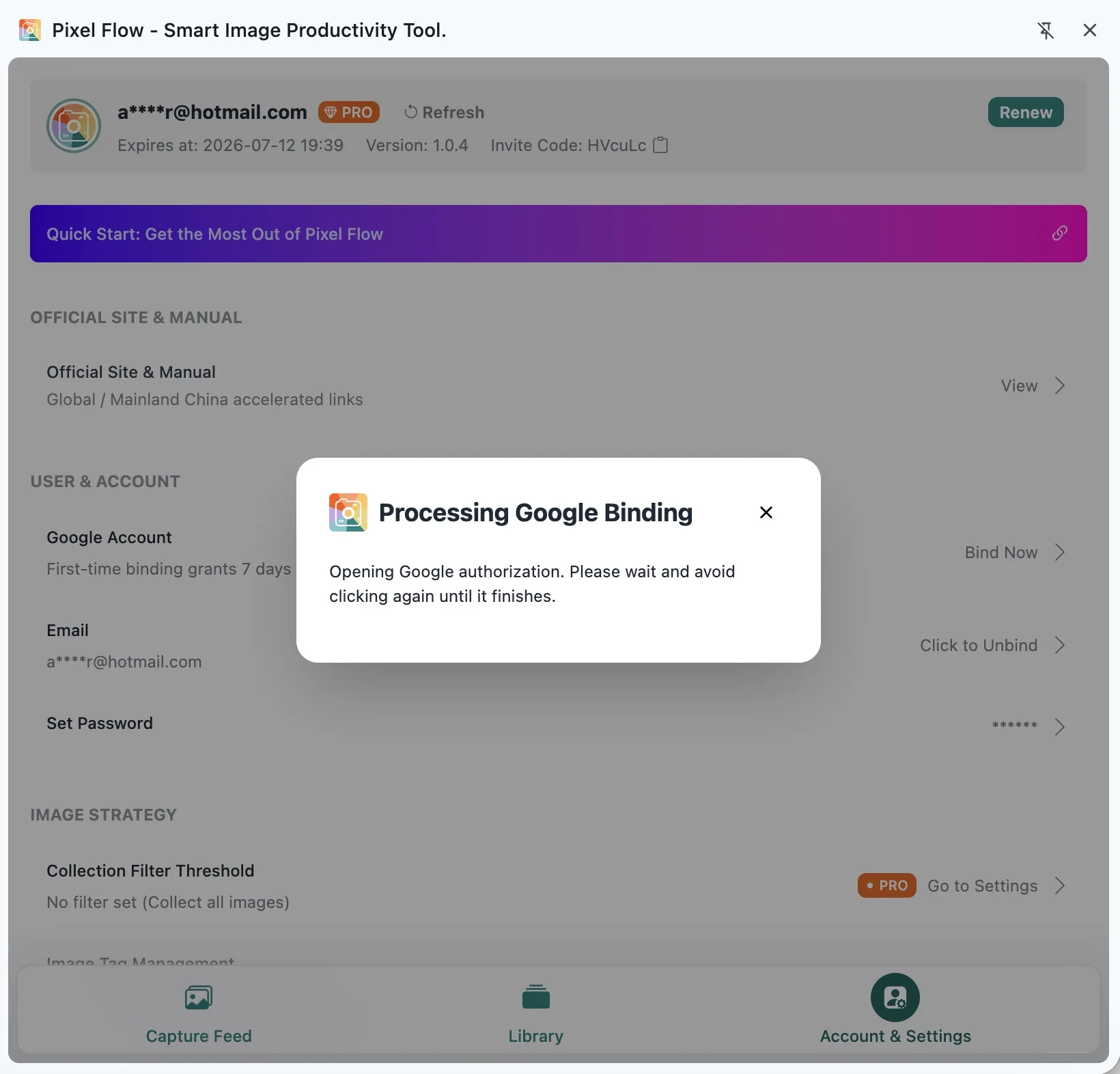
Binding a Google account for the first time grants 7 days of PRO access. Whether it counts as a first-time binding is determined by your PRO records. Unbinding and binding again will not grant the first-time reward repeatedly.
Tip: Binding a Google account while signed in adds a Google sign-in method to the current account. It does not automatically write the Google email into your Pixel Flow email binding state. If the Email row still shows Bind Now, bind your email separately.
Bind an Email
If your Pixel Flow account has not been connected to an email address, click Bind Now on the Email row. In the dialog, enter the email address you want to bind, then request a verification code.
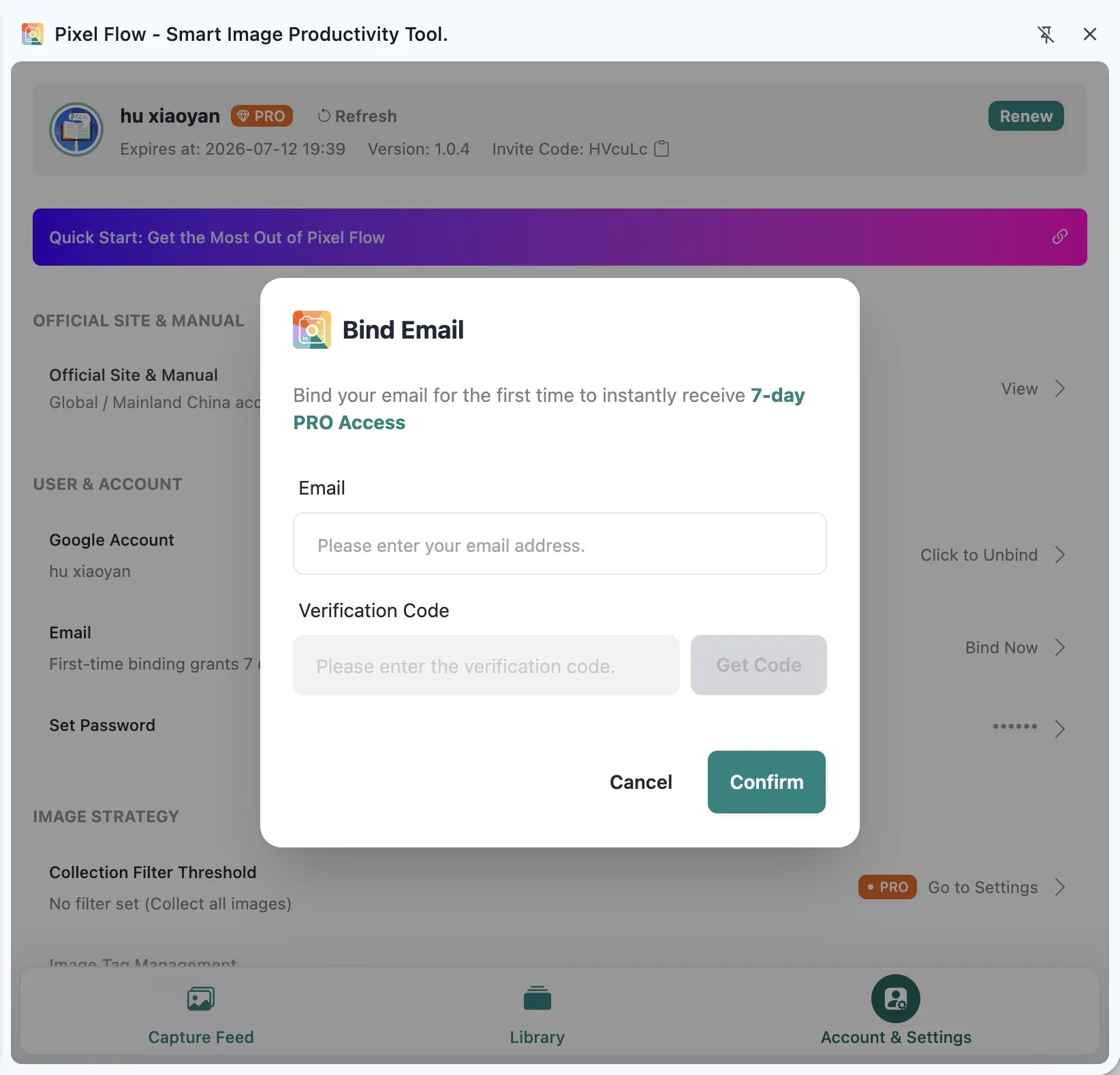
The verification code is a 4-digit number. After you request it, the button enters a 60-second countdown. Enter the code while it is still valid, then confirm the binding.
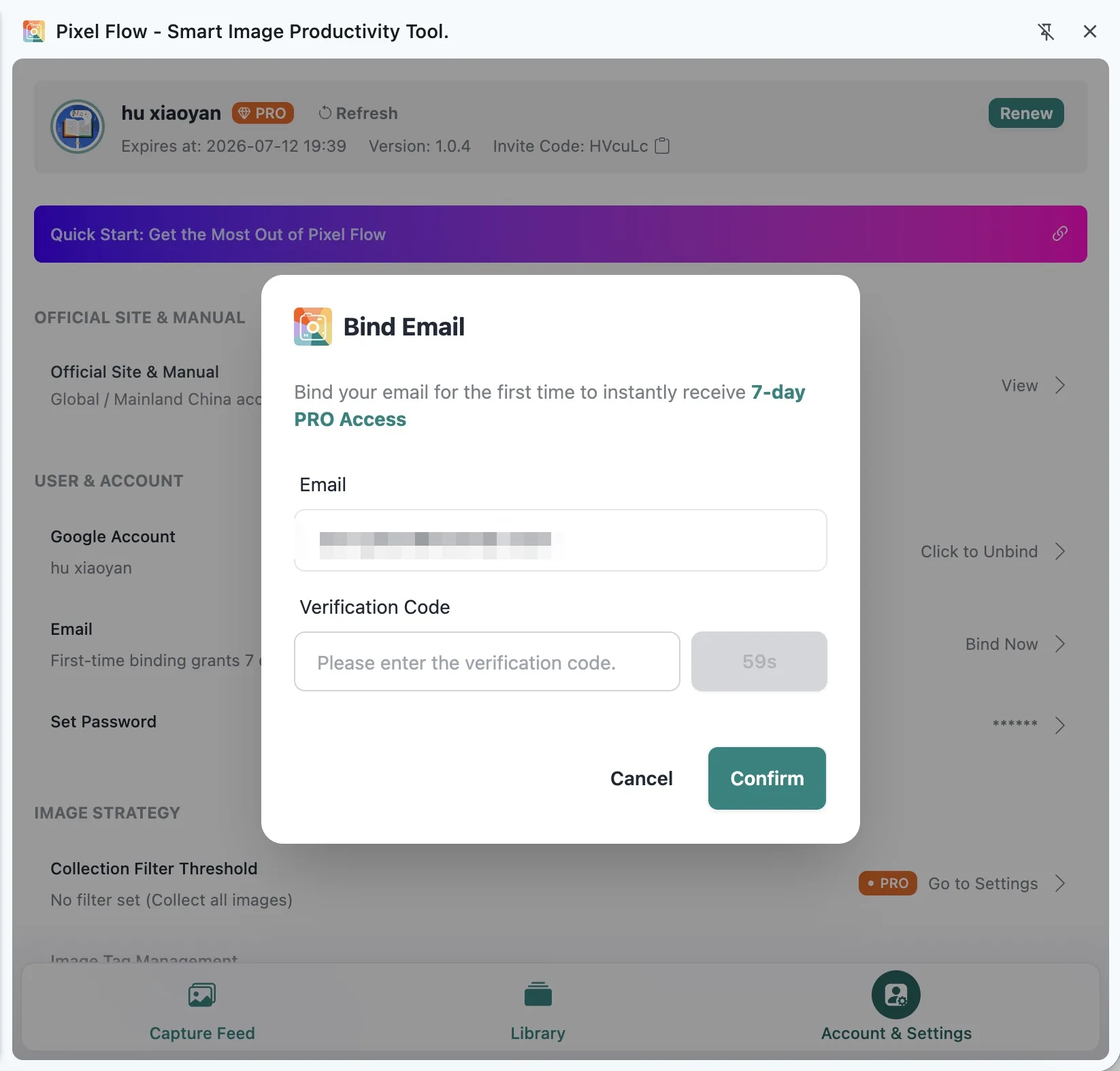
Binding an email for the first time also grants 7 days of PRO access. After binding succeeds, if the new expiration time does not appear right away, click Refresh in the account area.
Before Unbinding, Keep Another Sign-in Method
When your Google account or email is already bound, the corresponding row shows Click to Unbind. Clicking it opens a confirmation dialog first. The account is only unbound after you confirm.
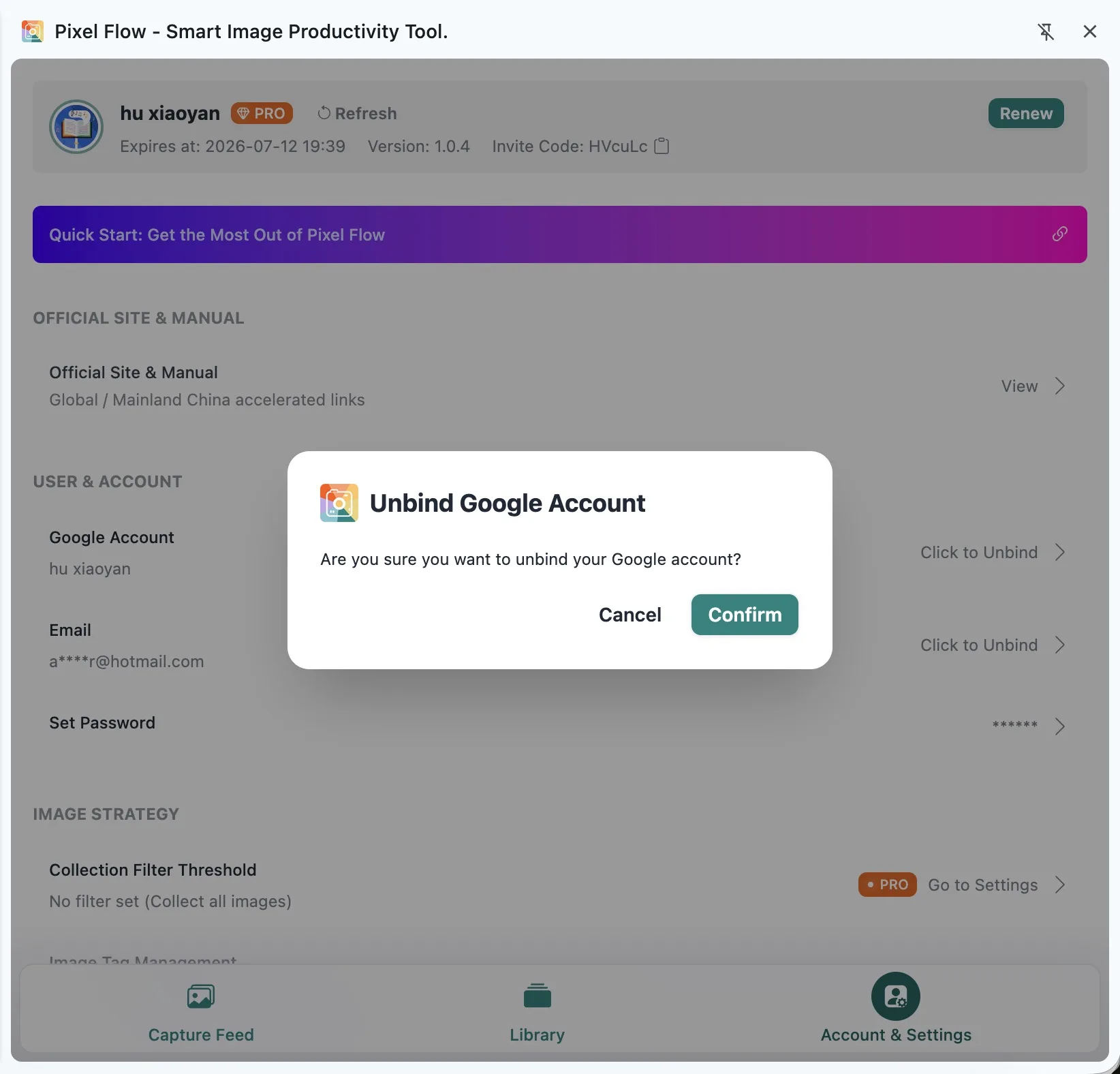
Pixel Flow prevents your account from losing all sign-in methods:
- If no email is bound, you cannot unbind the Google account.
- If no Google account is bound, you cannot unbind the email.
Tip: If you want to change sign-in methods, bind the new method first, confirm it works, and then unbind the old one.
Check Whether the Reward Arrived
After binding succeeds, open View PRO Status and Records to check the reward record. The record shows the added duration, time range, grant reason, and creation time.

PRO time is added based on your current state. If you are already a PRO user, the new time is added after your current expiration time. If you are not currently PRO, the new time starts from the current time.
Google Sign-up and Binding Are Different
If you first registered Pixel Flow with Google and Google returned a verified email, Pixel Flow usually saves that email at registration. In that case, you may see both Google Account and Email as bound.
If you signed in with email first and later bind a Google account from User & Account, that action adds Google as a sign-in method. It does not automatically bind an email for you.
If Google sign-up says the related email is already registered, that email may already belong to another Pixel Flow account. Sign in to the original account with email verification code or email password first, then bind the Google account from User & Account.
When to Set a Password
If you have bound an email, you can also set an email password from the Set Password row. The password must be at least 6 characters, and the confirmation input must match. Setting a password for the first time grants 7 days of PRO access. Changing it later does not grant the first-time reward again.
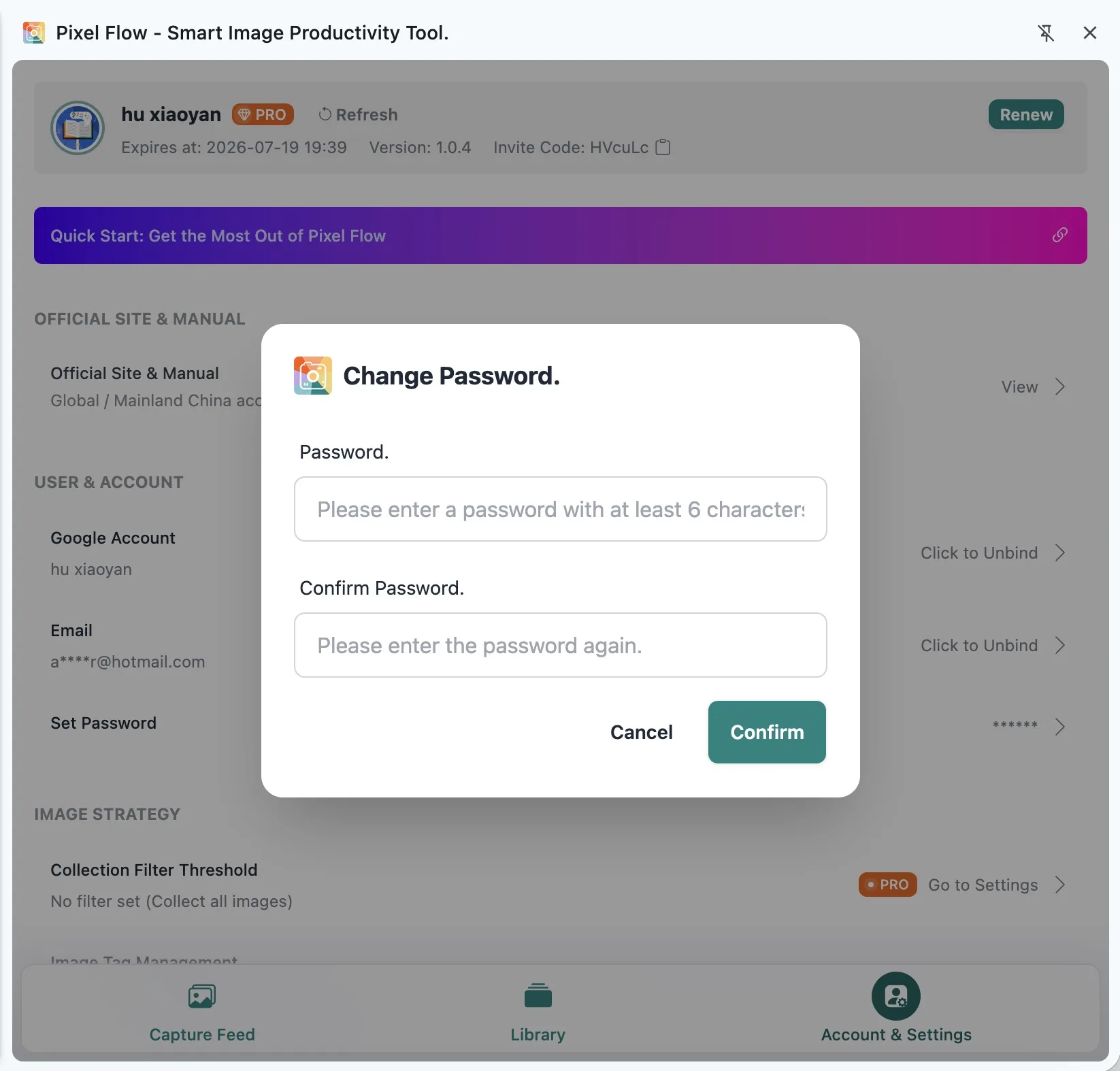
After setting a password, you can use email password sign-in on the sign-in page. If you only need temporary access, you can still use email verification code sign-in.
Frequently Asked Questions
Why is Email still unbound after I bind Google?
This usually means Google authorization did not return a verified email address. Pixel Flow does not automatically bind an email in that case. You can go back to User & Account, click Bind Now on the Email row, and bind the email manually with a verification code.
Why can’t I unbind Google or Email?
Your account must keep at least one available sign-in method. If no email is bound, you cannot unbind the Google account. If no Google account is bound, you cannot unbind the email.
Why can’t I click the verification code button?
Check whether the email format is valid. When the email format is invalid, the verification code input and request button remain disabled. After a code is sent, wait until the 60-second countdown finishes before requesting another one.
What should I do if the email is already bound to another account?
That email already belongs to another Pixel Flow account. First confirm whether you are signed in to the wrong account. If you believe this is incorrect, contact Support with your sign-in account, screenshots, and the approximate time of the operation.
What if the first-time binding reward does not appear right away?
Go back to Account & Settings and click Refresh in the account area. If it still does not update, open View PRO Status and Records and check the records.