
Docs
Pixel Flow user manual and best practices
Find scanning, filtering, image details, library, export, account, and industry workflow guidance by task.
Name Downloaded Images in a Way You Can Organize Later
By default, when you download an image with Pixel Flow, the saved filename usually comes from the original filename in the image URL, such as 1694502400000.jpg. That is fine for the download itself, but once you collect many images, especially when you come back days later, the filename alone often does not tell you which page the image came from or what you saved it for.
You may then need to open the source clues spreadsheet or open each image one by one to confirm its purpose. To reduce that cleanup work later, use Download · File Name Format in Account & Settings. After you choose a naming rule that matches how you organize images, future downloaded files can automatically include details such as the source site, image description, date, or index.
Note: this setting only affects new files downloaded through Pixel Flow. It does not change images on the original webpage, and it does not rename files that are already on your computer.

When to Change the Naming Rule
If you only save one or two images for temporary use, keeping the original filename is usually enough.
But if you often batch download images, collect reference materials, archive page assets, or hand image files to a team, it is worth setting a more consistent naming rule in advance. The downloaded filenames can include source, description, date, or index information, making later search and review much easier.
How to Set It
- Open the Pixel Flow side panel.
- Go to Account & Settings.
- Find Download · File Name Format.
- Click Go to Settings.
- Choose a naming rule, then click Confirm Settings.
If you are not signed in, clicking the setting entry takes you to the sign-in page first. Some naming rules require PRO. If your current account is not PRO, choosing one of those rules and confirming it opens the upgrade prompt instead of applying the rule.
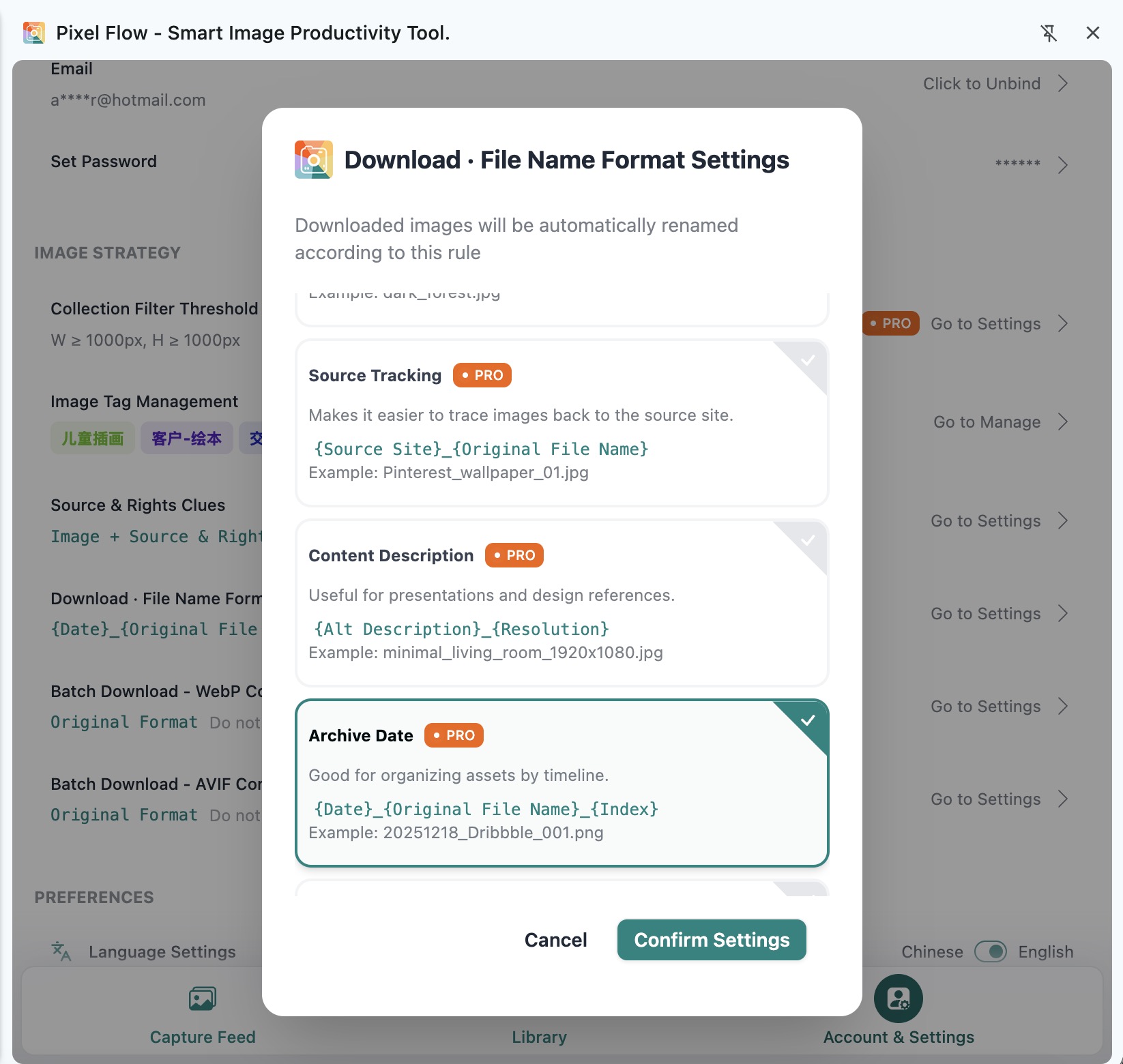
Available Rules
| Rule | What the Downloaded Filename Includes | Best For | Availability |
|---|---|---|---|
| Original File Name | The original filename detected from the image | Quick saving, or keeping the source filename as much as possible | Free / PRO |
| Source Tracking | Source site + original filename | Finding the source site again later | PRO |
| Content Description | Image description + resolution | Design references, presentations, and asset organization | PRO |
| Archive Date | Date + original filename + index | Organizing assets by project date or download batch | PRO |
| SEO Professional | Page title + image description | Content operations, publishing, and page asset review | PRO |
| Complete Mode | Date + source site + image description | Keeping richer context directly in the filename | PRO |
If the webpage does not provide enough information, filenames may include fallback values such as untitled, no_title, or unknown. On those pages, “Original File Name” or “Source Tracking” is usually more reliable.
Choosing a Rule
If you often download images from the same website, consider Source Tracking so you can trace files back to the source site more quickly.
If you organize project assets by date, choose Archive Date so files from the same batch stay easier to scan.
If you mainly organize content images, Content Description or SEO Professional can help, as long as the page title and image description on the source page are reliable.
If the source page has messy titles or weak image descriptions, do not force a complex rule. Keeping the original filename and saving a source clues spreadsheet is often less misleading.
What You Will See After Setting It
The naming rule mainly affects the image filenames. Different download actions may show slightly different results:
- Single-image download: the image is saved directly with the current naming rule.
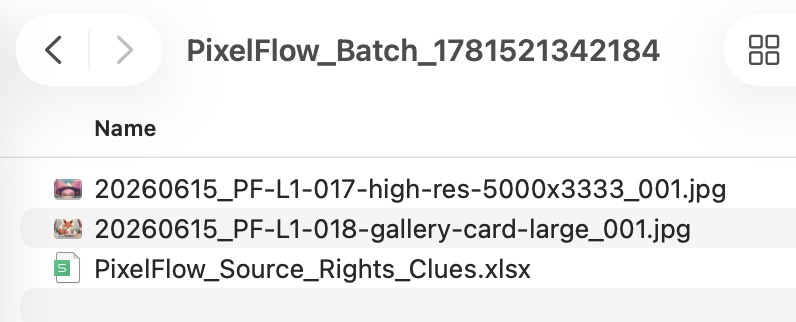
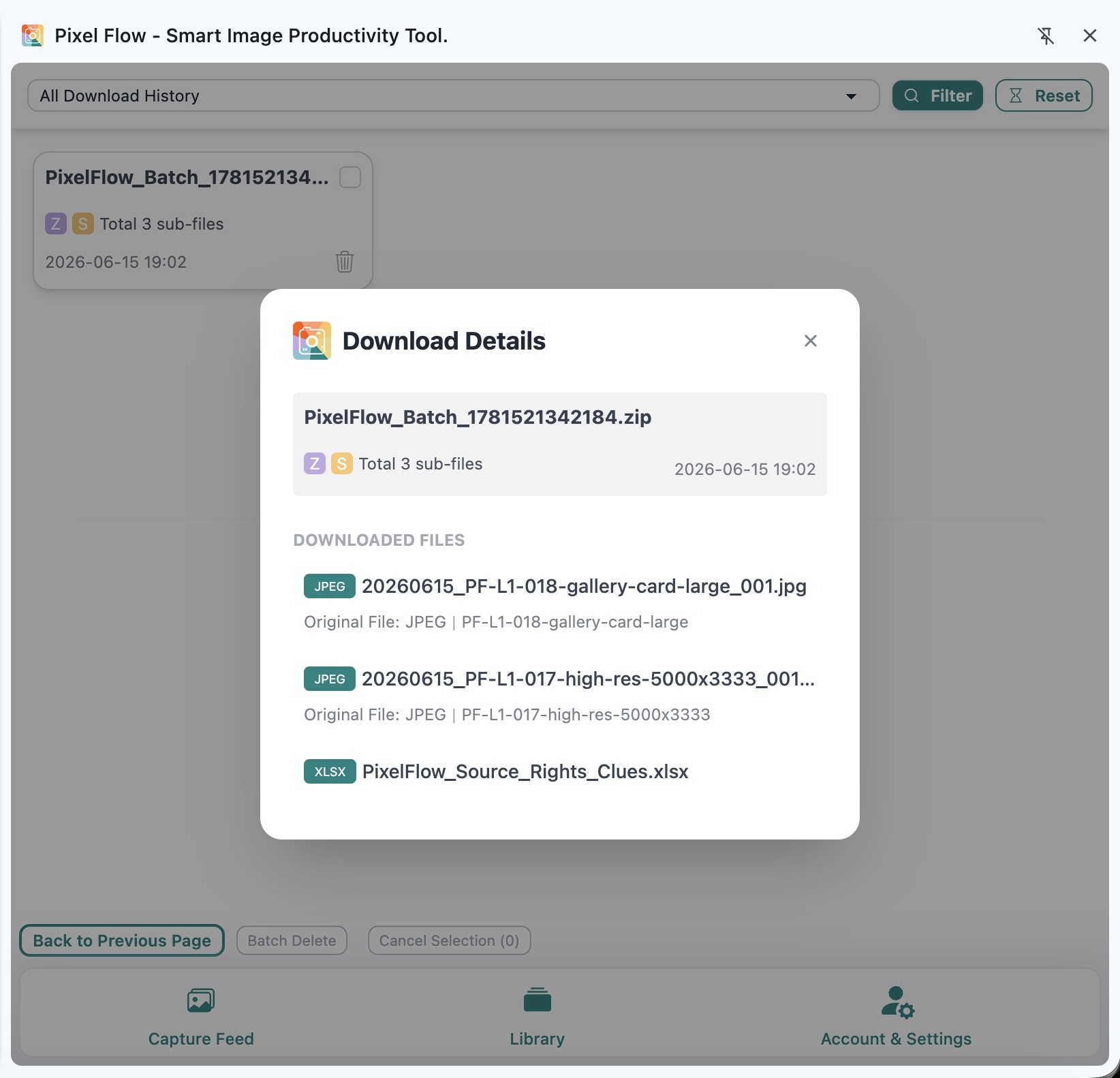
- Batch download: the outer ZIP file usually still uses
PixelFlow_Batch_timestamp.zip; the image files inside the ZIP use the current naming rule. - When original and standard versions are downloaded together, filenames may include
_originalor_standardto distinguish versions. - If duplicate names appear during batch download, Pixel Flow appends an index to help avoid overwriting files.
- When downloading animation frames, frame files use the current naming base plus frame indexes such as
_001and_002. - If you choose “Image + Source & Rights Clues” or “Image + Full Info Sheet”, the spreadsheet also records the actual downloaded filename.
Filenames Are Not Source Records
Naming rules help you quickly recognize source, content type, or download batch from a local folder. They are useful for quick identification and rough grouping, but they cannot carry the full source context.
If you need to confirm which page an image came from, what its original image URL was, when it was downloaded, or whether there are creator or rights clues, still rely on Source & Rights Clues or the exported spreadsheet.
If an image may be used for publishing, client delivery, advertising, commercial design, or dataset preparation, do not rely on the filename alone. Keep the source clues and follow your team’s review or permission process.
Notes
- This setting only affects filenames for future images downloaded through Pixel Flow; it does not change the image content itself.
- It does not modify the original webpage, the original image URL, or data already saved in Library.
- Characters that are not allowed by the file system may be replaced.
- Very long filenames may be truncated.
- WebP / AVIF batch conversion settings may affect the final file extension.
- If PRO expires, the naming rule falls back to the free Original File Name rule.
Frequently Asked Questions
Why did the ZIP filename not follow my selected rule?
During batch download, the outer ZIP file usually uses PixelFlow_Batch_timestamp.zip. Your selected naming rule mainly applies to the image files inside the ZIP.
If the image files inside the ZIP also do not follow your current naming rule, include a settings-page screenshot, a download-history screenshot, and the related ZIP information when contacting Contact Support.
Which rules can free users use?
Free users can use Original File Name. More advanced rules that include source, description, date, or page title require PRO.
Will changing the rule rename files I already downloaded?
No. This setting only affects new files downloaded after the change.
What if the description in the filename is inaccurate?
Filenames depend on information provided by the source page, such as image description, page title, and source URL. If that information is missing or inaccurate, the generated filename may not be ideal. In that case, use Original File Name or Source Tracking, and keep source clue records at the same time.
Can the filename prove that I am allowed to use the image?
No. A filename is only an organization clue, not permission proof. Whether you can use an image still depends on source-site terms, license documents, client requirements, or your team’s review process.