
Docs
Pixel Flow user manual and best practices
Find scanning, filtering, image details, library, export, account, and industry workflow guidance by task.
Check Before Clearing Local Records
When you want to tidy old Pixel Flow records, reduce the amount of local browser data, or reorganize asset data while troubleshooting an issue, you can use the Data Cleanup feature in settings. This action deletes records from the local database for the current account or current guest space.
Once you confirm cleanup, you cannot undo it directly from settings. Before cleaning data, the safest step is to export a backup first. If you may still need your library, tags, download records, or source clues, do not rush to click “Confirm clearing.”
Decide Whether You Need Cleanup
If you only want a cleaner record list, or an old project is already finished, you can clean older download history or favorite records.
If you are going to uninstall the extension, reinstall the browser, move to another computer, or clear Chrome extension data, go to Data Backup and Import and export a backup package first. When Chrome uninstalls an extension, it clears all local data stored by that extension. Without a backup, Pixel Flow local working data may not be recoverable.
If you are working on client delivery, rights review, source tracing, dataset preparation, or team handoff, keep the records for now, or export the needed source and rights clues, download records, and screenshots first. Cleanup does not preserve evidence for you. It only deletes local records.
What You Can Clear
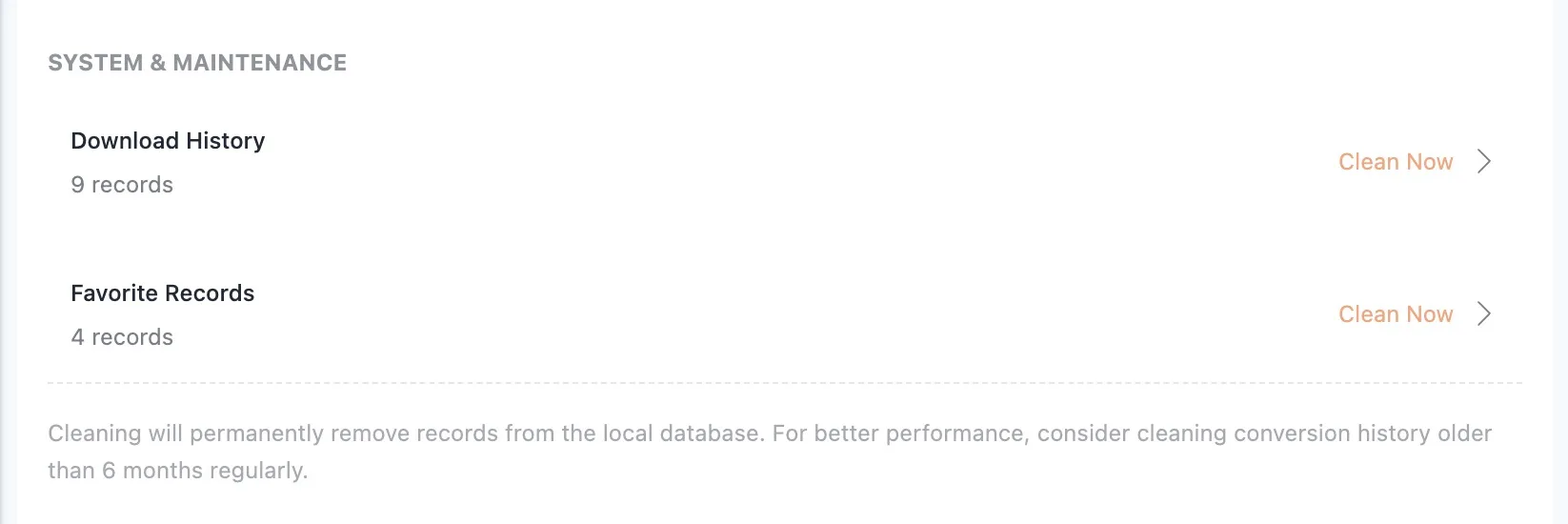
The settings page currently provides two cleanup entries:
| What you clear | What happens after cleanup | What does not happen |
|---|---|---|
| Download History | Local download records in the selected time range are deleted. When you open the download history page, there will be fewer records, or no records at all. | It does not delete image files already saved in your computer’s download folder. |
| Favorite Records | Local favorite records in the selected time range are deleted. When you open the library page, there will be fewer records, or no records at all. | It does not delete images from the original webpage, and it does not change image rights or permissions. |
Cleanup Ranges
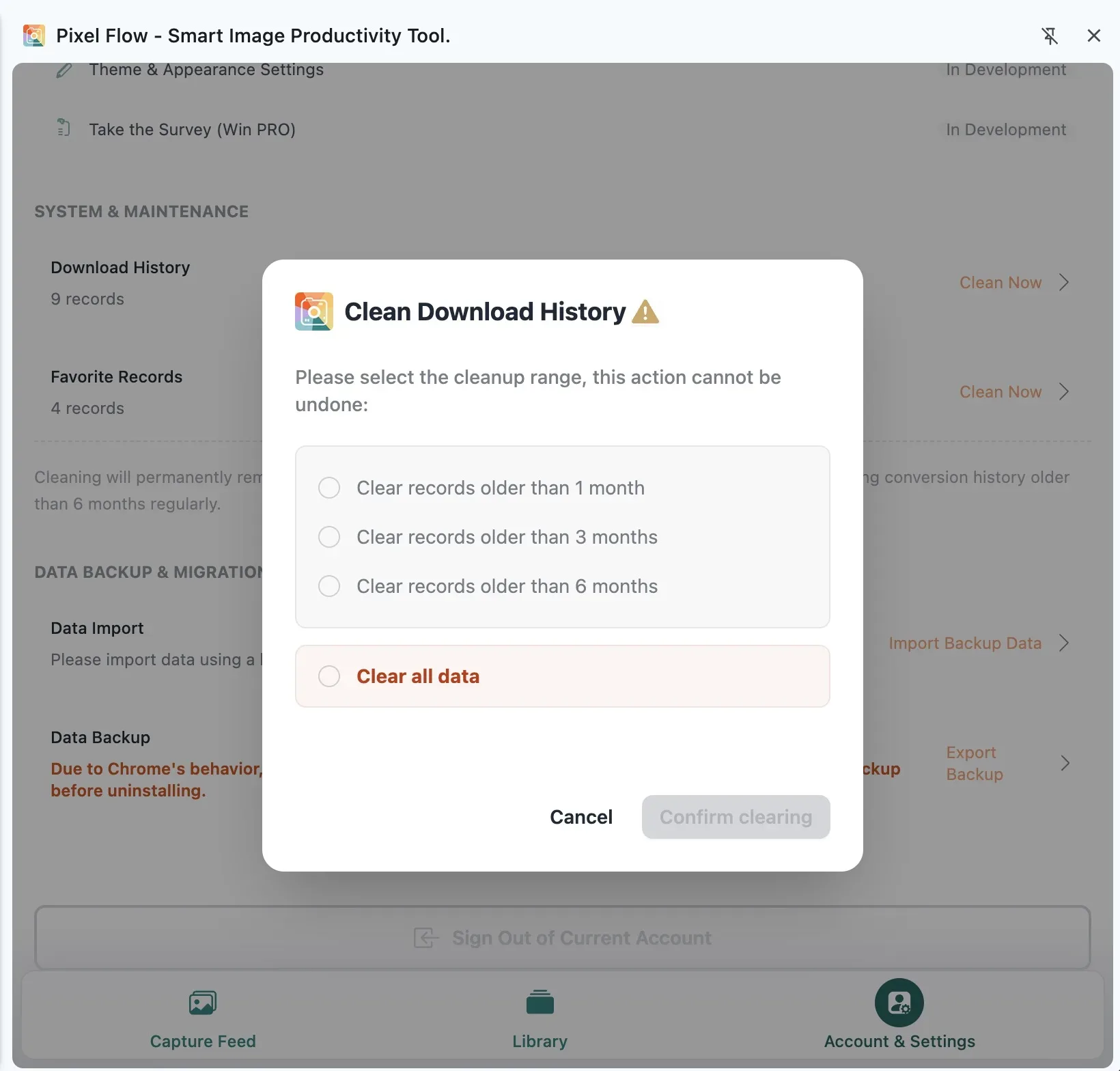
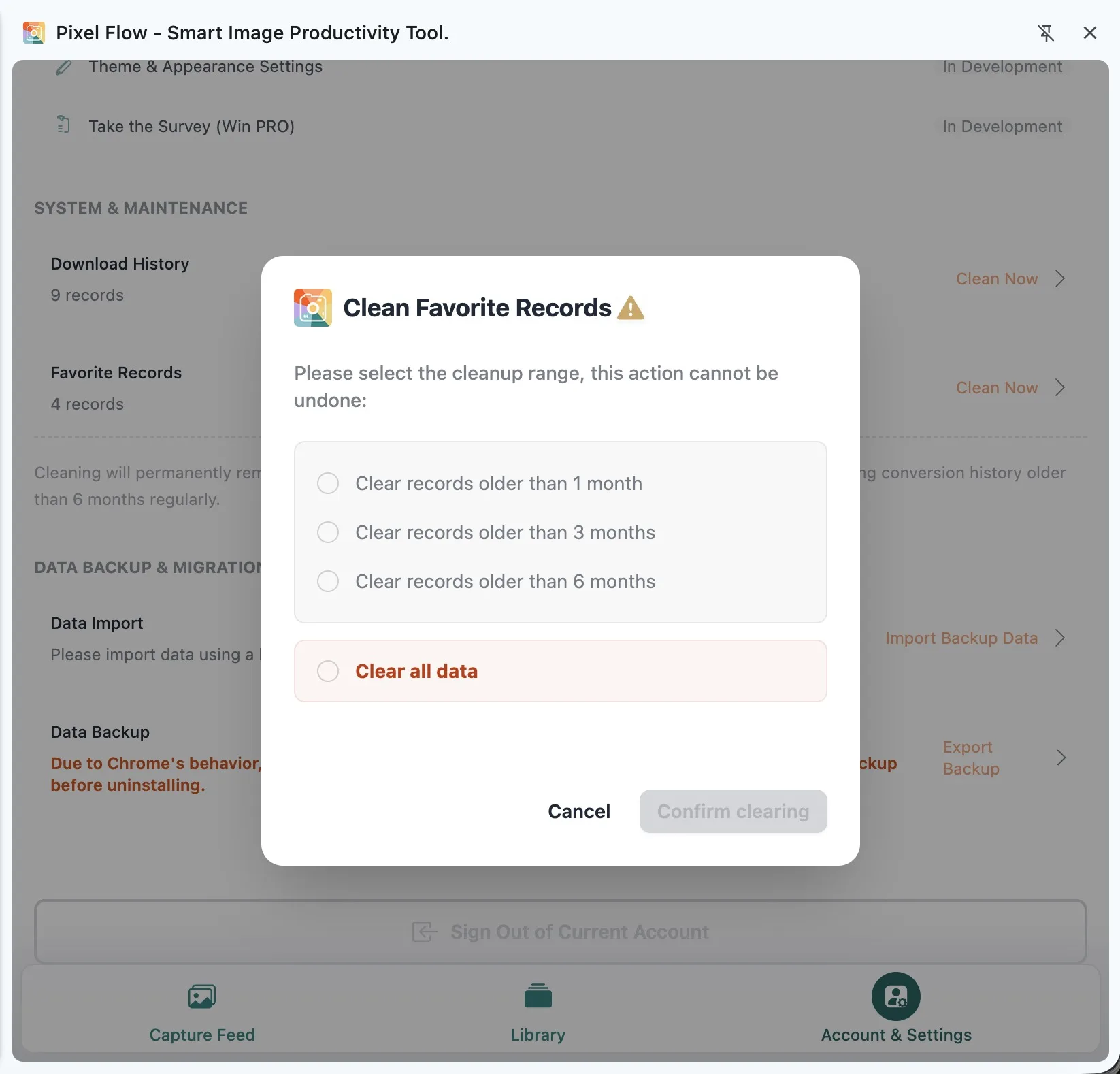
After you click “Clean Now,” the dialog asks you to choose a cleanup range:
| Option | When to use it |
|---|---|
| Clear records older than 1 month | You only want to remove older records while keeping recent work traces. |
| Clear records older than 3 months | Your project cycle is longer, but you do not want to keep much older records. |
| Clear records older than 6 months | You mainly want regular maintenance for local data size. |
| Clear all data | You have confirmed that the backup file is saved on your computer, and you no longer need any local records in this module. |
Before You Clean
- Export a backup package first, and make sure you can find the backup file on your computer.
- If you may need source, rights, client project, or asset usage records later, export the needed sheets or screenshots first.
- Confirm that you are using the correct account. When you are not signed in, cleanup applies to the current browser’s guest space.
- Check whether you clicked download history or favorite records. Do not treat the two record types as the same thing.
- If you only want to delete image files from your computer, handle them in your system download folder instead of using Data Cleanup.
How To Clean
- Open the Pixel Flow side panel.
- Go to Account & Settings.
- Find the data cleanup area.
- Click “Clean Now” next to Download History or Favorite Records.
- Choose older than 1 month, older than 3 months, older than 6 months, or all data.
- Click “Confirm clearing.”
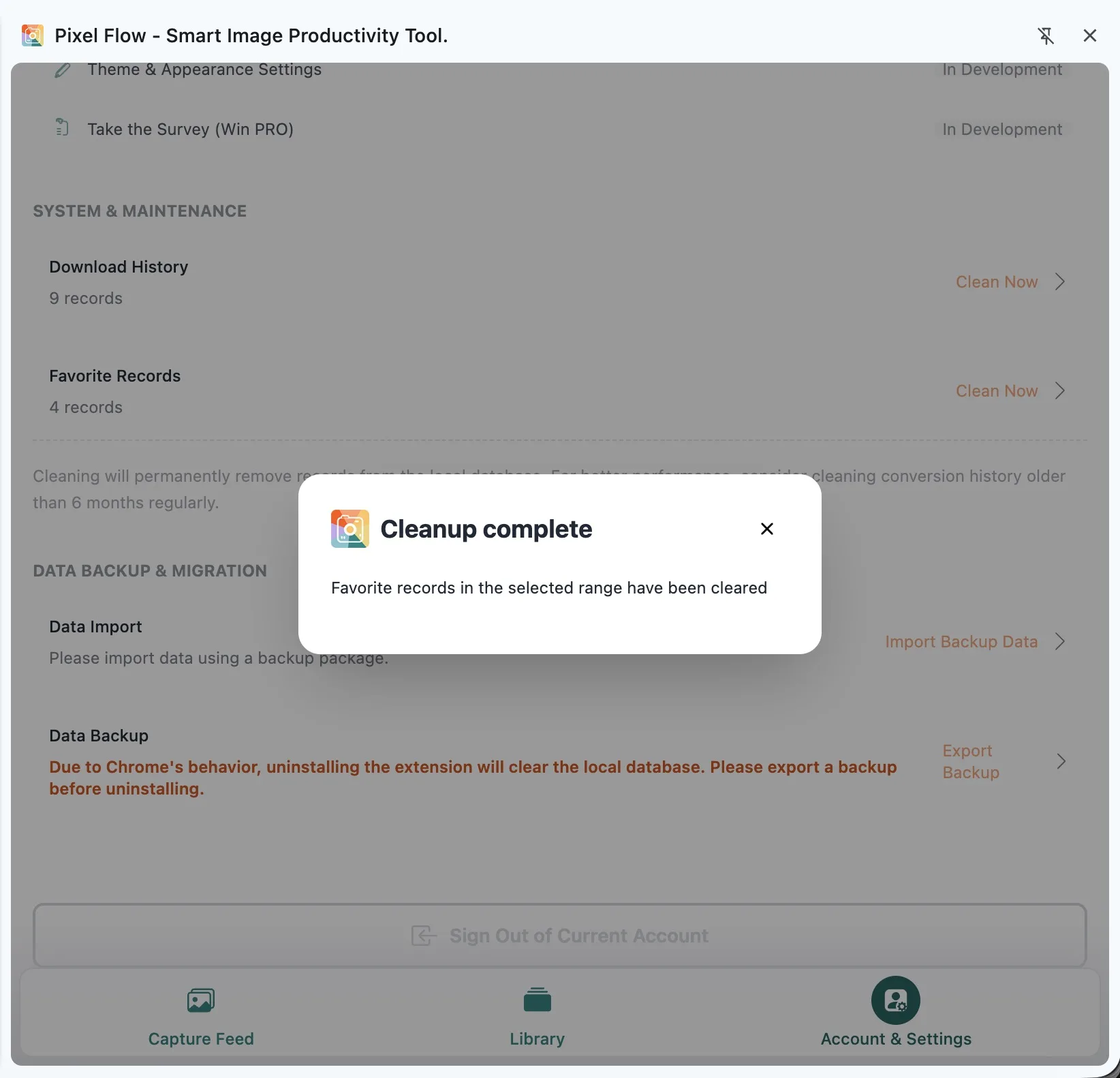
- Wait for the “Cleanup complete” message, then return to the related page and check the record count.
What Cleanup Does Not Do
Data Cleanup does not delete image files already saved on your computer, modify images on the original webpage, automatically grant or revoke image usage rights, or make rights decisions for you.
It is not account deletion either. Signing out, unbinding an email, unbinding a Google account, and cleaning local records are different actions. Data Cleanup does not clear your PRO access records, and it does not delete your server-side account.
Can You Restore Cleaned Records
If you exported a backup package before cleanup, you can try importing the backup through Data Backup and Import to restore content into the current account or guest space.
Without a backup, deleted local records usually cannot be restored from settings. Favorite records and download history are long-term work traces, so confirm one more time before cleaning them.
Frequently Asked Questions
Does cleanup delete image files from my computer?
No. It deletes records in Pixel Flow’s local database. It does not delete image files already saved in your system download folder, desktop, or project directories.
Does cleaning favorite records affect tags?
It affects related tag statistics. After favorite records are deleted, Pixel Flow refreshes tag statistics, but this does not delete the tag definitions themselves. You should still confirm whether you need to keep those favorite assets before cleanup.
Can I clean only older records?
Yes. You can choose records older than 1 month, 3 months, or 6 months. If you only want to tidy old projects, avoid choosing “Clear all data” directly.
What is the difference between cleanup and backup?
Backup exports current local working data into a file for later migration or recovery. Cleanup deletes local records from the selected module. The right order is backup first, cleanup second.
What is the difference between cleanup and uninstalling the extension?
Data Cleanup only deletes the record type and range you choose in the dialog. Uninstalling the extension causes Chrome to clear all local data stored by the extension, so the impact is much larger. Always export a backup before uninstalling.