
Docs
Pixel Flow user manual and best practices
Find scanning, filtering, image details, library, export, account, and industry workflow guidance by task.
Where Should I Start?
Choose by Task
If you are not sure which guide to read first, choose an entry point based on your current task. If you only want a quick first run, start with the first three-minute workflow. If you already have a clear goal, start from the scenarios below instead of reading the whole manual from the beginning.
| What you want to do now | Recommended entry point | What you will learn |
|---|---|---|
| Install and try Pixel Flow for the first time | First three-minute workflow | Install the extension, pin the toolbar icon, and open the side panel for the first time |
| Find images from a webpage in bulk | Batch scan images from a webpage | Scan the current page, scroll to load more images, and filter out icons and decorative images |
| Judge an image’s source and parameters | Analyze a single image’s parameters and source | Review source URLs, page context, EXIF, AIGC parameters, and AI detection results |
| Build a project asset library | Favorite images and organize them with tags | Favorite images, add tags, and retrieve assets by project or usage |
| Deliver to a team or client | Export an image inventory for a team or client | Export an Excel inventory, keep source records, and pair it with batch downloads for delivery files |
| Switch devices or avoid data loss | Migrate data and prevent uninstall-related loss | Back up, import, check before uninstalling, and migrate to another device |
If you have not logged in yet, you can first complete registration, bind an email or Google account, set a password, and similar account actions. When eligible, the system grants free Pro time so you can try more batch and advanced abilities. See which actions can add PRO time for the full explanation.
I Want to Collect Images from Webpages
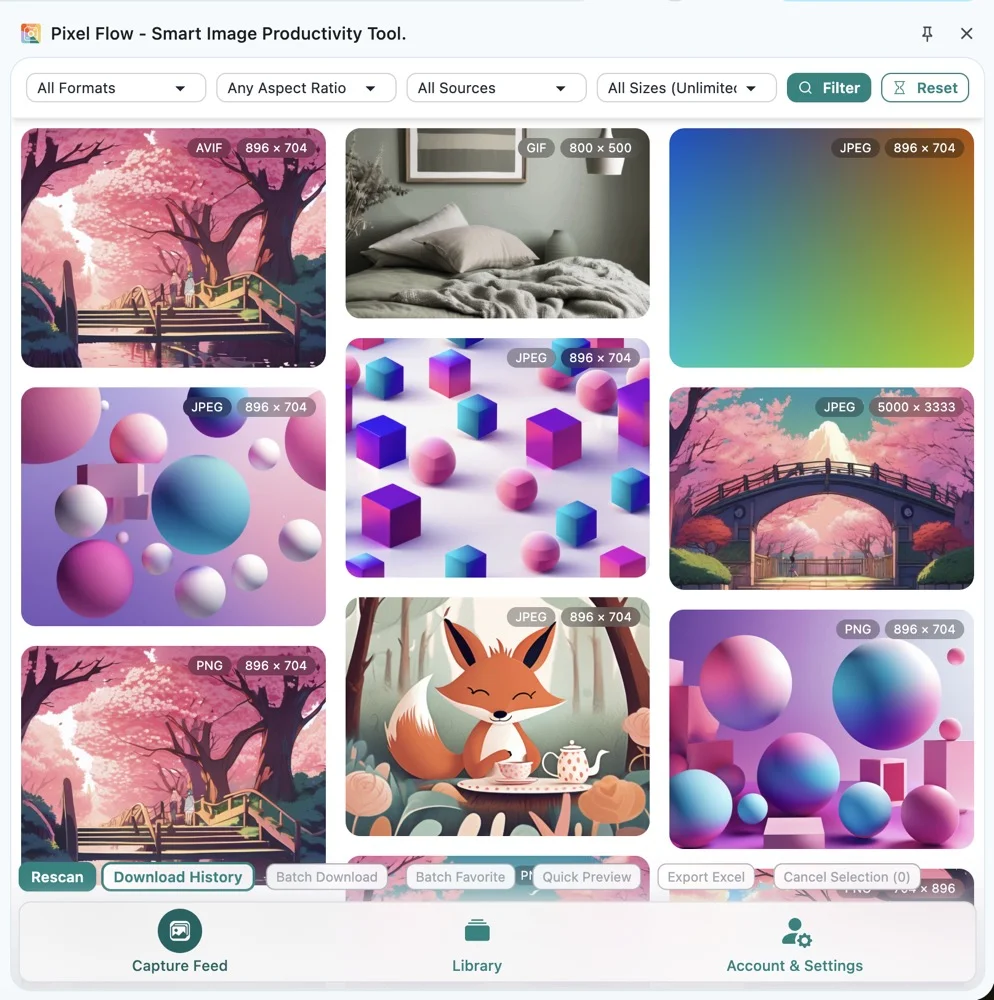
This path fits designers, operators, and content teams who need to organize image assets from webpages. Start with batch scan images from a webpage to learn how to open the side panel, wait for automatic scanning, scroll to load more images, filter out icons and decorative images, then batch favorite, download, or export.
If you already know what you want to do in the capture feed, continue with filtering images by format, ratio, source, and resolution; batch favorites; or batch downloads.
I Want to Check Whether an Image Can Be Used
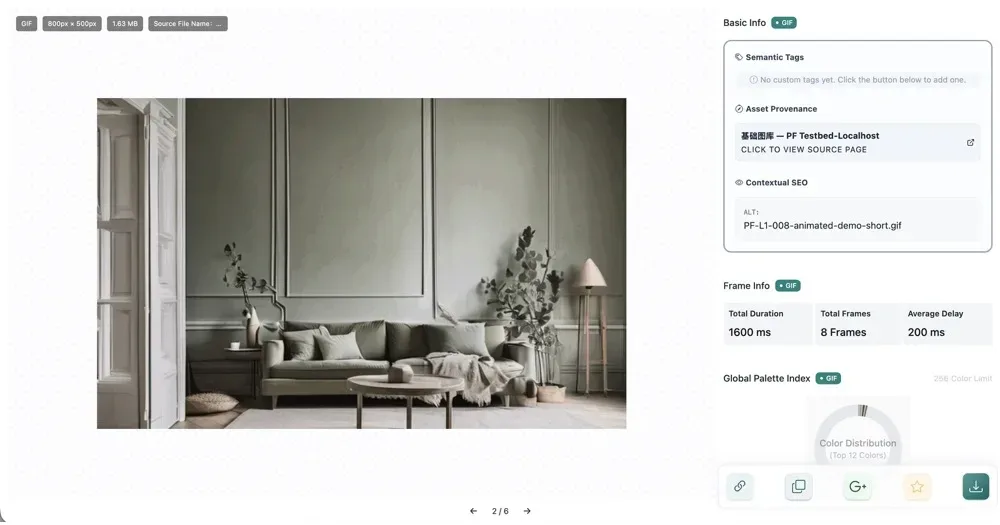
Open analyze a single image’s parameters and source. Focus on the source URL, page context, format and dimensions, EXIF, AIGC parameters, and AI detection results. Pixel Flow can provide source and technical clues, but it cannot replace an authorization decision.
If you only want to understand a specific field, jump to the image analysis dictionary. If you need to continue tracing the source, see Google Reverse Image Search.
I Want to Organize a Project Asset Library
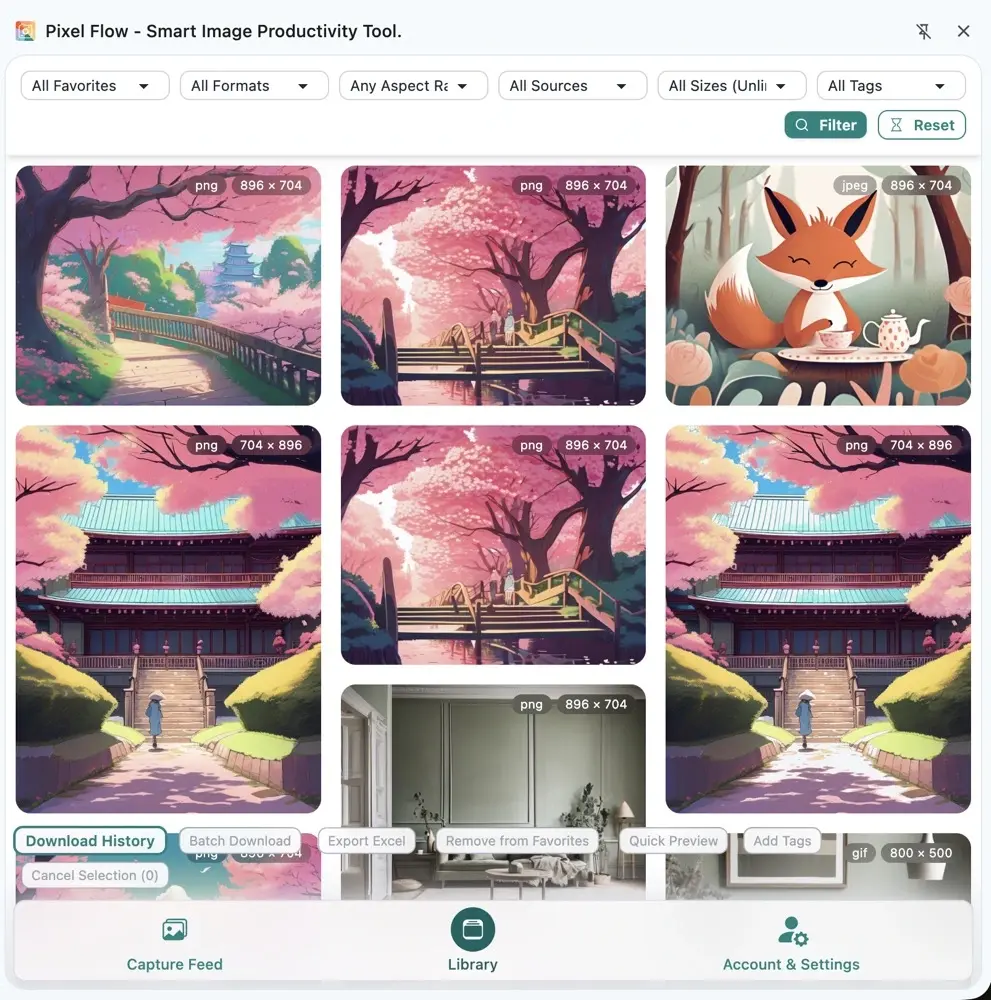
Open favorite images and organize them with tags. A good approach is to favorite images first, then use tags for clients, projects, pages, usage, or status. Later, you can search, filter, batch tag, unfavorite, or download from the library.
If you already have a batch of assets, continue with searching and filtering favorites, batch adding tags, and batch downloading from the library.
I Want to Deliver to Colleagues or Clients
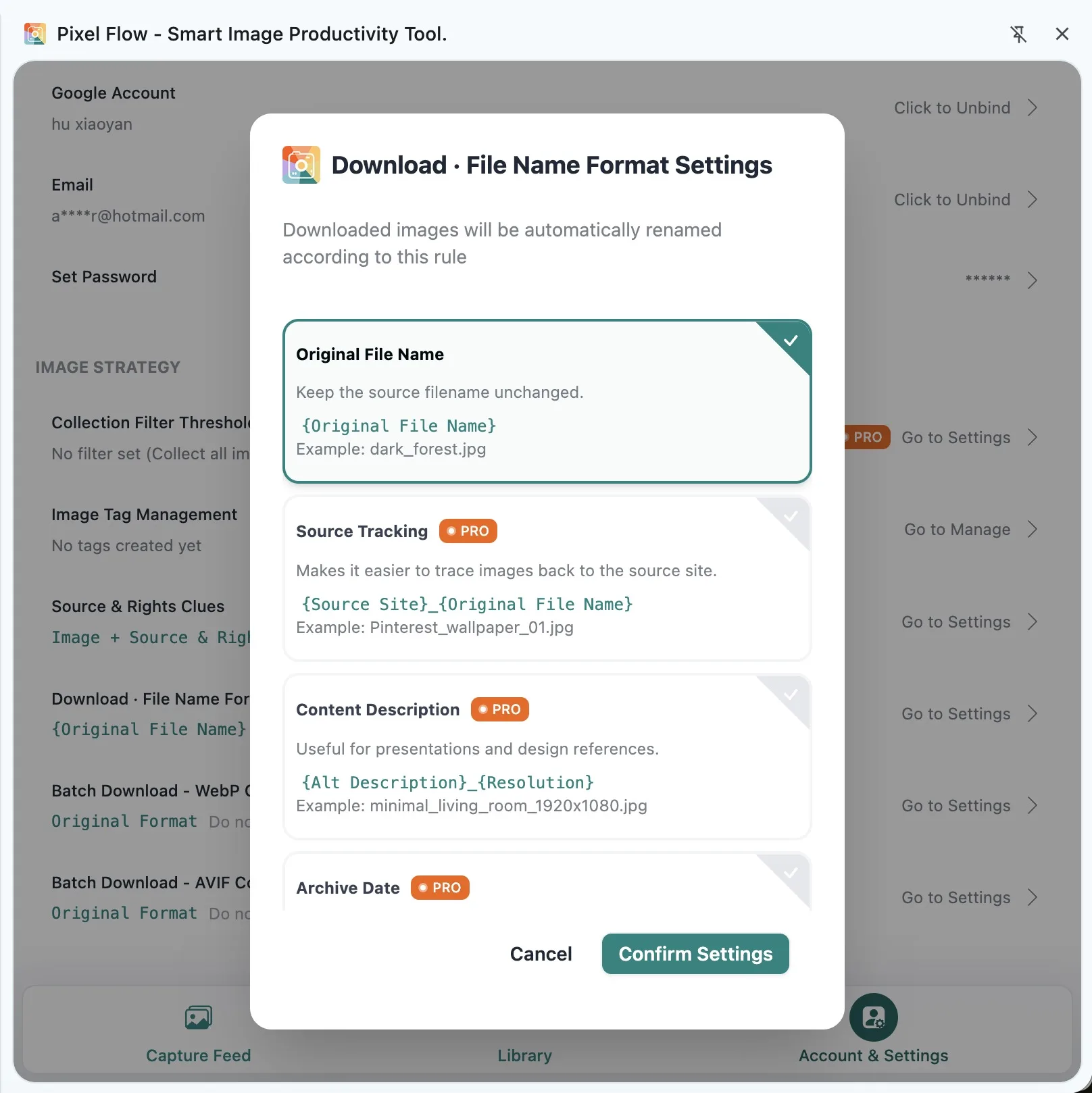
Open export an image inventory for a team or client. If delivery also requires the image files themselves, pair it with batch download images while keeping source records.
Before delivery, check three things: whether the images come from pages you are allowed to process, whether source records are complete, and whether file names are easy for the team to identify. When you need to trace past actions, check the download history.
I Am Worried About Data Loss
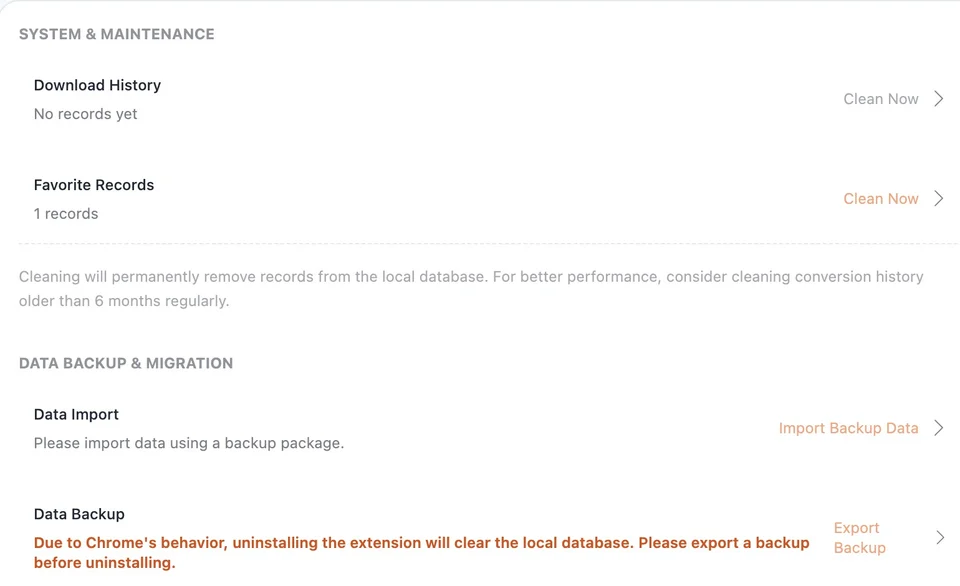
Start with migrate data and avoid uninstall-related loss and restore backup data. Before uninstalling the extension, clearing browser data, reinstalling Chrome, or switching devices, export a backup first.
If you are not sure which data will remain, continue with where data is stored and what data syncs.
Do Not Start Here
- If you are only installing Pixel Flow for the first time, do not start with the feature dictionary. Go directly to the first three-minute workflow.
- If you only want to know why a button is locked, start with the Free vs Pro feature comparison.
- If your work involves copyright, commercial use, training data, or client delivery, Pixel Flow can only provide organization and analysis clues. It cannot confirm authorization for you.
- If you plan to uninstall, reinstall, clear browser data, or switch devices, back up first.
Recommended Reading Order
New users can read in this order: first three-minute workflow -> batch scan images from a webpage -> analyze a single image’s parameters and source -> favorite images and organize them with tags -> export an image inventory for a team or client -> migrate data and avoid uninstall-related loss.