
Docs
Pixel Flow user manual and best practices
Find scanning, filtering, image details, library, export, account, and industry workflow guidance by task.
Core Workflows
Pixel Flow’s core workflow is not just saving one image. It connects page image scanning, filtering, single-image review, favorites, tags, download history, exported records, and Data Backup and Import into one repeatable browser-side process. Use this page to choose the right guide for the task in front of you.
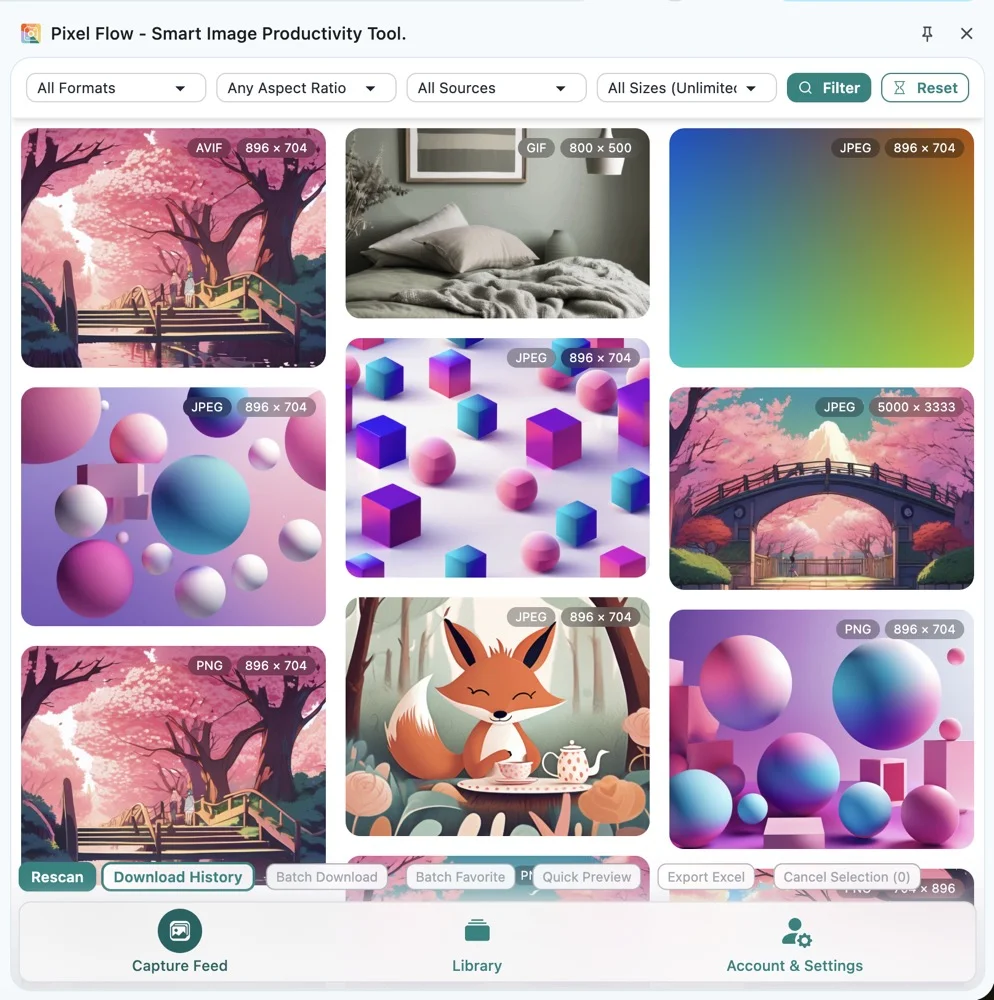
Choose Your Task
| What you want to do | Start here | Output |
|---|---|---|
| Find images from the current page | Capture Page Images in Bulk | A candidate list of images from the page |
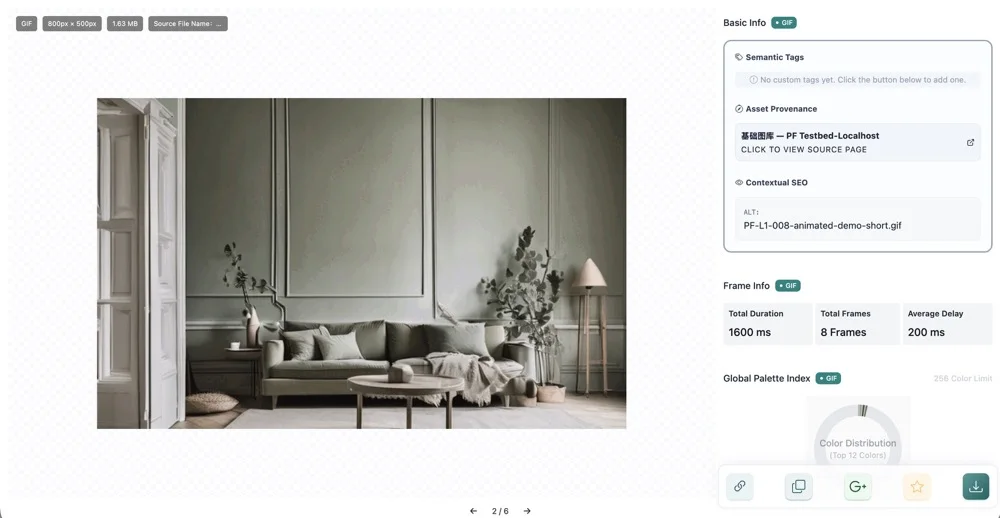
| Check one image’s source, format, and metadata | Analyze One Image and Its Source | URL, dimensions, format, EXIF, AI/AIGC clues |
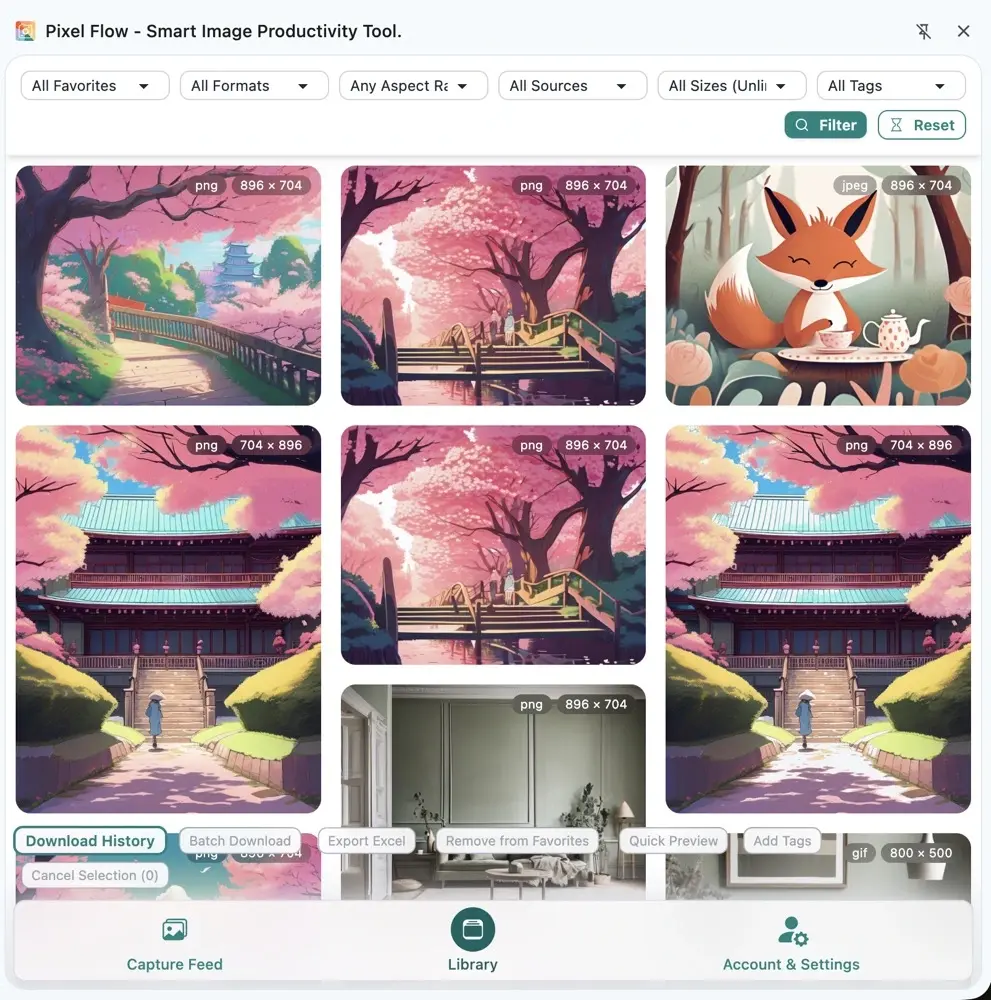
| Keep assets for longer-term projects | Favorite Images and Organize with Tags | A tagged local asset library |
| Save files while preserving context | Batch Download with Source Records | Image files, download history, and source records |
| Hand image candidates to a team or client | Export an Image Inventory | A reviewable Excel image inventory |
| Protect data before switching devices, reinstalling, or uninstalling | Back Up Data Before Switching, Reinstalling, or Uninstalling | A backup package that can be imported later |
A Complete Flow
- Open the target page, then click the Pixel Flow toolbar icon or choose Manage Current Page Images from the page context menu.
- After the side panel opens, the capture feed scans images that are already rendered on the current page. If the page lazy-loads content, keep scrolling so more images enter the viewport.
- Use format, aspect ratio, source type, and resolution filters to remove icons, avatars, placeholders, and unrelated small images.
- Select candidate images, then use the bottom action bar to preview, favorite, download, or export them.
- For images that need review, open Image Details or the Preview page to check URL, dimensions, format, source page, EXIF, AI fingerprint, and AIGC parameter clues.
- For long-term organization, save images to the library and tag them by project, client, purpose, permission status, or delivery stage.
- For delivery, download files and keep the download history. For review or collaboration, export an Excel record. Before switching devices, uninstalling, or clearing browser data, create a backup.
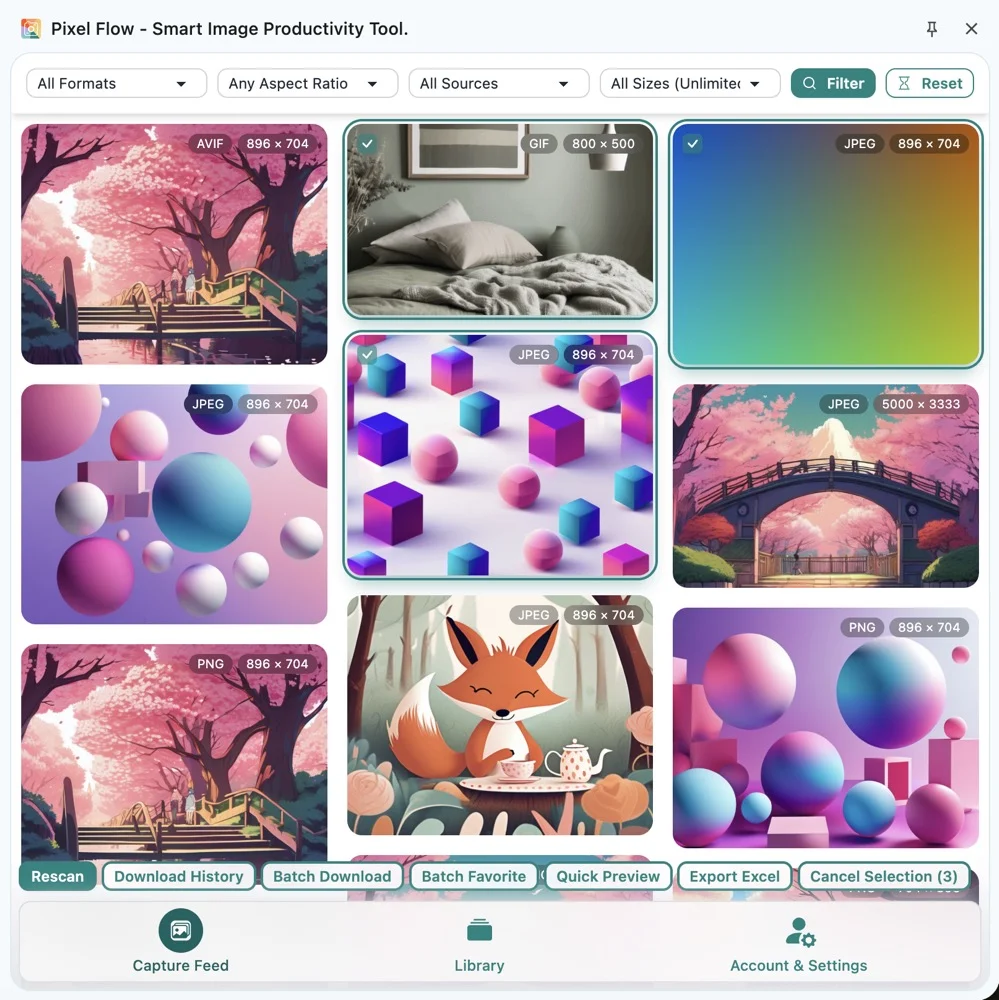
How The Interfaces Work Together
Pixel Flow’s interfaces have different jobs. This overview connects them; the linked guides cover detailed button behavior.
| Interface | Handles | Open it when |
|---|---|---|
| Capture feed | Page image scanning, filtering, selection, preview, favorites, downloads, and Excel export | You want to collect images from one page |
| Image Details | One image’s basic info, source clues, EXIF, AI fingerprint, AIGC parameters, and download options | You need to judge image quality, source, or technical metadata |
| Preview page | Multi-image preview with left/right navigation and the same detail panels | You want to compare candidates before downloading or use deep inspect from the context menu |
| Library | Favorites, search, filters, tag editing, batch tags, and later downloads | Images have become part of a longer-term project library |
| Download history | Download tasks, timestamps, source entry points, and package files | You need to verify delivered files or trace a previous download |
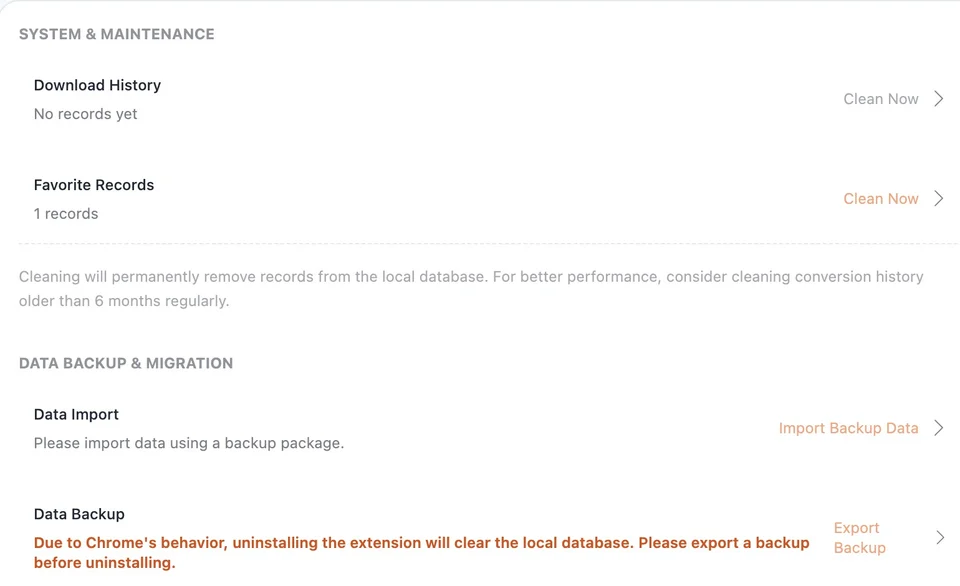
| Settings | Sign-in, PRO status, scan thresholds, tags, file naming, conversion preferences, backup, and import | You need to change workflow rules or protect local data |
Where To Go Next
If you are new to Pixel Flow, start with First Three-Minute Session to learn the basic motion. After that, choose by task:
- For the full product map, read Feature Overview.
- To collect images from a page, open Capture Page Images in Bulk.
- To check one image’s source and metadata, open Analyze One Image and Its Source.
- To organize images for ongoing work, open Favorite Images and Organize with Tags.
- To keep downloads and source context together, open Batch Download with Source Records.
- To share image records for team, client, or later review, open Export an Image Inventory.
- Before uninstalling, reinstalling, switching devices, or clearing browser data, open Back Up Data Before Switching, Reinstalling, or Uninstalling.
Data, Permissions, And Rights Boundaries
Pixel Flow helps preserve source URLs, page context, download history, and exported records, but those records are review clues, not copyright permission. Before publishing, client delivery, commercial use, redistribution, or dataset preparation, separately confirm image rights, site terms, publicity rights, trademark limits, and your internal review rules.
Favorites, tags, download history, settings, and backups primarily depend on browser extension local data. Before uninstalling the extension, clearing browser data, reinstalling Chrome, or moving to a new device, export a backup package from Settings. After import, structured records such as favorites and tags can be restored; some temporary analysis data may need to be regenerated by reopening the image.
Pages
- Capture Page Images in Bulk
- Analyze One Image and Its Source
- Favorite Images and Organize with Tags
- Batch Download with Source Records
- Export an Image Inventory
- Back Up Data Before Switching, Reinstalling, or Uninstalling