
Docs
Pixel Flow user manual and best practices
Find scanning, filtering, image details, library, export, account, and industry workflow guidance by task.
Analyze One Image and Its Source
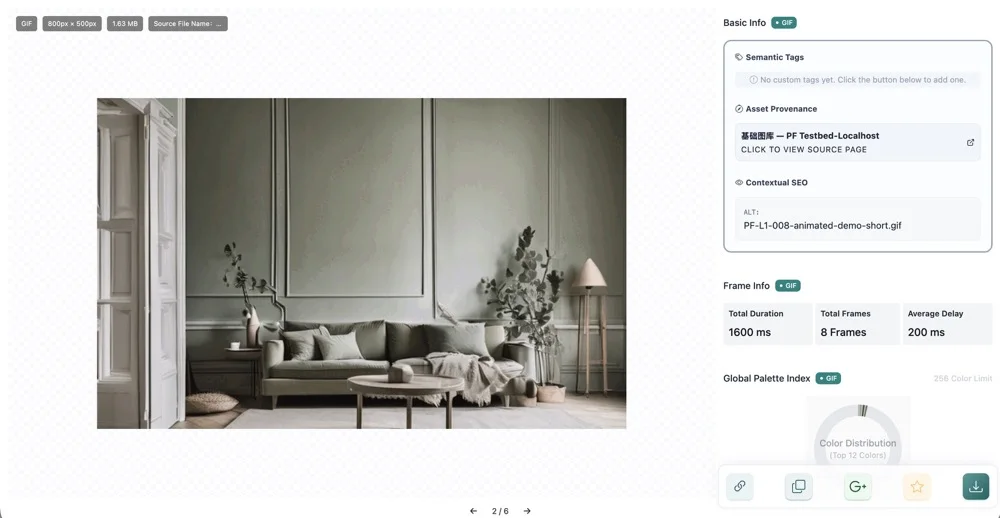
When you have found a candidate image in the capture feed or library and need to understand where it came from, what format it uses, what metadata it contains, or whether it carries AI/AIGC clues, open Image Details or the Preview page. The goal is not to make a final decision for you, but to organize the file, source page, technical metadata, and next actions into reviewable clues.
When To Use This
| Task | Check first | Next action |
|---|---|---|
| Confirm an image before download | Dimensions, format, file size, responsive variants | Download the original or available variants |
| Review source before publishing | Source URL, page title, site name, alt text | Open the source page and save review notes |
| Inspect technical clues | EXIF, camera parameters, color data, software | Copy image info or add project notes |
| Review AI/AIGC clues | AI fingerprint, AIGC parameters, prompt, seed, workflow | Treat as supporting clues and review manually |
| Share with a team or client | Key fields, source links, tags, download history | Export Excel or keep records in the project folder |
Where To Open Analysis
You can enter single-image analysis from several places:
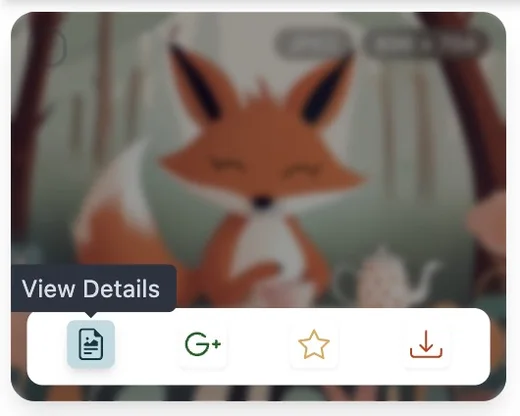
- Hover an image card in the capture feed and click View Details.
- Hover an image card in the library and click View Details.
- Select multiple images in the capture feed or library, then click Quick Preview to review them one by one in Preview.
- Right-click an image on the web page and choose Deep Parse Image.
When the side panel is already open, single-image details usually appear in the side panel. Batch preview or deep inspection from the context menu may open the Preview page. Both places use the same analysis logic; the main difference is layout and browsing mode.
Start With Basic Info And Source
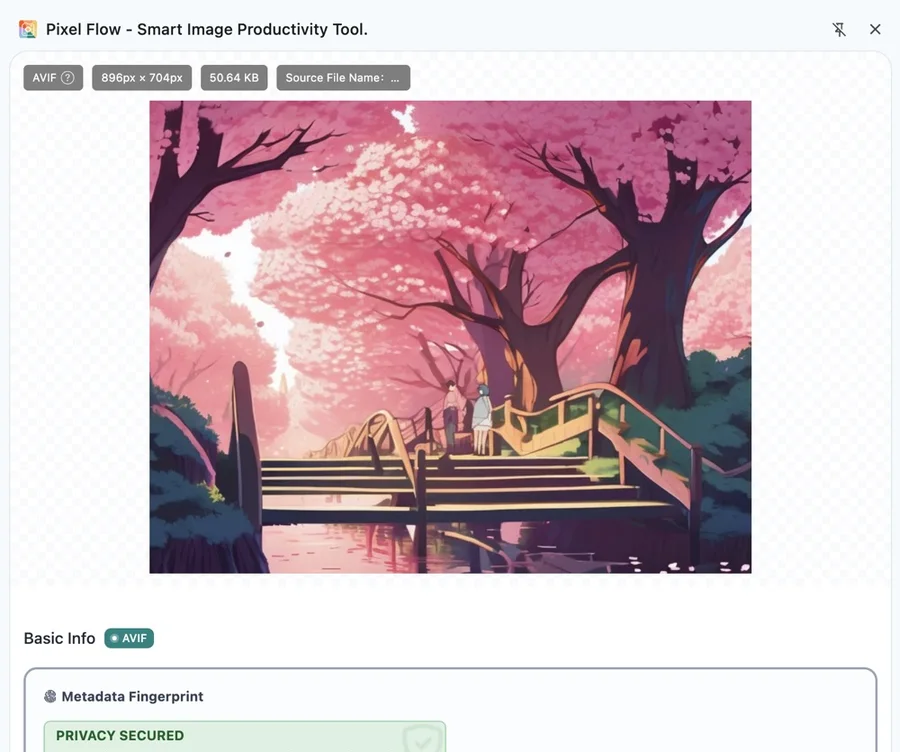
After opening details, check the basic fields first:
- Image URL: the direct address Pixel Flow used to read the image.
- Source page URL: the page where the image was first detected.
- Page title and site name: context for understanding how the image was used.
- Dimensions, format, and file size: useful for download, design, publishing, or delivery decisions.
- Alt text: if the source page provided alt text, it can be a context clue.
- Action timeline: see whether the image was favorited, downloaded, or processed later.
Important: source URLs, page titles, and download history are review clues, not permission proof. Before publishing, client delivery, commercial use, or dataset preparation, separately confirm rights and site terms.
Then Review Metadata And Technical Details
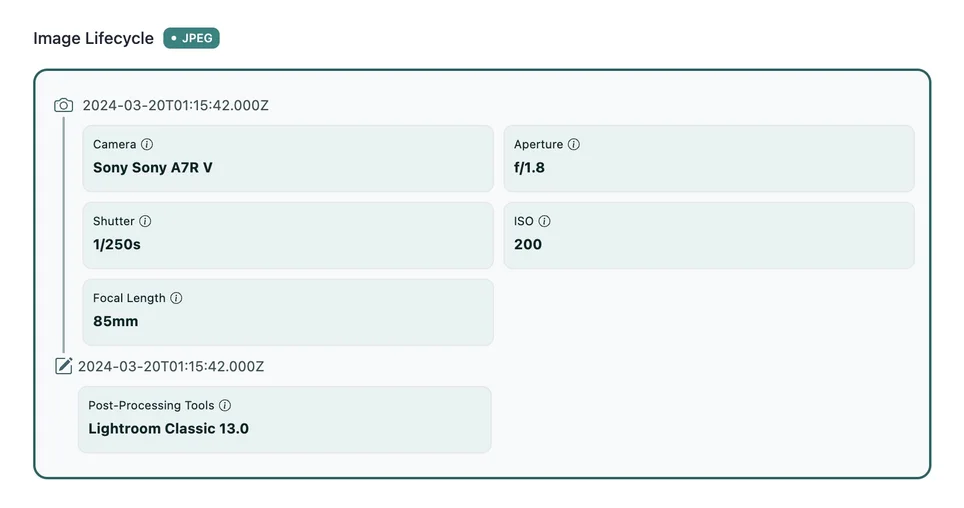
After the basic fields, review available technical clues by image format. Different formats preserve different data; Image Details does not invent fields that are not present in the source file.
| Type | What you may see | What to remember |
|---|---|---|
| EXIF / camera parameters | Camera, lens, exposure, focal length, GPS, software | Many platforms strip EXIF; empty fields are not unusual |
| Color and format data | Color space, bit depth, ICC, format traits | Useful for display and delivery risk checks |
| GIF / WebP / AVIF animation | Frames, animation info, frame download actions | Some actions may depend on PRO or format support |
| SVG | Vector structure, dimensions, complexity, accessibility clues | SVG behaves more like code than a photo |
How To Read AI And AIGC Clues
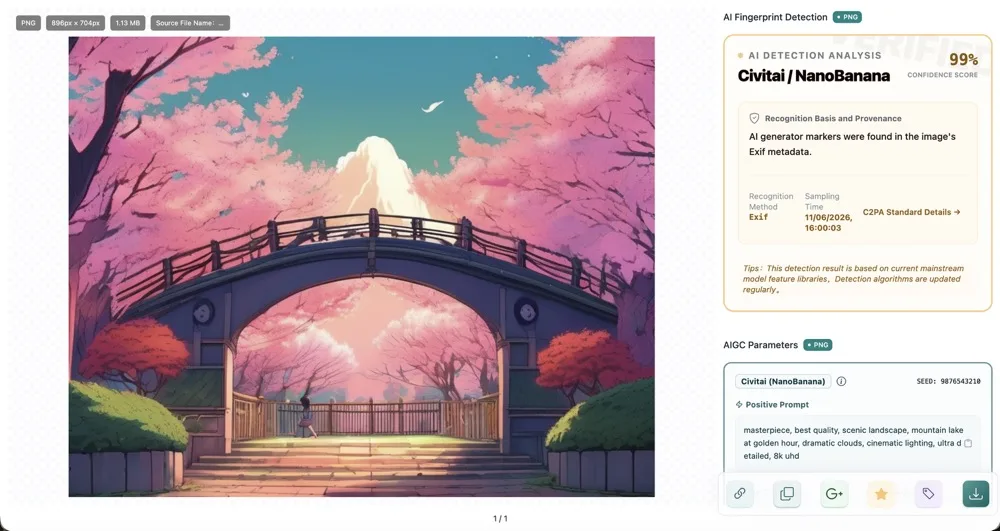
AI fingerprint detection and AIGC parameter parsing are supporting signals, not final evidence.
- AI fingerprint detection: highlights possible generation, editing, or compression clues. It is a prompt for review, not a verdict.
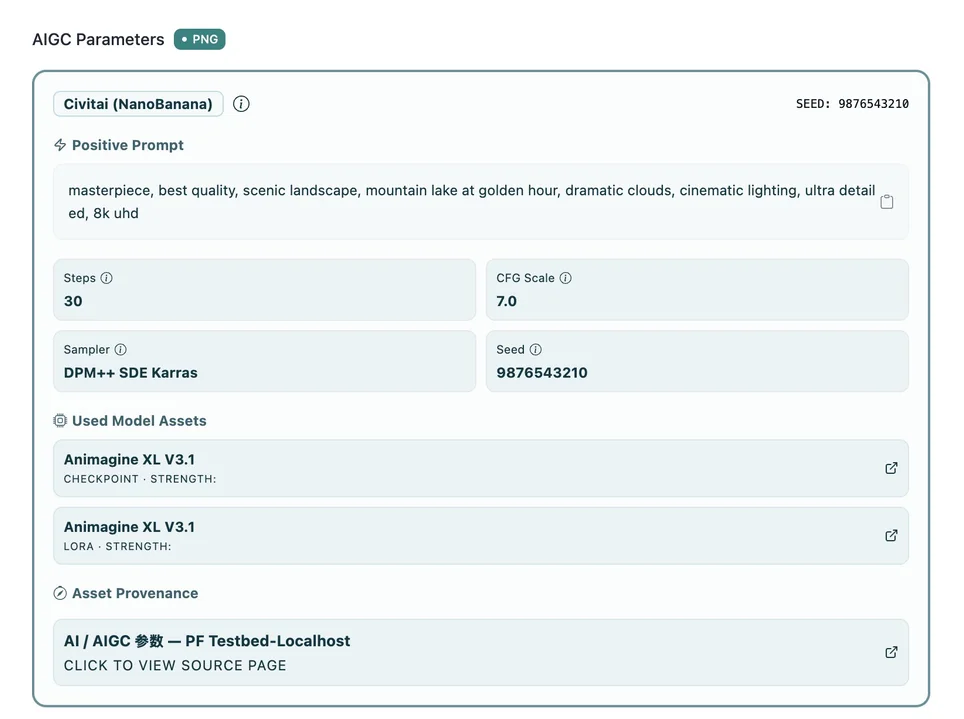
- AIGC parameters: appear only when the image file or source preserved generation metadata.
- Possible fields: Prompt, Negative Prompt, Seed, Sampler, Steps, CFG, model, LoRA, Workflow JSON, and related fields.
- Empty results have causes: platform stripping, recompression, screenshots, re-exporting, or format conversion can remove parameters.
AI fingerprint and AIGC parameters are only supporting clues. No result does not prove an image is not AI-generated; detected clues do not automatically prove the final conclusion either.
Keep Records When Needed
Image Details and Preview are not only for viewing; they help you save and organize review clues:
- Open source link: return to the source page or image URL to review context, rights language, and placement.
- Copy image info: move URL, dimensions, format, and source fields into chat, tickets, spreadsheets, or audit notes.
- Google Reverse Image Search: continue checking similar images or earlier appearances in an external search service.
- Favorite and tag: save the image to the library and tag it by project, client, purpose, or review status.
- Download original or variants: save files while keeping download history.
- Export Excel: when reviewing multiple images, export fields into a structured inventory.
Common Questions
Why does an image have no EXIF?
EXIF depends on the format and whether the source file kept it. JPEG photos are more likely to contain EXIF. PNG, GIF, and SVG usually have limited photographic metadata. WebP and AVIF depend on whether metadata was preserved during conversion. Many social platforms, compression services, and content systems strip EXIF during upload or transcoding to reduce network transfer costs.
Why are AIGC parameters empty?
AIGC parameters appear only if the generation tool wrote them into the image and no later platform removed them. Screenshots, re-exporting, format conversion, social compression, or manual cleanup can remove Prompt, Seed, Sampler, Workflow, and related fields. For next steps, see AIGC parameters are empty.
Can AI fingerprint detection prove copyright status or authenticity?
No. AI fingerprint detection is a review clue. For publishing, client delivery, commercial use, factual review, or dataset preparation, combine it with source pages, permission records, original files, human review, and your team workflow before reaching a conclusion.
What if the source link no longer opens?
The source page may have been deleted, require login, block your region, or have an expired resource URL. You can still keep image info, download history, screenshots, exported records, and project notes, but rights status still needs separate confirmation.
Why do Preview and side panel details not look exactly the same?
They use the same analysis logic but different layouts. The side panel is better for quick review of the current image. Preview is better for batch preview, switching between images, and comparison. Available actions can also depend on image format, account state, PRO access, and browser limitations.
Does single-image analysis upload the image?
Basic fields, format information, and readable metadata are primarily handled in the browser.
Google Reverse Image Search is an external action that you actively trigger. Pixel Flow first tries to open Google Lens with the original public image URL. When the original URL is not suitable for direct search, Pixel Flow temporarily uploads an image copy to a third-party object storage service and generates a short-lived Google Lens access link. The temporary copy is used only for this reverse image search. It is not added to your Library or long-term analysis data; after the access link expires, it can no longer be opened, and the temporary file is removed according to server-side cleanup rules. Before using this action, please make sure you are comfortable sending the relevant image clues to Google Lens and the temporary storage service.
Availability
Basic Information, source clues, and some format fields are available to all users. AI/AIGC features, batch analysis, Google Reverse Image Search, animation frame packages, multi-resolution downloads, and format conversion may depend on account state, PRO access, quota, or image format. Pixel Flow shows locked states, upgrade prompts, or current quotas in the interface.
Notes
- Image Details provides technical and source clues. It does not grant reuse, publishing, commercial, or dataset rights.
- AI, AIGC, EXIF, and source information can be missing, stripped, or incomplete; review them together.
- Before sharing image info, check whether it includes internal URLs, logged-in pages, client material, or sensitive project context.
- If a page or image does not parse correctly, first confirm you have permission to access and process it, then open Contact Support with the URL and a short description.
Related Pages
- View Basic Information
- Camera Parameters and Lifecycle
- AI Fingerprint Detection
- AIGC Parameter Parsing
- Open Source Link
- Copy Image Info
- Google Reverse Image Search
- Download Original and Variants
- Copyright and Source Clues