
Docs
Pixel Flow user manual and best practices
Find scanning, filtering, image details, library, export, account, and industry workflow guidance by task.
View Basic Information
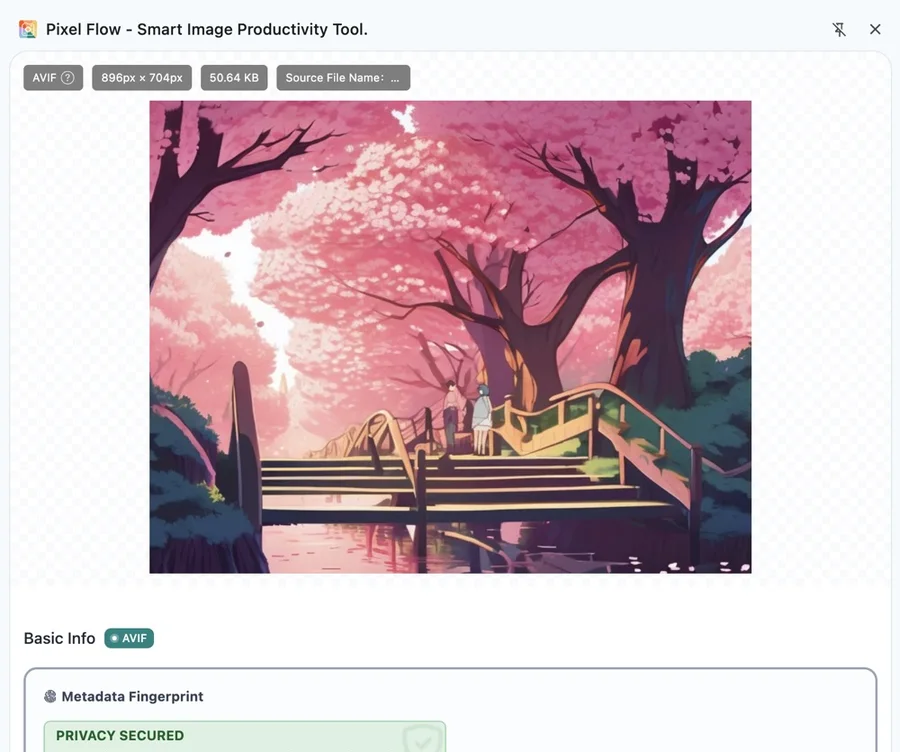
Basic Information is the first layer of Image Details that every user can see. It helps you confirm image dimensions, format, file size, image URL, source page, alt text, and action records before deciding whether the image is worth downloading, favoriting, reviewing, or handing off.
When To Check Basic Information First
| Scenario | Check first | What you can decide |
|---|---|---|
| Before download | Dimensions, format, file size | Whether the image is suitable for design, publishing, delivery, or continued download |
| Source review | Image URL, source page, page title, site name | Where the image was found and what page context it came from |
| Team records | Source fields, favorite status, download records | Whether the image has entered the library or has already been processed |
| Troubleshooting | Empty fields, invalid URLs, converted formats | Whether to rescan, open the source page, or continue deep analysis |
Where To Open It
You can open Basic Information from several places:
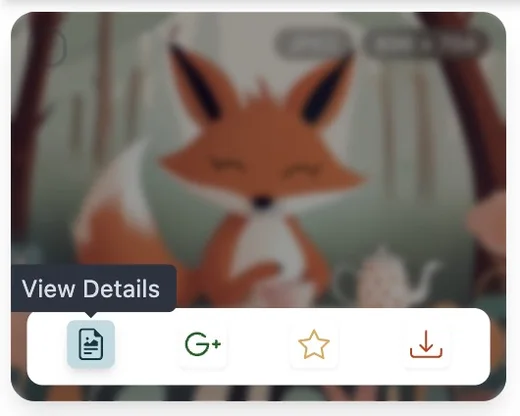
- Hover an image card in the capture feed or library, then click View Details.
- Select images in the capture feed or library, then click Quick Preview to review them one by one in Preview.
- Right-click an image on the web page and choose Deep Parse Image.
What Basic Information Includes
| Field | What it helps you decide | Notes |
|---|---|---|
| Dimensions | Pixel width and height; whether the image is suitable for design, publishing, or download | Web thumbnails, responsive variants, and originals may have different dimensions |
| Format | Whether the image is JPEG, PNG, WebP, AVIF, GIF, SVG, or another type | Pixel Flow prioritizes actual response information and file identification, not only the URL suffix |
| File size | Original resource size, download cost, and compression level | A small file is not always low quality, and a large file does not prove usage rights |
| Image URL | The direct address Pixel Flow used to read the image data | It may be a CDN URL, dynamic endpoint, temporary address, or login-protected resource |
| Source page URL | The page where the image was first detected | A source page does not mean the image is reusable |
| Page title and site name | The page context where the image appeared | These are clues only and do not replace rights confirmation |
| Alt text | The source page’s text description of the image, often used for accessibility, SEO, and image context | In ecommerce, it can help review product name, color, variant, angle, or scene, but it may be empty, outdated, keyword-stuffed, or inconsistent with the image |
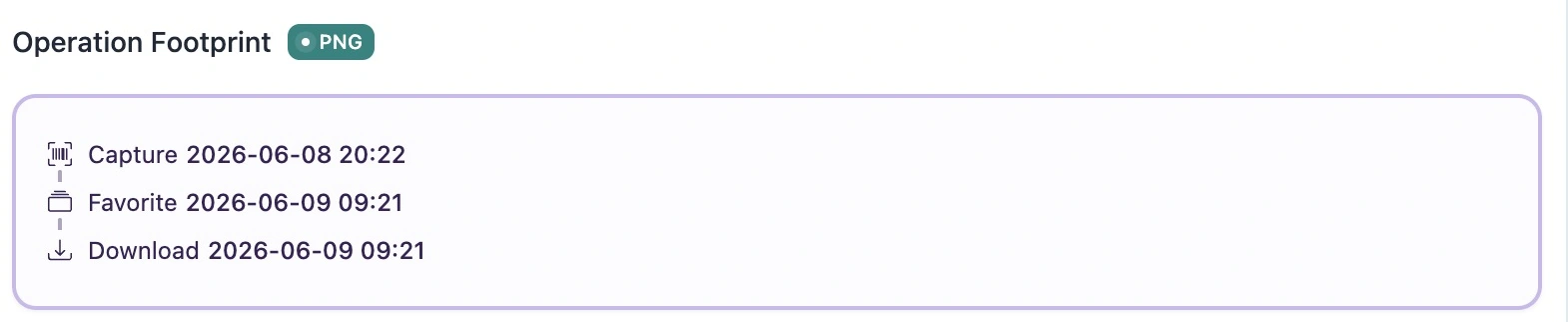
| Action timeline | Whether the image was captured, favorited, downloaded, or processed again | Useful for team review, project handoff, and download record tracking |
Pixel Flow prioritizes response information such as Content-Type and file identification results instead of relying only on suffixes like .jpg, .png, or .webp. For example, a URL that looks like .jpg may actually return WebP, and a CDN URL with no clear suffix can still be identified by its real format.
How To Read Source Clues
The easiest fields to confuse are Image URL and Source page URL.
- Image URL is the resource address for the image file itself. Pixel Flow uses it to read image data.
- Source page URL is the web page where the image was found. Use it to return to context and review how the image was used.
- Page title, site name, and alt text help you understand how the source page describes the image.
Image URL, source page, page title, and alt text only help you review context. Before publishing, client delivery, commercial use, redistribution, or dataset preparation, separately confirm image rights, site terms, likeness rights, trademark limits, and internal review rules.
How Ecommerce Teams Should Read Alt Text
On ecommerce pages, alt text often describes product names, categories, models, colors, variants, angles, details, or usage scenes. It helps search engines understand image content, improves accessibility, and gives teams another clue when organizing product assets.
When reviewing alt text, check:
- Whether it includes the core product name, such as brand, category, model, series, or SKU.
- Whether it describes the actual image content, such as color, angle, bundle, detail image, lifestyle scene, or campaign image.
- Whether it matches the page title, product title, and visible image content.
- Whether it stuffs keywords, uses the wrong description, or describes something unrelated to the image.
- Whether it is empty; if many product images have no alt text, image context may be harder to understand and reuse.
Pixel Flow shows alt text to help preserve how the source page described the image. Use it as an SEO and product asset organization reference, not as a substitute for human review or proof of image rights.
How To Read The Action Timeline
Below the basic properties, Pixel Flow records key actions for the image, such as first capture, saving to the library, downloading, or later processing. The timeline helps answer:
- When did this image enter the Pixel Flow workflow?
- Has it already been saved to the library?
- Has it already been downloaded, and do you need to download it again?
- During team handoff, can you explain how this image was handled?
What To Do When Fields Are Empty
Empty Basic Information fields do not always mean the image is abnormal. Common reasons include:
- Alt text is empty: the source page did not provide
alt, or the image is not a standard<img>element. - Source page context is incomplete: the image may come from CSS background images, inline resources, lazy-loading scripts, or third-party components.
- File size is unknown: browser limits, cross-origin policies, or abnormal resource responses may affect reading.
- Page title is missing: the image may come from a standalone file, temporary URL, or inaccessible page context.
- Format and suffix do not match: CDNs or dynamic endpoints may return WebP, AVIF, or another format depending on browser support.
When fields are empty, try returning to the source page, scrolling until images are loaded, and rescanning. You can also open the source link, copy available image information, or continue checking AI fingerprint, AIGC parameters, EXIF, and format-specific information when available.
Free And Pro Notes
Basic Information and source clues are visible to both Free and Pro users. AI fingerprint, AIGC parameters, EXIF, animation frame packages, multi-size downloads, and format conversion may depend on image format, account state, quota, and Pro access.
What You Can Do Next
After confirming Basic Information, you can continue with:
Related Pages
- Image Details
- Analyze One Image and Its Source
- View Camera Parameters and Lifecycle
- Metadata Reliability