
Docs
Pixel Flow user manual and best practices
Find scanning, filtering, image details, library, export, account, and industry workflow guidance by task.
Capture Page Images in Bulk
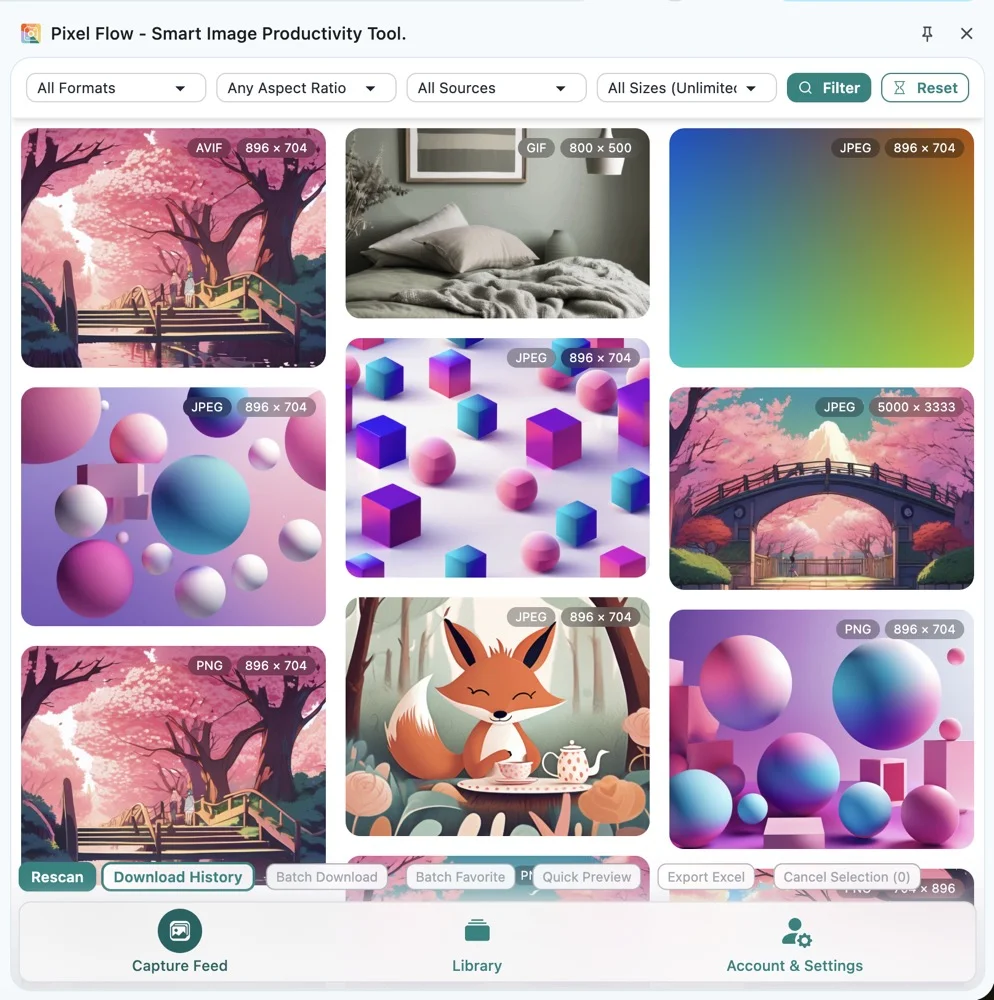
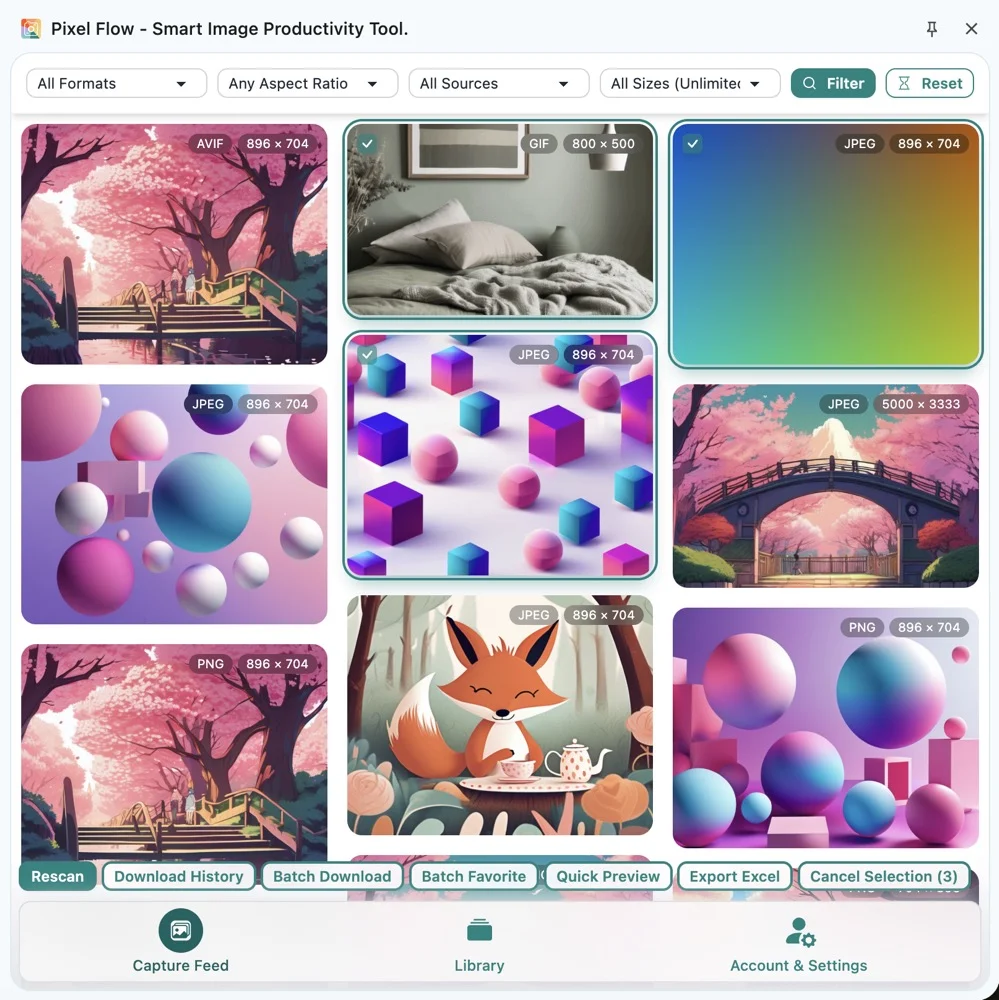
When you want to organize image assets from the current page, start by opening the Pixel Flow side panel. The capture feed scans images that are already rendered and accessible to the browser extension, then shows thumbnails, formats, dimensions, and source clues. Keep scrolling to let lazy-loaded images enter the viewport, then use filters and batch actions to finish the workflow.
When To Use This
Use this flow when you want to move images from one page into a single filterable list instead of saving them one by one.
| Task | What you usually do | Next page |
|---|---|---|
| Design reference collection | Scan landing pages, competitor pages, or inspiration pages while removing icons and decoration | Favorite Images and Organize with Tags |
| Ecommerce image review | Filter product images by format, dimensions, aspect ratio, or responsive variants | Batch Download with Source Records |
| Editorial image candidate review | Collect possible article, campaign, or reference images from a page | Export an Image Inventory |
| Authorized dataset pre-screening | Collect candidates first, then review source and metadata in image details | Analyze One Image and Its Source |
| Team delivery check | Select images for review or delivery, then export records or batch download files | Export an Image Inventory |
Open The Capture Feed
Opening the side panel is the only required action. Capture starts as soon as the side panel opens; you do not need to click a scan button first.
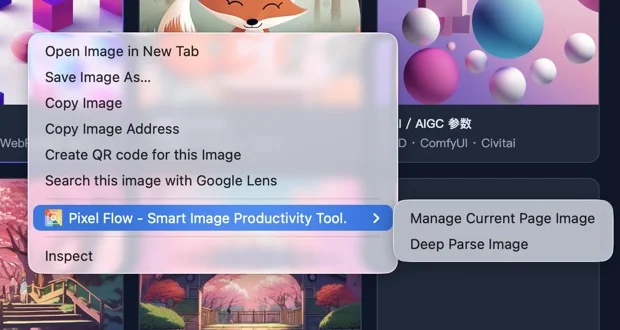
Method A — Context Menu:
Right-click anywhere on the page and choose Manage Current Page Images. The side panel opens on the right side of the browser and immediately starts collecting detectable images from the current page.
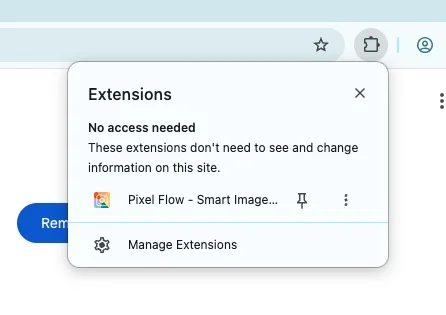
Method B — Toolbar Extension Icon:
Click the Pixel Flow icon in the Chrome toolbar. Once the side panel opens, capture starts automatically. Both methods have the same result. After the side panel is open, Pixel Flow continues watching the page, so newly rendered images can be added as you scroll.
How Scanning Works
After the side panel opens, the capture feed scans the current tab automatically. You do not need to press a detect button first. As you scroll, newly rendered images can be added to the list. For lazy-loaded pages, masonry layouts, or single-page apps that swap content, scroll to the relevant section first and then check whether the capture feed updates.
Pixel Flow scans images that are already rendered on the current page and readable by the browser extension. Lazy-loaded images need to be scrolled near the viewport first; cross-origin iframes, Canvas-rendered content, protected resources, or images that have not loaded yet may not appear in the capture feed.
Rescan is a fallback action. Use it when page content changed, the result looks incomplete, or you already loaded new images by scrolling but the list did not update. For a normal first pass, opening the side panel and waiting for automatic scanning is usually enough.
What Can Be Detected
Pixel Flow looks for image resources through page DOM and style information. Common detectable sources include:
| Type | Notes |
|---|---|
Standard <img> | Includes image URLs declared in src |
srcset and <picture> | Used for responsive and multi-resolution images |
CSS background-image | Background images loaded through url() in styles |
| SVG | Inline <svg> and SVG files referenced through <img src="*.svg"> |
| Some image maps | May appear when the image source is exposed by page structure |
These may not appear in the capture feed:
- Lazy-loaded images that have not rendered yet.
- Images inside cross-origin iframes.
- Graphics drawn through JavaScript on Canvas.
- Resources blocked by access control, cross-origin policy, protection rules, or site-specific behavior.
Narrow Results With Filters
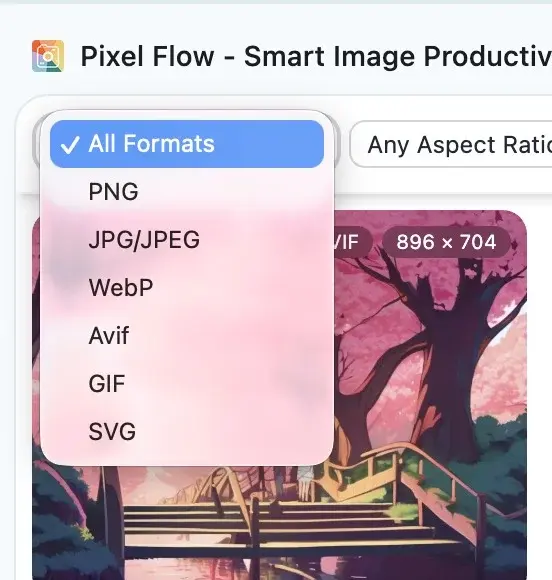
Pages often mix content images with icons, avatars, logos, placeholders, ads, and decoration. Filter first to reduce later preview and download work.
| Filter | Helps you |
|---|---|
| Image format | Show only GIF, WebP, JPEG, PNG, AVIF, or SVG |
| Aspect ratio | Find landscape, portrait, or square images |
| Source type | Separate remote URLs from Base64 embedded images |
| Resolution | Separate responsive multi-size images from single-size images |
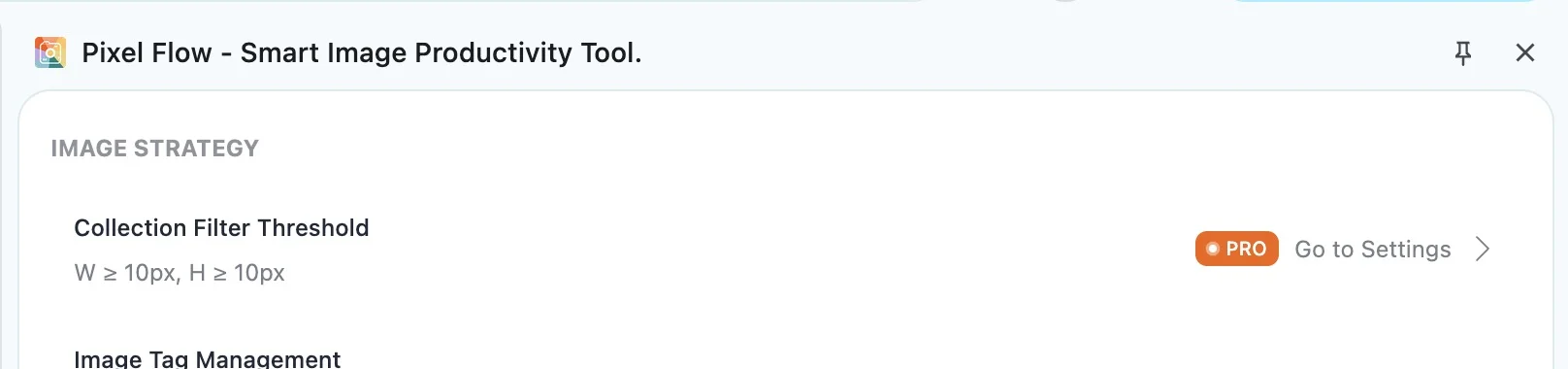
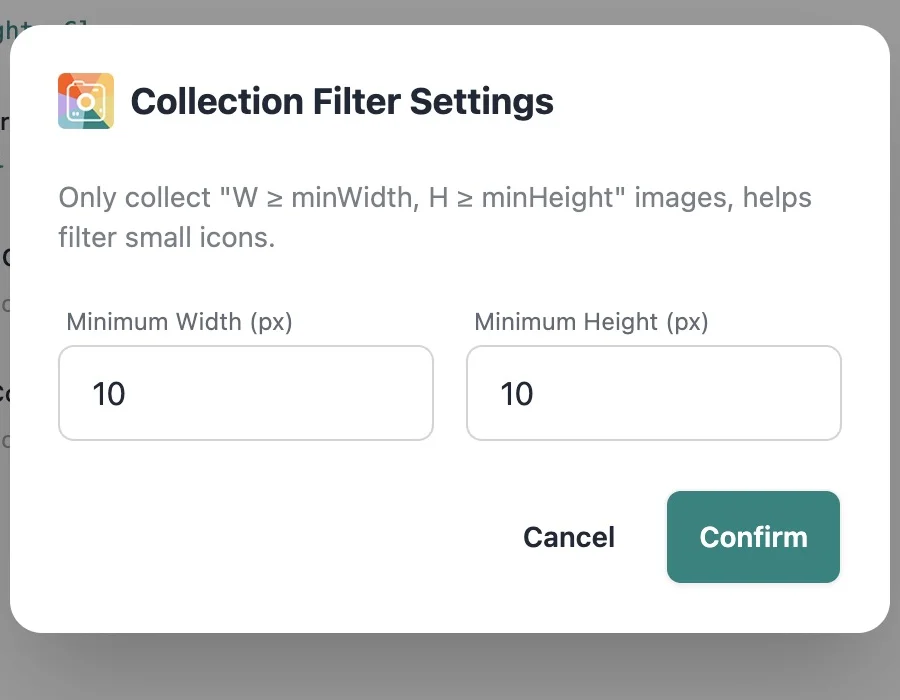
If you want tiny icons, tracking pixels, or decorative images to stay out of the capture feed from the beginning, set Account & Settings → Image Strategy → Collection Filter Threshold. This is different from the filters at the top of the capture feed: it applies during detection, so images below the threshold do not appear in the list and cannot become candidates for later batch actions.
What To Do After Scanning
After selecting one or more images, the bottom action bar provides the next actions:
- Quick Preview: compare multiple candidates and view their analysis panels.
- Batch Favorite: save candidates to the library, then organize them with project, client, purpose, or status tags.
- Batch Download: save selected images and keep records in download history.
- Export Excel: export image URLs, dimensions, formats, and source clues for review.
- Download History: revisit files and package records from previous downloads.
- Cancel Selection: clear the current selection before filtering or choosing again.
Common Questions
Why can I see an image on the page, but not in the capture feed?
First check whether Account & Settings → Image Strategy → Collection Filter Threshold is set too high. If the image is smaller than the configured threshold, it is excluded during detection and will not appear in the capture feed. You can temporarily lower the threshold and rescan the page.
If the threshold is not the issue, check these common causes:
- Lazy-loaded images: scroll down the page so the image actually renders. Pixel Flow usually adds newly rendered images to the capture feed automatically.
- Cross-origin iframe content: images inside iframes from different domains are restricted by browser security rules and usually cannot be read by the extension.
- Canvas-rendered graphics: Canvas is drawn by JavaScript and does not expose a standard DOM image node to the capture feed.
- Non-standard cross-origin configuration or protected resources: if you have a valid session on a site but the image still cannot load, the site may be blocking access. Open Contact Support and include the URL plus a short description.
If you have scrolled the page and confirmed the threshold is not the problem, but the capture feed still looks out of sync, use Rescan as a fallback. See Rescan and Handle Missing Images for details.
When should I use rescan?
Use Rescan after loading a new section, switching page content, expanding hidden areas, or noticing that the list did not update. For a normal first pass, wait for automatic scanning after opening the side panel.
Does scanning upload images?
Basic capture and filtering happen in the browser. Pixel Flow helps organize image URLs, dimensions, formats, and source clues, but it does not grant reuse rights or override website terms.
What is the difference between capture feed filters and Collection Filter Threshold?
Capture feed filters are temporary view filters. They hide or show images that already exist in the current list. Collection Filter Threshold is a detection rule. Images below the threshold do not enter the list at all. Use the top filters for one-page cleanup; adjust Collection Filter Threshold when you consistently want to remove icons, tracking pixels, and decorative small images from future captures.
Availability
Opening the side panel, viewing the capture feed, using basic filters, and organizing one page are available to all users. When deep analysis, some batch actions, export, or conversion requires PRO, Pixel Flow shows the locked state, upgrade prompt, or current quota in the interface.
Notes
- Pixel Flow actions are user-initiated. The extension does not grant image reuse permission or override website terms.
- Filters only change what appears in the current capture feed. They do not delete page content or modify the library.
- JPEG and JPG are shown as JPEG in Pixel Flow.
- If you need help with image detection on a page you are allowed to access and process, open Contact Support and include the URL plus a short description.
Related Pages
- Open the Side Panel and Scan Page Images
- Filter by Format, Aspect Ratio, Source, and Resolution
- Rescan and Handle Missing Images
- Quick Preview
- Batch Favorite
- Batch Download
- Export Excel