
Docs
Pixel Flow user manual and best practices
Find scanning, filtering, image details, library, export, account, and industry workflow guidance by task.
Local Data, Backups, and Uninstall Risk
Your Pixel Flow library, tags, download history, and some settings are mainly stored in your browser’s local environment. They do not automatically follow your account or device to the cloud by default. Therefore, before uninstalling the extension, clearing browser data, switching browser profiles, or reinstalling your system, export a backup first.
The most important rule is simple: if you are about to touch browser extension data, back up first.
If you want to go straight to the backup entry and import steps, read Data Backup and Import. If you are about to uninstall the extension or clear browser data, read Data Safety, Backup, and Cleanup first.
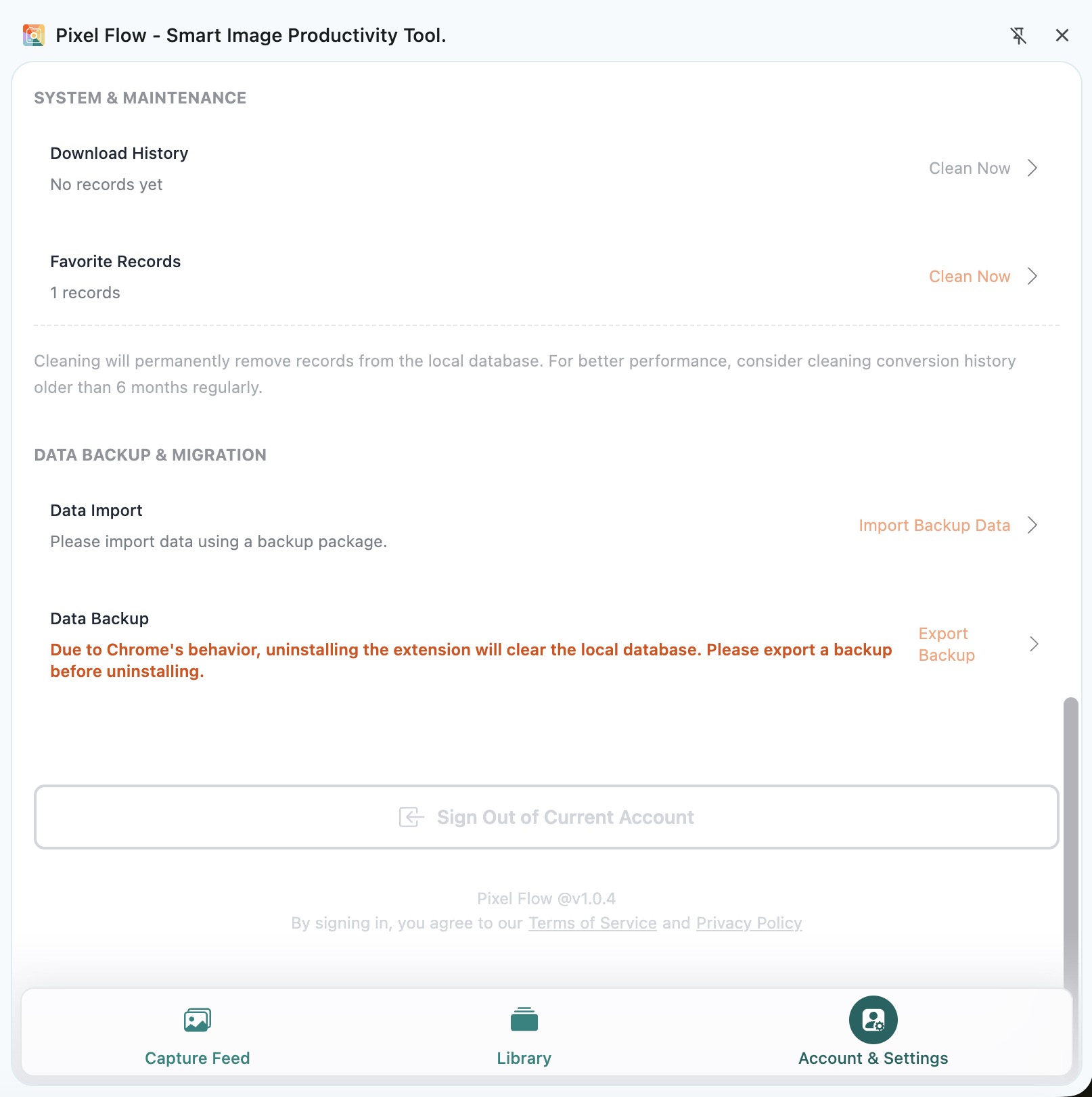
What Is Mainly Stored Locally
Pixel Flow stores the work data you use for image organization in the browser, including:
- Favorite image records and image data in your library.
- Download history and file records inside downloaded packages.
- Custom tags, tag statistics, and tag relations on images.
- Preview cache and temporary download data.
- Preferences such as language, filename format, source and rights clue records, and capture thresholds.
This local storage lets Pixel Flow show your library, download history, and settings quickly in the side panel. It also means the data is affected by your local browser environment.
Technical note: Pixel Flow uses local storage capabilities available to browser extensions to save work data. The library and download history are stored in a structured local browser database, while tags and some preferences are stored in extension local storage. Chrome’s official documentation explains that extension local storage data is stored on the user’s device and is cleared when the extension is removed. IndexedDB is the browser standard for structured local data storage. You can refer to the Chrome extension storage documentation and MDN’s IndexedDB documentation to understand these browser storage mechanisms.
Signing In Does Not Mean Data Syncs to the Cloud
After you sign in, Pixel Flow uses your account to identify PRO status, reward records, payment records, and the active data scope. When you are not signed in, data belongs to the current browser’s guest identity. After you sign in, data belongs to the current account scope.
This does not mean Pixel Flow automatically uploads all favorites, tags, and download history to the cloud. When you move to another computer or browser profile, export a backup from the old environment first, then import it in the new environment.
Actions That May Cause Data Loss
These actions may affect local data:
| Action | Risk | Recommendation |
|---|---|---|
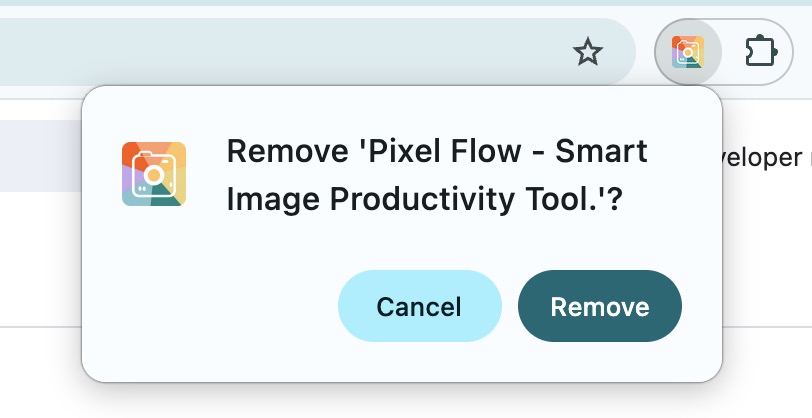
| Uninstall Pixel Flow | Chrome may remove the extension’s local database. | Export a backup before uninstalling. |
| Clear browser data or extension data | Your library, tags, history, and settings may be removed. | Export a backup before clearing data. |
| Switch browser profiles | The new profile will not see data from the old profile. | Export a backup from the old profile. |
| Reinstall the system or change computers | The local database does not automatically follow you. | Back up first, then migrate. |
| Use data cleanup | Records in the selected range are removed locally. | Confirm the cleanup range and back up important projects first. |
What a Backup Package Contains
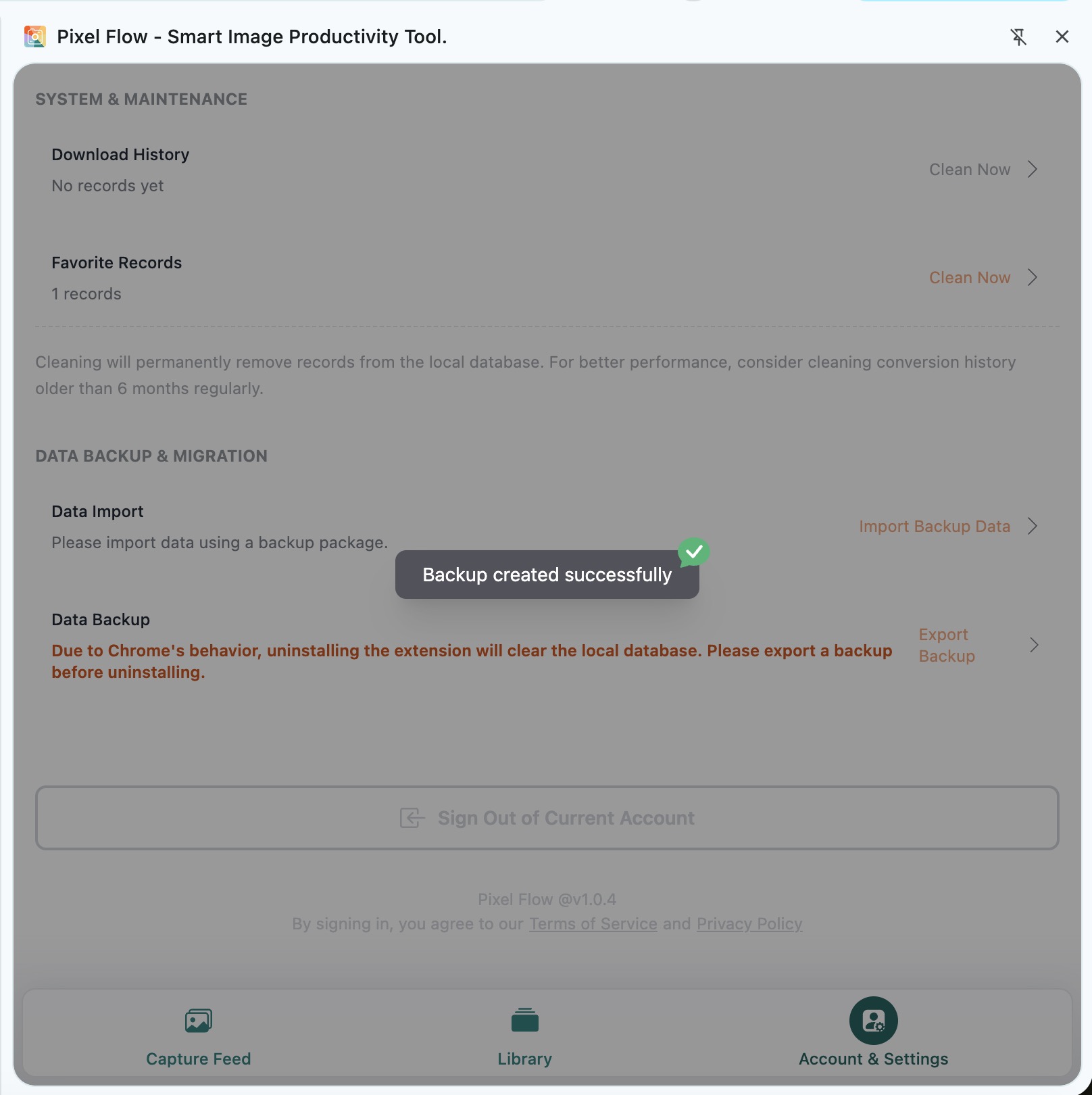
The exported backup package is a zip file. It usually stores:
- Backup owner information.
- Library manifest.
- Download history manifest.
- User preferences.
- Custom tags.
What a Backup Package Does Not Solve
A backup package stores Pixel Flow local work data. It is not an image license file. It does not change the original website, and it does not turn an unauthorized image into a commercially usable asset. Before public publishing, client delivery, ads, or training data use, you still need to confirm the source and usage rights separately.
Checklist Before Uninstalling or Cleaning Data
- You have exported the latest backup.
- You can find the backup zip in your downloads folder or chosen folder.
- The backup file is saved outside the browser data directory.
- If you are moving devices, you have confirmed that Pixel Flow can be installed in the new environment.
- If the current environment also has important data, export a current backup before importing another backup.
For the exact export and import entry points, see Data Backup and Import. For a fuller checklist of high-risk actions, see Data Safety, Backup, and Cleanup.
Frequently Asked Questions
Q: Will signing out delete my library?
Signing out affects account status and PRO entitlement checks, but it does not mean the local database is actively cleared. However, different accounts or guest identities use different data scopes, so the library you see may change.
Q: Does importing a backup overwrite existing data?
Import tries to merge data and applies the current account’s limits to new content. If a Free account imports a backup that exceeds Free favorite or tag limits, the extra new items may not fully import. If the current environment has important data, export a backup before importing another one.
Q: How often should I back up?
If you use Pixel Flow occasionally, back up before uninstalling, moving devices, or cleaning data. If you use it for client projects, asset archiving, or team delivery, back up at project milestones.