
Docs
Pixel Flow user manual and best practices
Find scanning, filtering, image details, library, export, account, and industry workflow guidance by task.
Set the WebP/AVIF Save Format Before Batch Downloading
If you often save images from web pages in batches, you may run into a very practical problem: some files download as WebP or AVIF. They may open fine on your computer, but teammates, clients, CMS tools, or older office apps may not handle them smoothly.
To avoid converting files one by one after downloading, you can first set the batch download format for WebP and AVIF in Pixel Flow’s Account & Settings. After that, when you return to the capture feed and batch download images, eligible files will be saved as the original format, PNG, or JPEG according to your choice.

When You’ll Use This
If you only want to keep the original images from the web page, or you need to review the source, format, and page evidence later, keep the original format. The downloaded files will remain WebP or AVIF, with the least change from the source.
If you need to place images into a CMS, client delivery folder, design handoff, document editor, or shared team drive, consider converting them to PNG or JPEG. This makes the files easier for others to preview, import, and reuse without needing to understand web image formats.
Set WebP and AVIF Separately
Pixel Flow does not force WebP and AVIF to share one rule. You can keep WebP as the original format while converting AVIF to PNG, or convert both formats to JPEG.
| Setting | Affects | Default |
|---|---|---|
| WebP batch download conversion format | WebP images in batch downloads | Original format |
| AVIF batch download conversion format | AVIF images in batch downloads | Original format |
This gives you more control over delivery risk. For example, if your team tools already open WebP reliably but struggle with AVIF, you can change only the AVIF rule.
How to Choose Original, PNG, or JPEG
| Choice | Advantage | Tradeoff | Best when |
|---|---|---|---|
| Original format | Keeps the source image format unchanged, best for archiving and review | Some tools, CMS platforms, or older systems may not open WebP/AVIF | You need to keep original web assets, archive materials, or audit a page |
| PNG | Preserves transparency with lossless quality, good for later editing | Files are often larger and less suitable for compressing large photo sets | The image has transparency, icons, UI screenshots, or quality matters more than size |
| JPEG | Smaller files with broad compatibility | Does not support transparency, transparent areas may become a background color, and compression is lossy | Photos, product images, article images, or cases where file size and easy opening matter more |
If the image has a transparent background, choose PNG first. JPEG’s advantage is smaller file size, but it does not support transparency. If you convert a transparent image to JPEG, the transparent area may become white, black, or another background color.
If you are not sure how the files will be used later, keep the original format first. Once you know the files must be handed off to tools that do not support WebP or AVIF, change that format to PNG or JPEG.
Set the WebP Batch Download Format
Go to Account & Settings, open the WebP batch download conversion setting, choose the save format you want, and confirm the setting.
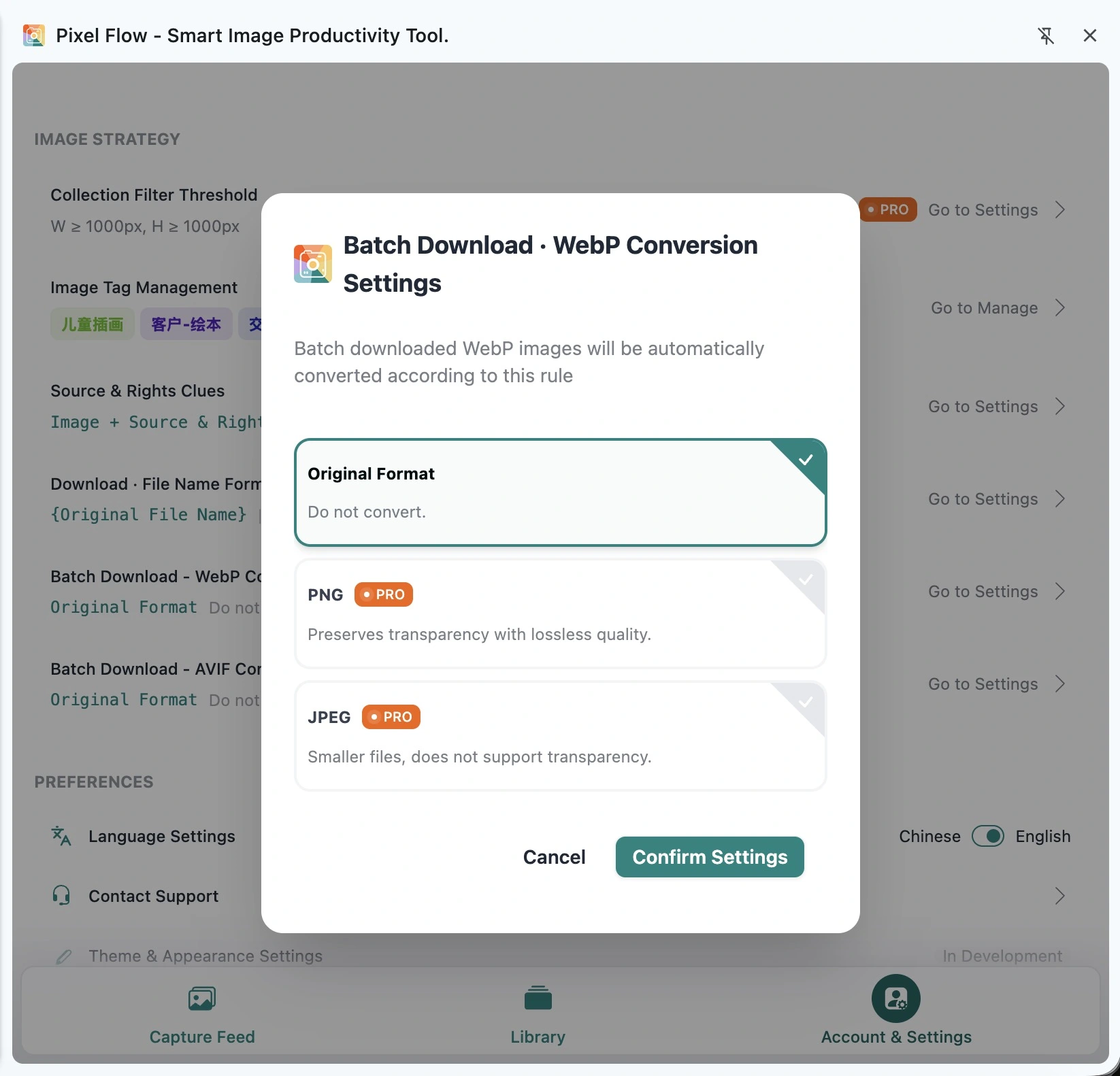
Free users can choose Original Format. PNG and JPEG are PRO options. If you are not on PRO yet, choosing one of them will open the upgrade flow.
Set the AVIF Batch Download Format
AVIF has its own setting entry. Open the AVIF batch download conversion setting, then choose Original Format, PNG, or JPEG.
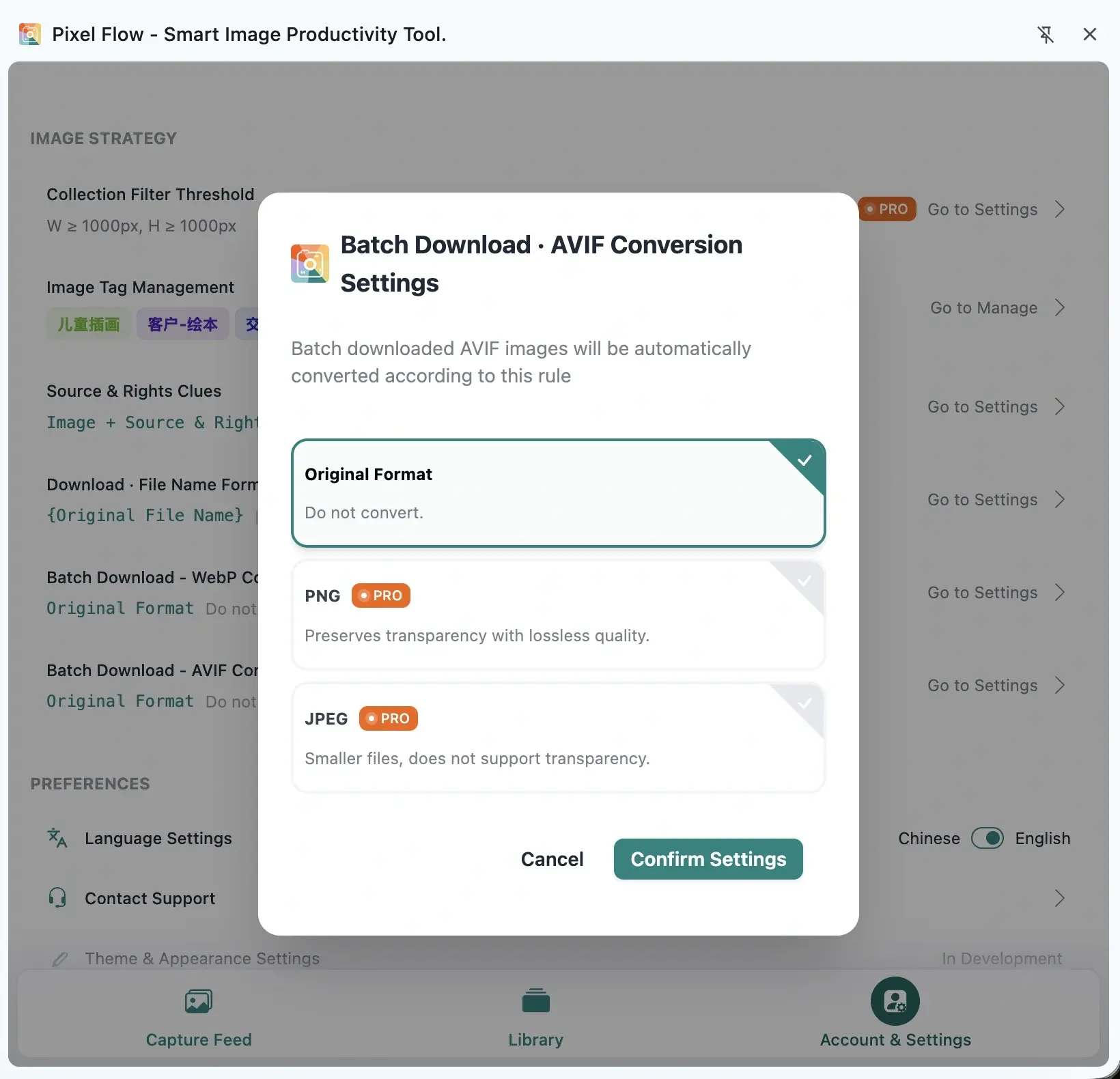
What Happens After Batch Downloading
After the setting is saved, it affects future batch download results. For example, if you set WebP or AVIF to PNG, the matching files in the download package will be saved as .png files.
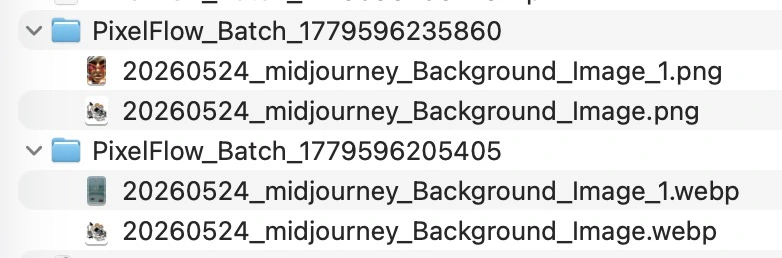
This setting does not modify images on the web page, and it does not change files you already downloaded earlier. It also does not convert PNG, JPEG, GIF, SVG, or other formats; it only applies to WebP and AVIF images in batch downloads.
Suggested Steps
- Open the Pixel Flow side panel.
- Go to Account & Settings.
- Find the core business configuration area.
- Open the WebP or AVIF batch download conversion setting.
- Choose Original Format, PNG, or JPEG.
- Click Confirm Settings.
- Return to the capture feed, select images, batch download them, and check the file formats in the download package.
Limits to Know Before You Use It
- Converting to PNG preserves transparency with lossless quality, but the file may become much larger.
- Converting to JPEG usually creates smaller files, but JPEG does not support transparency and uses lossy compression.
- A small number of images may fail to convert because the resource is unavailable, the file is damaged, the browser cannot process it, or the format has unsupported characteristics.
- Format conversion only improves file usability. It does not grant copyright, commercial usage rights, or redistribution permission.
- There is no automatic choice option here. You need to choose Original Format, PNG, or JPEG yourself.
FAQ
Are WebP and AVIF controlled by the same setting?
No. They are two separate settings, so you can choose different save formats for each one.
Can free users batch convert WebP/AVIF to PNG or JPEG?
No. Free users can batch download the original format. PNG and JPEG conversion are PRO options.
Should transparent images be saved as PNG or JPEG?
Choose PNG. PNG preserves transparency with lossless quality. JPEG creates smaller files, but it does not support transparency.
Why do I still see other formats after setting JPEG?
This setting only affects WebP and AVIF. Images that were already PNG, JPEG, GIF, or SVG on the page will keep their own formats.
Does this affect single-image conversion in the image detail view?
No. This page is about the default rule for batch downloads. If you only need to handle one image temporarily, use the single-image download or conversion actions available in the image detail view.
Can I still keep source clues after conversion?
Yes. Format conversion only changes the downloaded image format. When you need handoff or review context, keep source and rights clues or export a table with the image URL, source page, and download time.