
Docs
Pixel Flow user manual and best practices
Find scanning, filtering, image details, library, export, account, and industry workflow guidance by task.
Data Backup and Import
Data Backup and Import helps you preserve Pixel Flow’s local working data before uninstalling the extension, reinstalling the browser, changing devices, or moving to a new environment. Exporting creates a .zip file. When you import it, Pixel Flow merges the backup into the current account’s library, tags, download history, and settings within that account’s limits.
When to Use This
Export a backup before doing any of the following:
- Uninstalling Pixel Flow.
- Clearing Chrome extension data or local browser data.
- Changing computers, browser profiles, or user environments.
- Preserving your library, tags, download history, and common settings.
Export a Backup
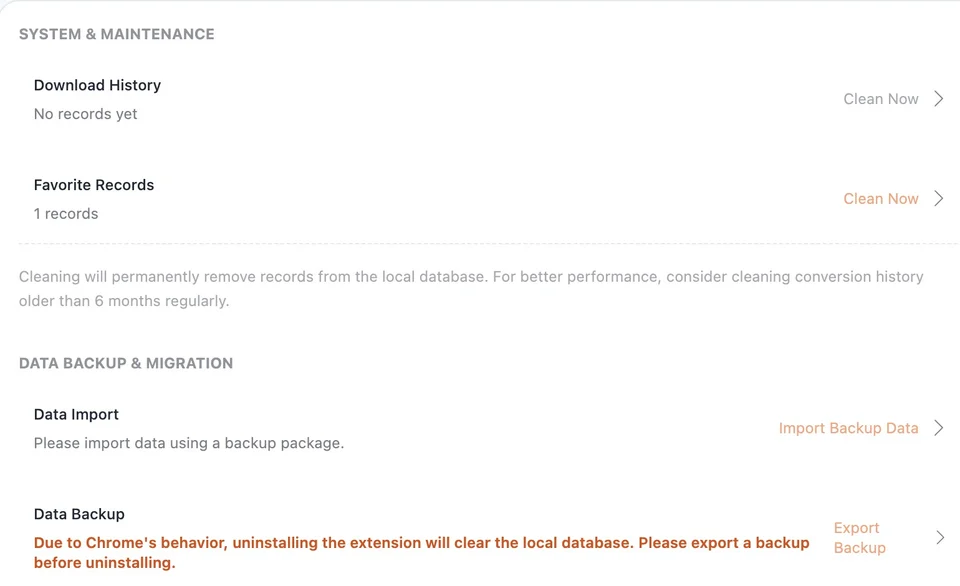
- Open the Pixel Flow side panel and go to Account & Settings.
- Find Data Backup & Migration.
- Click Export Backup.
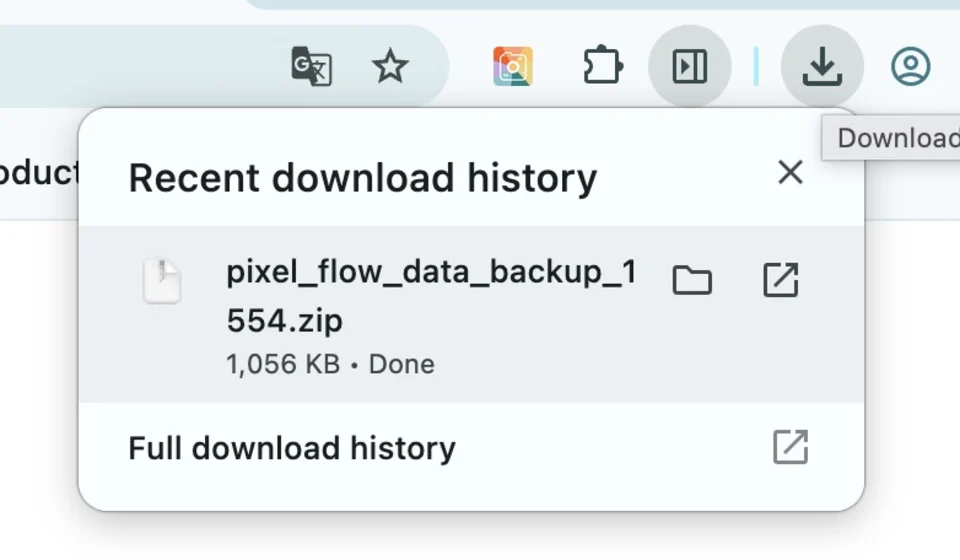
- The browser downloads a backup file named like
pixel_flow_data_backup_*.zip. - Save the backup somewhere reliable, such as a local project folder, an external drive, or a cloud drive you trust.
What the Backup Contains
The backup package stores the main local working data under the current Pixel Flow account:
- Favorite asset records.
- Favorite image file data, including original and standard versions that exist in the records.
- Download history.
- Custom tags.
- User preferences, such as language, filter thresholds, filename format, format conversion, and download metadata preferences.
- Backup ownership information, used during import to confirm whether the backup belongs to the current account or guest identity.
A backup package does not grant image copyright permission and does not change the original webpage content. For publishing, commercial use, client delivery, or training data, you still need to confirm image sources and usage rights separately.
Import a Backup
- Install and open Pixel Flow in the new environment.
- Sign in to the account that matches the backup package.
- Go to Account & Settings.
- Click Import Backup Data.
- Choose the
.zipbackup package you exported earlier. - Click Confirm Import.
- Keep the side panel open during import. After the success message appears, check the library, tags, and download history.
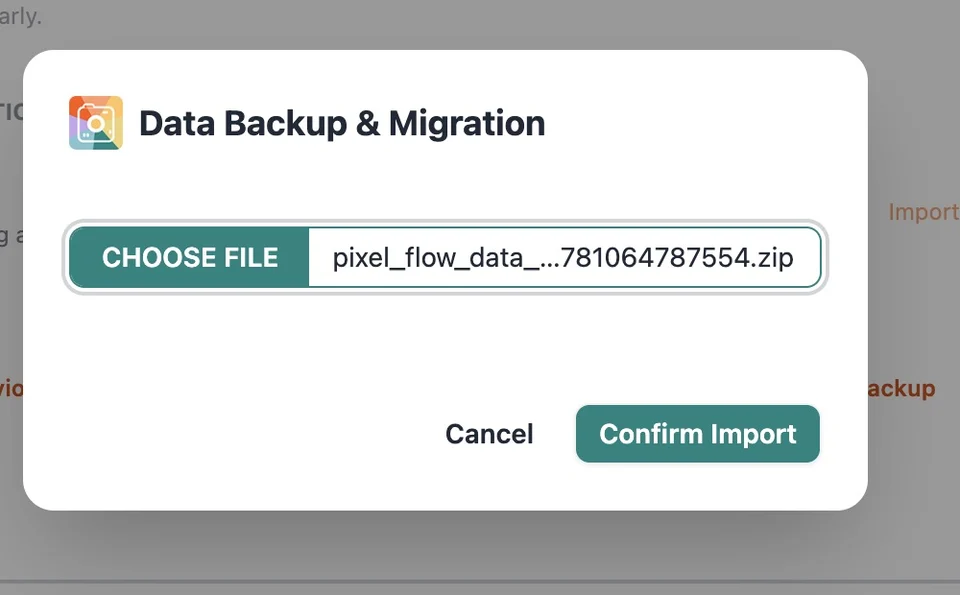
.zip backup package and click Confirm Import.Import Rules
Importing does not directly overwrite current data. Pixel Flow merges the backup into the current account:
- Existing favorite images are deduplicated by image content identity and are not imported twice.
- New favorites are imported within the current account limit.
- Free users can keep up to 60 favorite images; additional new favorites beyond the limit are skipped.
- Custom tags are merged by tag ID or name.
- Free users can keep up to 6 custom tags; additional new tags beyond the limit are skipped.
- Skipped tags are not attached to imported images.
- Download history is deduplicated and merged by record ID.
- After import succeeds, preferences, tag statistics, favorite counts, and download history counts are refreshed.
If you need to fully restore a library or tag set that exceeds Free limits, upgrade to an account state with higher limits before importing the backup.
Why Import May Fail
- You are not signed in.
- The selected file is not a
.zipbackup exported by Pixel Flow. - The backup package is missing required files or has been manually modified.
- The backup package belongs to another account or another guest identity.
- The backup file is too large.
- The backup package is damaged and cannot be parsed.
If import fails, first confirm that the account matches the backup, then try exporting a fresh backup package again. If you still cannot restore the data, use Contact Support and include your browser version, Pixel Flow version, error message, and reproduction steps.
Notes
- Always export a backup before uninstalling the extension.
- Before importing, export another backup from the current environment first if it also contains important data.
- Only import backup packages from your own devices or trusted sources.
- Do not close the side panel during import, and do not repeatedly click Confirm Import.
- Backup and restore only handle Pixel Flow’s local working data. They do not grant image usage rights.
FAQ
Do I need to export a backup before uninstalling Pixel Flow?
Yes. When Chrome uninstalls an extension, it may clear the extension’s local database. If you have not exported a backup first, your Pixel Flow library, tags, download history, and local settings may not be recoverable.
Will importing a backup overwrite my current data?
No, it does not directly overwrite current data. Pixel Flow merges the backup into the current account: existing favorite images and download history are deduplicated, new content is imported within the account limit, and preferences and tag statistics are refreshed after import succeeds. For more detail, see Import Rules.
What happens if a Free user imports a backup that exceeds the limit?
New favorite images or custom tags beyond the Free limit are skipped. Free users can keep up to 60 favorite images and 6 custom tags. To fully restore a larger library, upgrade to an account state with higher limits before importing the backup.
Can I import a backup into another account?
It is not recommended and may not work. Backup packages include ownership information, and Pixel Flow checks whether the backup belongs to the current account or guest identity during import. When changing devices, sign in to the account that matches the backup package first.
Does the backup package include image usage rights?
No. The backup only stores Pixel Flow’s local working data, such as favorite assets, image file data, download history, tags, and preferences. Publishing, commercial use, client delivery, or training data still requires separate confirmation of image sources and copyright permissions.