
Docs
Pixel Flow user manual and best practices
Find scanning, filtering, image details, library, export, account, and industry workflow guidance by task.
Keep Review Clues When Downloading Images
After you save web images to your computer, the thing you lose most easily is not the image file itself. It is where the image came from, what the page title was, what the original image URL was, when you downloaded it, and who still needs to confirm whether it can be used.
This setting is designed for that moment. When you download images, Pixel Flow can save the source page, image URL, site name, download time, and usage reminder into a spreadsheet so you or your team can review them later.
These records are review clues, not authorization proof. They do not prove that you own the copyright or commercial license, and they do not replace website terms, license files, client approval, portrait rights, or trademark checks.

When to Keep These Clues
If an image is only a temporary reference, saving the image file may be enough. But if it may enter publishing, design delivery, client materials, datasets, a marketing asset library, or team handoff, you should keep its source clues.
These clues help you answer questions that often come up later:
- Which page did this image come from?
- Which original image URL matches the local file?
- What were the page title, site name, and image description?
- When was it downloaded?
- Does the spreadsheet contain author, copyright, or editing software clues that need review?
- Before final use, who still needs to confirm the license, terms, or internal approval?
The point is not to decide “can I use this?” for you. The point is to keep enough context so you do not have to reverse-engineer the source from local files later.
Choose a Download Mode
| Option | Download result | Best when | Availability |
|---|---|---|---|
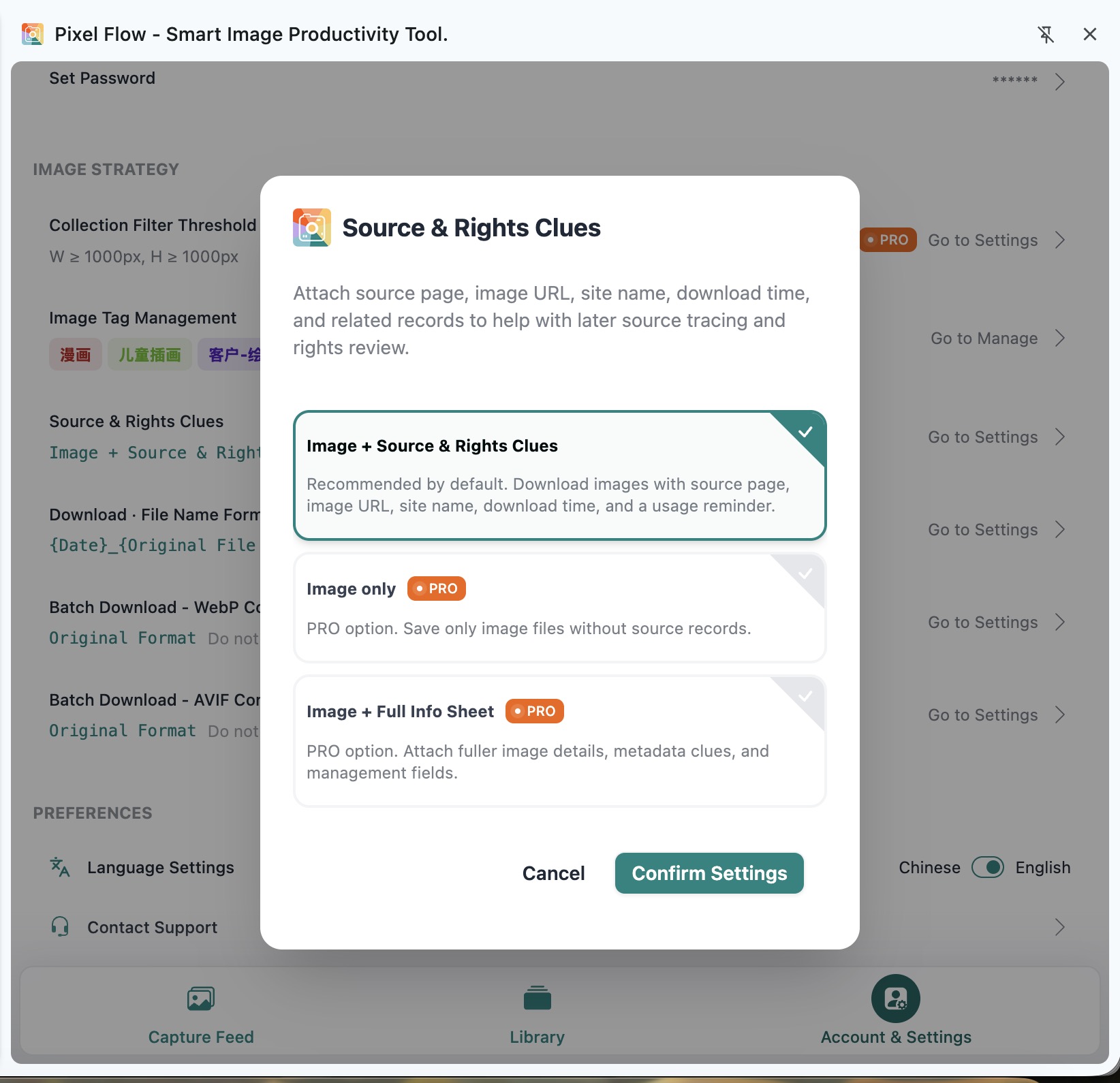
| Image + Source & Rights Clues | Image files + source clue spreadsheet | Default choice. You want to review source, download time, and usage reminders later | Free / PRO |
| Image only | Image files only | You already keep review records elsewhere, or this is only a temporary save | PRO |
| Image + Full Info Sheet | Image files + a more complete information sheet | You need dimensions, tags, download counts, and metadata clues for team review | PRO |
If you are not sure which one to choose, keep the default. One extra spreadsheet does not change the image file, but it helps prevent the image from losing its context.
What You Get After Downloading
By default, downloads are saved as a ZIP package. The package contains image files and a source clue spreadsheet.
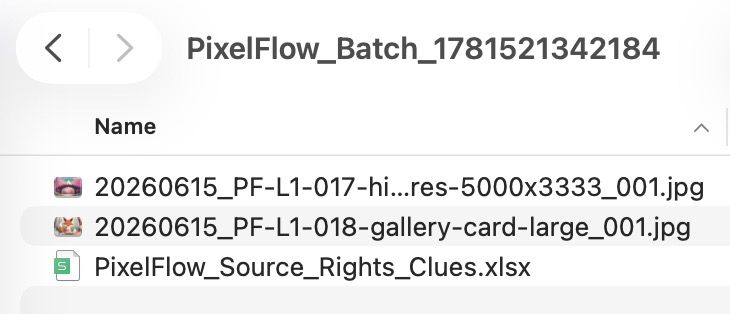
The spreadsheet fields depend on the download mode you choose. The fields below are from the spreadsheet included with downloads, not from the separate Library or Capture Feed export sheets.
| Field | Image + Source & Rights Clues | Image + Full Info Sheet | What it helps you review |
|---|---|---|---|
| Download filename | Yes | Yes | Whether the local file matches the spreadsheet row |
| Download time | Yes | Yes | When the image was saved |
| Source page URL | Yes | Yes | The page where the image was seen |
| Original image URL | Yes | Yes | The actual image resource URL |
| Site name | Yes | Yes | Which site the image came from |
| Page title | Yes | Yes | The page context around the image |
| Image alt text | Yes | Yes | Description clues available from the page |
| Image type | Yes | Yes | Original image format |
| Image width | Yes | Yes | Original image width |
| Image height | Yes | Yes | Original image height |
| Copyright / author info | Yes | Yes | Author, copyright, title, description, or software clues embedded in the image file |
| Usage reminder | Yes | Yes | A reminder that you still need to confirm authorization yourself and that Pixel Flow does not grant rights |
| Original filename | - | Yes | The original filename from the page or resource URL |
| File size | - | Yes | Asset size and delivery cost clues |
| Scan time | - | Yes | When Pixel Flow scanned this image |
| Favorite time | - | Yes | When the image was added to the Library |
| Download count | - | Yes | How many times this image had been downloaded before |
| Latest download time | - | Yes | Before this download, the most recent time this image was downloaded |
| Other compatible image URLs | - | Yes | Other possible sizes, variants, or compatible URLs for the same image |
| Custom tags | - | Yes | Classification clues from your Library |
| Possibly AI-generated | - | Yes | AI fingerprint and generation-parameter clues, which may include judgment, tool, confidence, method, detection time, engine, model, or prompt summary |
| GPS latitude | - | Yes | Possible latitude metadata, including decimal and DMS formats |
| GPS longitude | - | Yes | Possible longitude metadata, and sometimes altitude or address clues |
| Capture device | - | Yes | Camera, lens, aperture, shutter, ISO, focal length, shooting time, and system tags such as drone, macro, or long exposure |
| Editing software | - | Yes | Software, post-editing status, modification time, creator, copyright notice, title, and description clues |

If you choose “Image only,” a single-image download saves the image file directly. Batch downloads also skip the review spreadsheet. This option is best when you already keep source and authorization review materials somewhere else.
How to Set It
- Open the Pixel Flow side panel.
- Go to Account & Settings at the bottom.
- In Image Strategy, open Source & Rights Clues.
- Choose the download mode you need.
- Confirm the setting.
- Future image downloads and batch downloads will use the new setting.
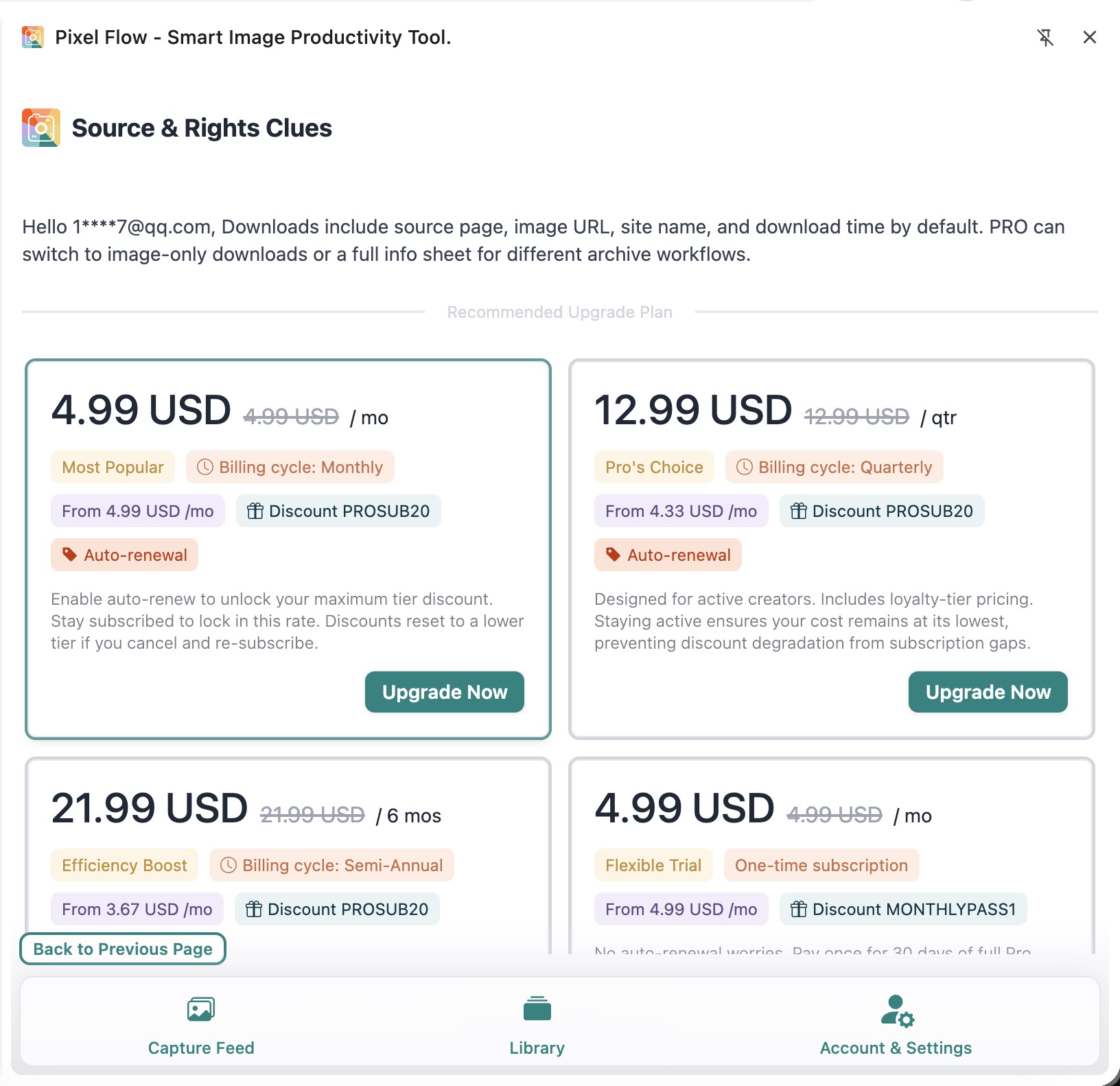
If you are not logged in, opening this setting takes you to the login page first. Free users can use the default “Image + Source & Rights Clues” mode. If you choose “Image only” or “Image + Full Info Sheet,” Pixel Flow will show the PRO upgrade flow.
These Clues Do Not Decide for You
Treat the spreadsheet as review material, not a conclusion. It can help you find the source faster, organize context, and hand the image to the right reviewer, but it cannot prove that the image is cleared for public publishing, ad campaigns, client delivery, redistribution, or model training.
Before final use, you still need to check the real usage context:
- The source website’s terms.
- Whether there is a clear license, purchase record, or client confirmation.
- Whether portrait rights, trademarks, brand assets, photographer attribution, or platform restrictions are involved.
- Whether your company or project requires review by legal, operations, the client, or another owner.
Important reminder: If the spreadsheet contains author, copyright, or editing software clues, treat them as signals that need further confirmation, not as proof that the image is already usable.
Related Features
The source clue spreadsheet solves one problem: after downloading, you can still review where the image came from. If you need better organization, use it together with:
- Download filename format: make local filenames easier to identify by source, date, or purpose.
- WebP/AVIF batch conversion settings: convert image formats during download when needed.
- Download history: review files you have already processed.
- Library export sheet: hand off favorite images, tags, sources, and download records for team inventory.
A steadier workflow is: scan and filter page images, favorite key assets and add tags, then download images with source clue spreadsheets. When an image is actually going to be published or delivered, use the spreadsheet to review authorization item by item.
Frequently Asked Questions
Can this source clue spreadsheet prove I can use an image commercially?
No. It only saves the source page, image URL, site name, download time, and possible author or copyright clues for later review. Commercial use still depends on license files, website terms, and project approval.
Why does the default download include a spreadsheet?
Because images lose context easily once they leave the web page. The default spreadsheet helps you return to the source page, check the image URL, and remember to confirm authorization before final use.
I only want to save the image. Can I skip the spreadsheet?
Yes, but “Image only” requires PRO access. This option is better when you already have an external asset management system, or when you are sure this download does not need source context.
What is the difference between the full info sheet and the default clue sheet?
The default clue sheet focuses on source review and usage reminders. The full info sheet adds more asset-management fields, such as favorite time, download count, tags, other image URLs, location clues, capture device, editing software, and AI fingerprint recognition. It is better for team inventory and long-term archives.
Is the spreadsheet still useful if the source page disappears later?
Yes. It still preserves the page URL, image URL, download time, and your organizing process at the time. But a broken link does not replace authorization proof or prove that the image remains usable.
Does this setting modify the image file?
No. It only controls whether Pixel Flow includes an extra spreadsheet during download. It does not modify the image on the web page or add any rights information to the image file.