
Docs
Pixel Flow user manual and best practices
Find scanning, filtering, image details, library, export, account, and industry workflow guidance by task.
Login Methods and Account Status Checks
You do not need to create an account as soon as you install Pixel Flow. You can open the side panel, scan images on the current page, filter results, view basic image details, and use quick preview first. Signing in mainly connects your saved images, tags, PRO access, invite-code rewards, purchase records, and backup ownership to one Pixel Flow account.
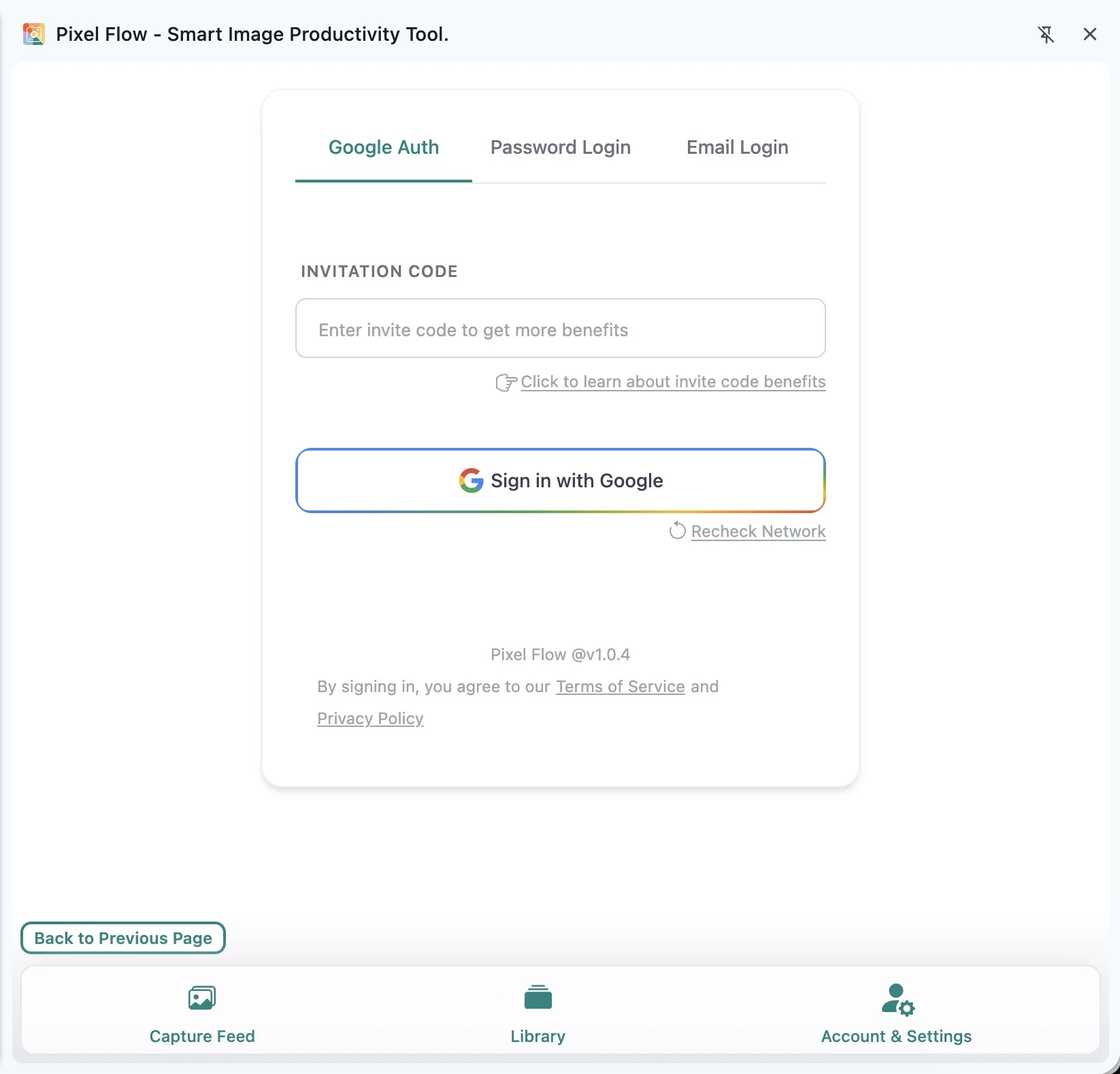
Do You Need to Sign In?
If you only want to quickly check which images are on the current page, you can use Pixel Flow without signing in. Pixel Flow can still scan the page, show the image list, and let you view basic details such as size, format, and source clues.
When you want to keep organizing assets, save images to Library, use custom tags, check your PRO expiry time, claim invite-code rewards, restore a backup, or handle purchase records, sign in first.
Signing in does not change image copyright and does not automatically grant download, commercial-use, redistribution, or training-data rights. Whether an image can be reused still depends on the source website terms and the permission you hold.
Choose a Login Method
| Login method | Best for | Key note |
|---|---|---|
| Sign in with Google | Users who want a quick Google sign-in, or accounts that do not have an email bound yet | On first Google registration/sign-in, if Pixel Flow can read a verified email from the Google authorization data, that email is bound automatically and can be used for email login later. |
| Email Login | Users registering or signing in with email, or users who already have an email bound | This entry can also be used for first-time registration. The verification code is valid for 20 minutes. |
| Password Login | Users who have bound an email and set a password | Email password login requires both a bound email and a password. |
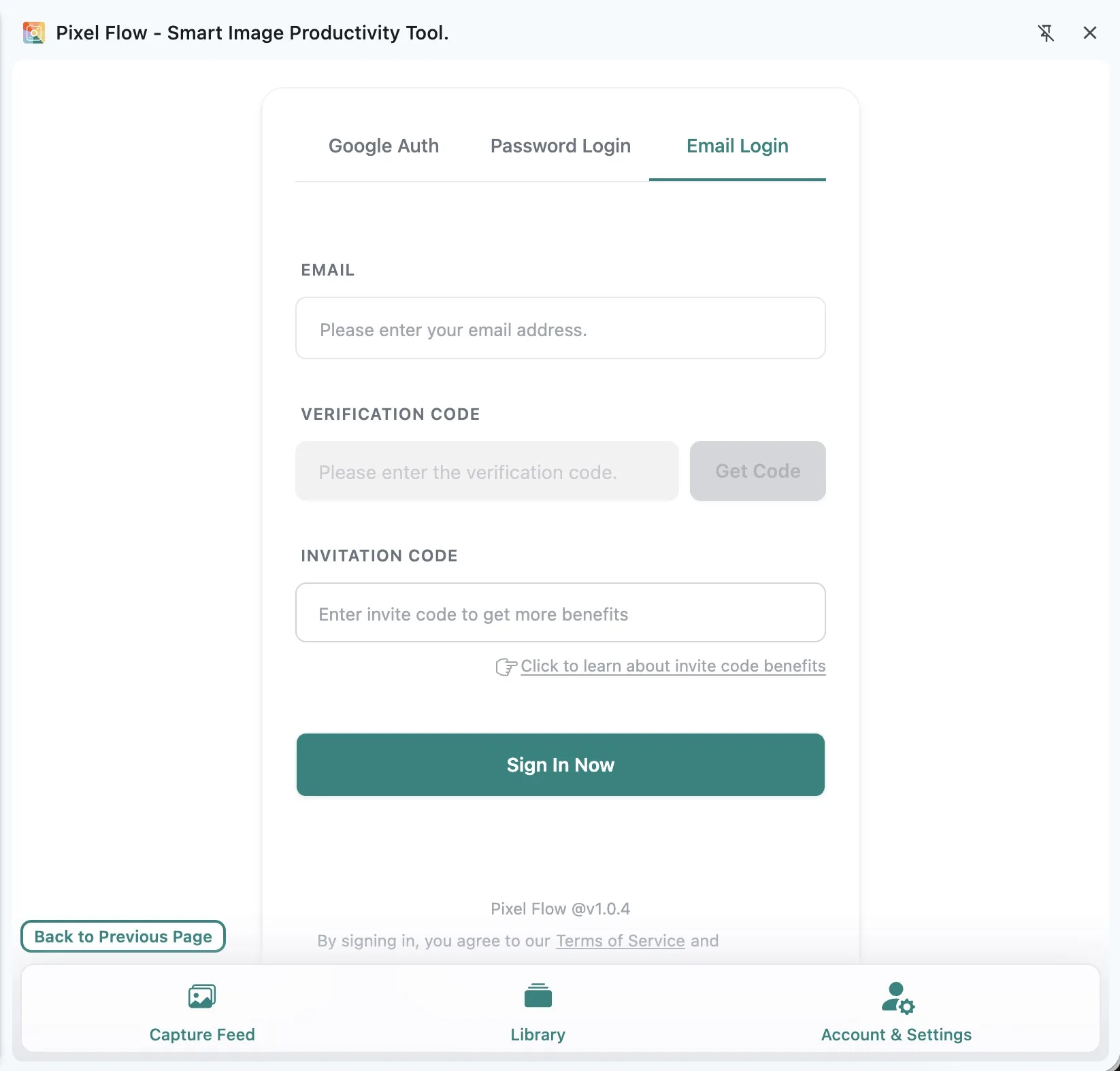
Email and Password Are Different
After binding an email, you can sign in to this account with an email verification code. That does not mean a password has been set. Password Login only works after the account has both a bound email and a password.
If the account has only signed in through Google authorization and has not bound an email, email code login and email password login cannot be used for that existing account. Continue signing in with Google, then bind an email in Account & Settings.
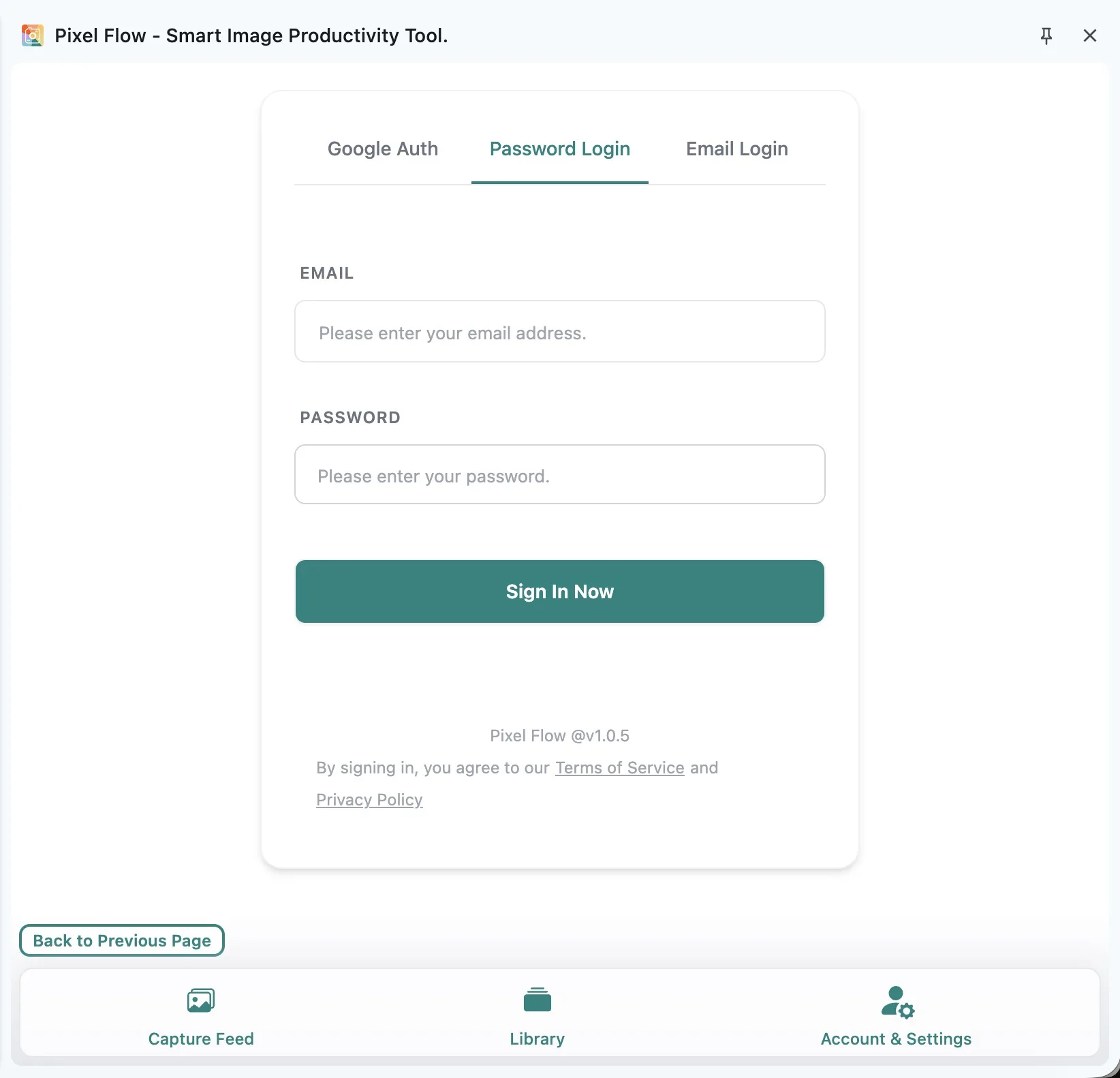
How Google Sign-In Binds Email
If you use a Google account to register Pixel Flow for the first time, and Google authorization returns a verified email, Pixel Flow automatically binds that email to your account. After that, you can keep signing in with Google, or use that email for Email Login.
If you also want to use Password Login, go to Account & Settings and set a password. Once that is done, the account supports Sign in with Google, email code login, and email password login.
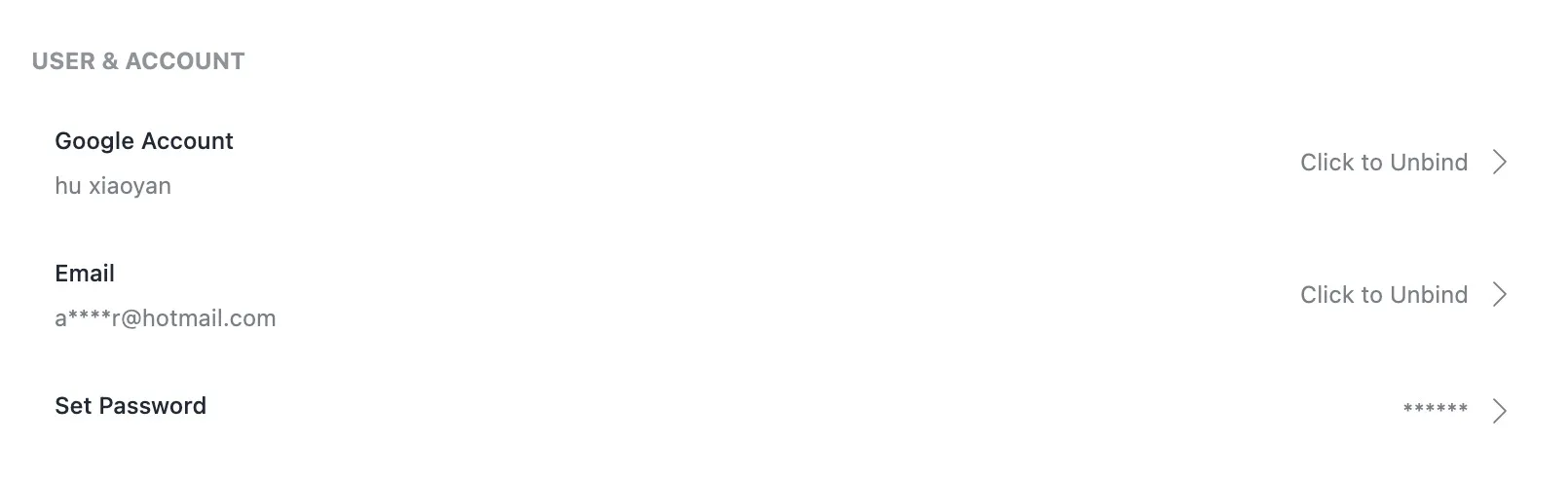
First-Time Google Sign-In Notes
If the verified email returned during Google authorization has already been registered, Pixel Flow blocks this Google registration/sign-in and asks you to sign in with that email first, then bind the Google account in Account & Settings.
When this happens, do not keep switching entries repeatedly or register an unrelated email just to bypass the prompt. Sign in to the original account with that email code or password, confirm the PRO status, invite code, and data ownership, then open Bind Google Account and Email to finish the binding.
This design keeps Pixel Flow account relationships clear and access records stable.
When Google Sign-In Is Unavailable
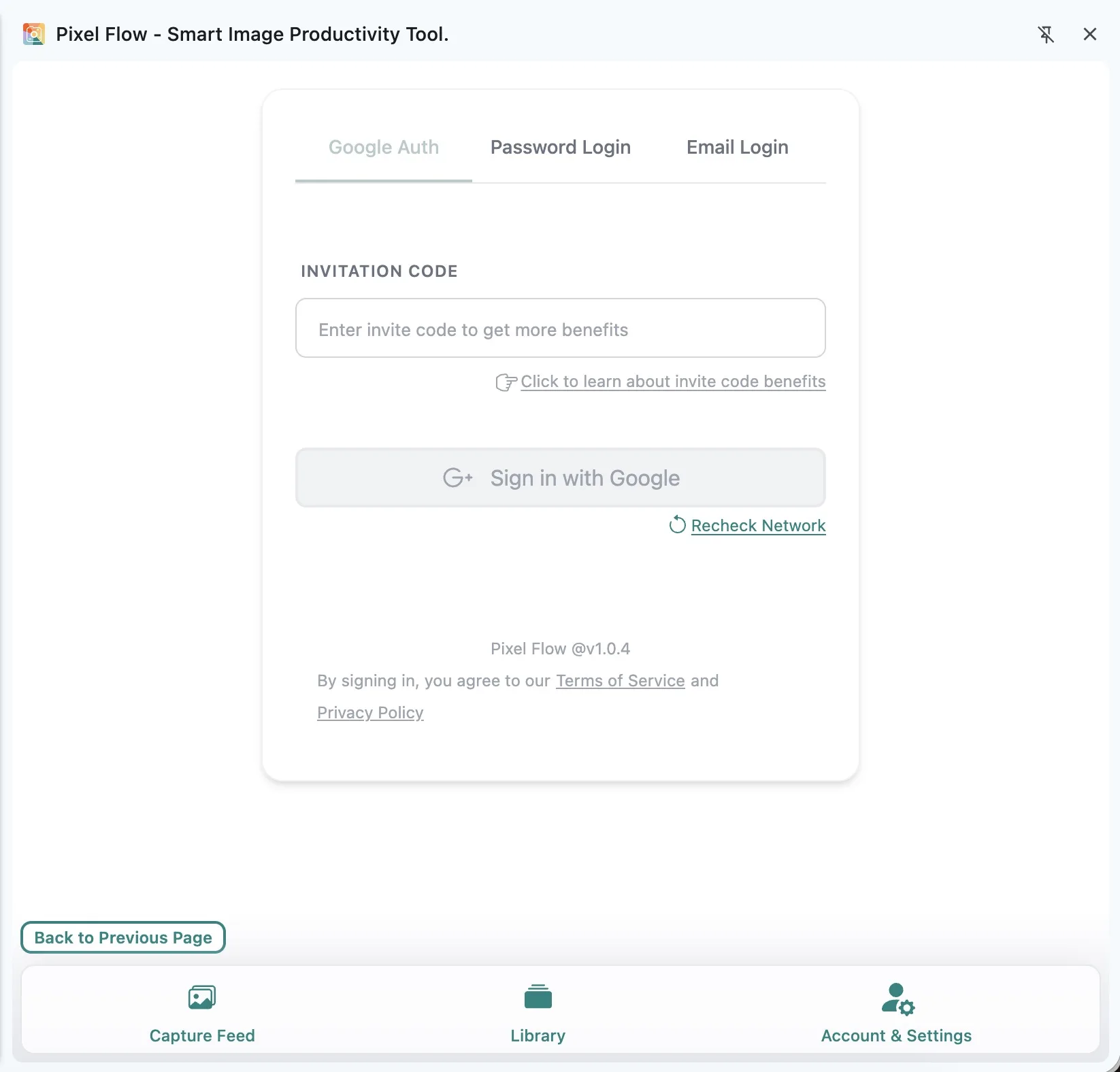
Google sign-in checks whether the current network environment can complete Google authorization. If the authorization button is gray, click Recheck Network and try again. If it is still unavailable, you can use Email Login instead. If this account has never bound an email, return to an environment where Google authorization works, sign in there, and bind an email first.
Invite Codes and Login Rewards
All three login methods show an invite code field. Invite codes mainly affect first-time registration rewards. See Invite Code and Referral Rewards for the full rules.
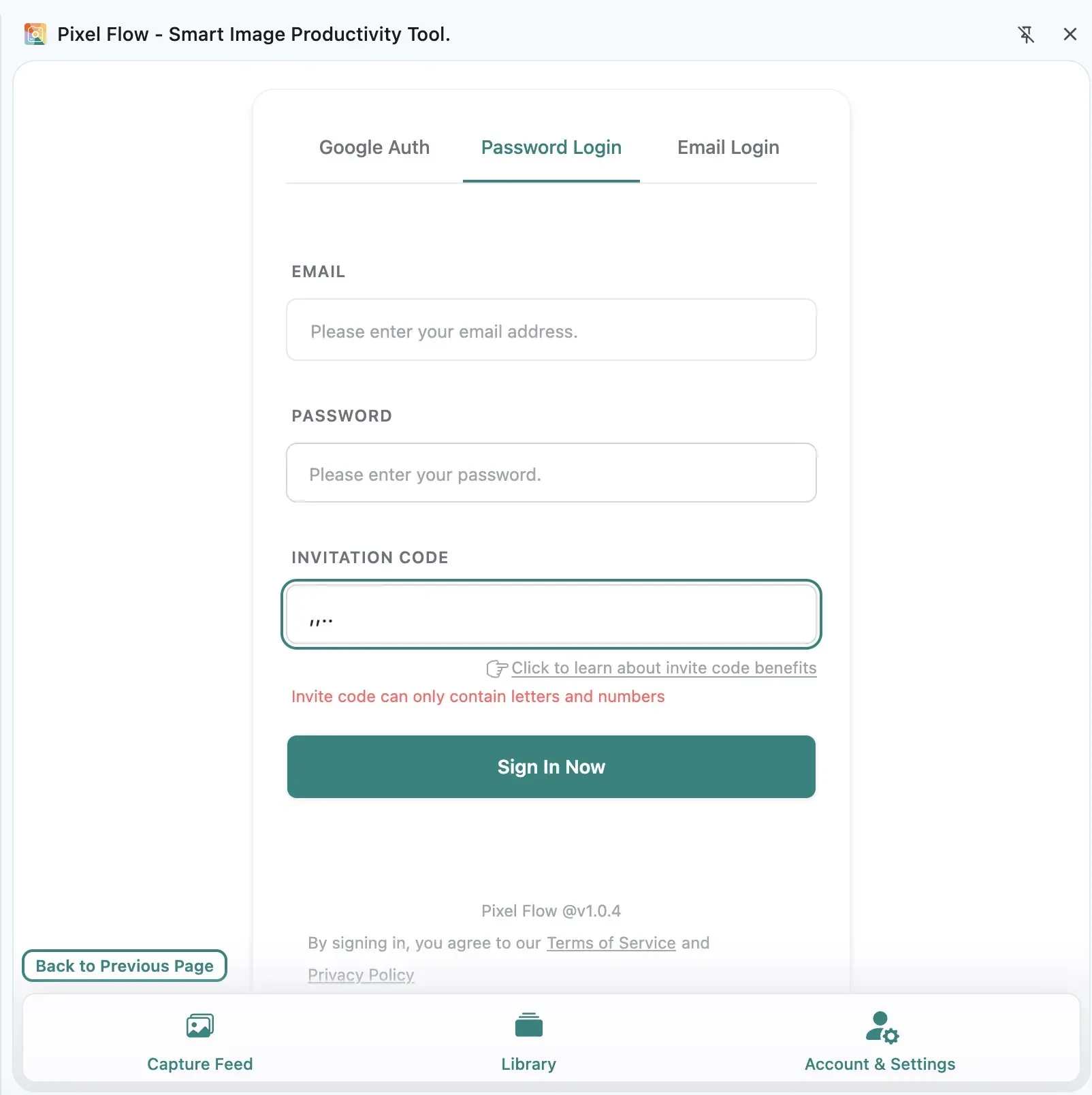
First-time email code registration/sign-in grants 7 days of PRO time. First-time registration with a Google account also grants 7 days of PRO time. If a valid invite code is entered during registration, the invited user receives 1 extra day of PRO time, and the inviter receives 3 days of PRO time. The final result is based on the PRO records.
Pixel Flow checks login rewards on a 30-day cycle. When eligible, signing in with Google or email password may grant 1 day of PRO time. You can verify it in which actions can add PRO time.
Check Account Status After Signing In
After signing in, open the top account area in Account & Settings and confirm that the current account is the one you intend to use. Check the displayed name or email, PRO status, PRO expiry time, version number, and invite code.
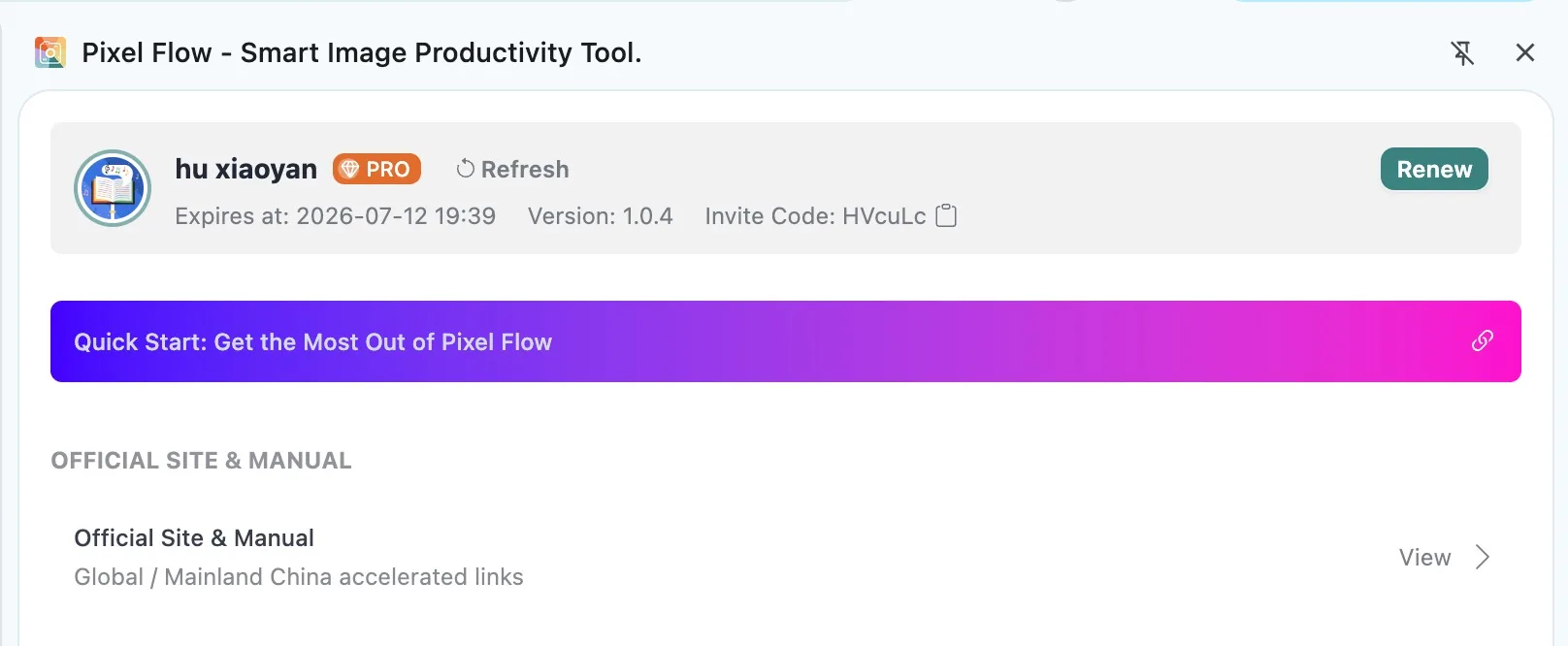
After a payment, redemption, binding action, or reward claim succeeds, Pixel Flow usually updates the account status automatically. If the network fluctuates, the page has been open for a while, or the interface does not match what you expect, click Refresh in the account area, then check View PRO Status and Records.
Multi-Device Login Limit
The same Free account can usually stay signed in on 1 device at a time. The same PRO account can stay signed in on up to 3 devices at a time. If the limit is exceeded, the device that has not been used for the longest time may be signed out automatically.
If Login Looks Wrong
- Go back to Account & Settings and click Refresh.
- Close and reopen the Pixel Flow side panel.
- Confirm that the current Google account or email is the one used for purchase, registration, redemption, or binding.
- If Google sign-in is unavailable, click Recheck Network, or use Email Login with a bound email.
- If the issue continues, open Contact Support and include your sign-in email, a screenshot, the approximate time, and reproduction steps.
Frequently Asked Questions
Do I need to register before scanning images?
No. You can scan, filter, and preview images first. Signing in is needed for favorites, tags, PRO access, account records, and backup ownership.
Why does email also show as bound after signing in with Google?
If this is your first Google registration/sign-in and Pixel Flow can read a verified email from the Google authorization data, that email is bound to your account automatically. The account may then show both Google Account and Email as bound.
Why does Google sign-in say the email is already registered?
It means the verified email returned by Google is already used by an email account. Sign in to the original account with an email code or email password first, then bind the Google account in Account & Settings. This keeps Pixel Flow account relationships clear and access records stable.
Why can I not use email password login?
Email password login requires two things: the account has a bound email, and a password has been set. If only an email is bound but no password is set, use email code login. If only Google Account is bound and no email is bound, use Google sign-in.
How do email verification codes work?
Follow the page prompt to request and enter the email verification code. Codes have a validity window. If the page says the code is expired or incorrect, request a new one before signing in or binding.
Does every Google or email password login grant 1 day of PRO time?
No. Pixel Flow checks login rewards on a 30-day cycle. You only receive 1 day of PRO time when eligible. Check the result in PRO records.
Does signing in give me image usage rights?
No. Signing in only affects Pixel Flow account features. It does not grant download, publishing, commercial-use, redistribution, or training-data rights.