
Docs
Pixel Flow user manual and best practices
Find scanning, filtering, image details, library, export, account, and industry workflow guidance by task.
Account, Network Services, and Sync Boundaries
Pixel Flow accounts are used for sign-in, PRO entitlement checks, reward records, payments, and some network-powered features. The account system is not a cloud asset library by default. Favorites, tags, and download history in your library should still be managed and backed up as local browser data.
Which Actions Use the Network
Pixel Flow may connect to cloud services or online services such as Google when you use these features:
- Email code sign-in, email password sign-in, or Google sign-in.
- Binding or unbinding a Google account, binding or unbinding email, and setting a password.
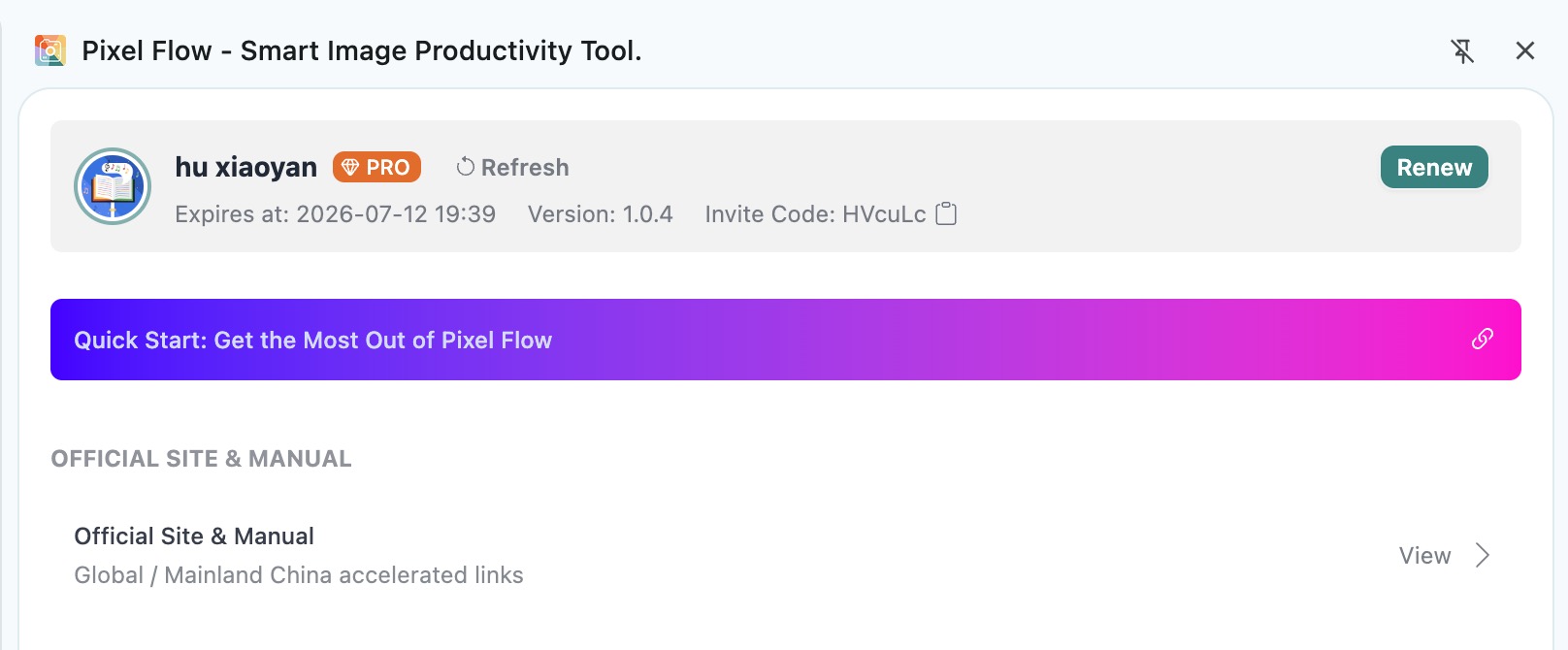
- Checking sign-in status, refreshing account information, and checking PRO expiration.
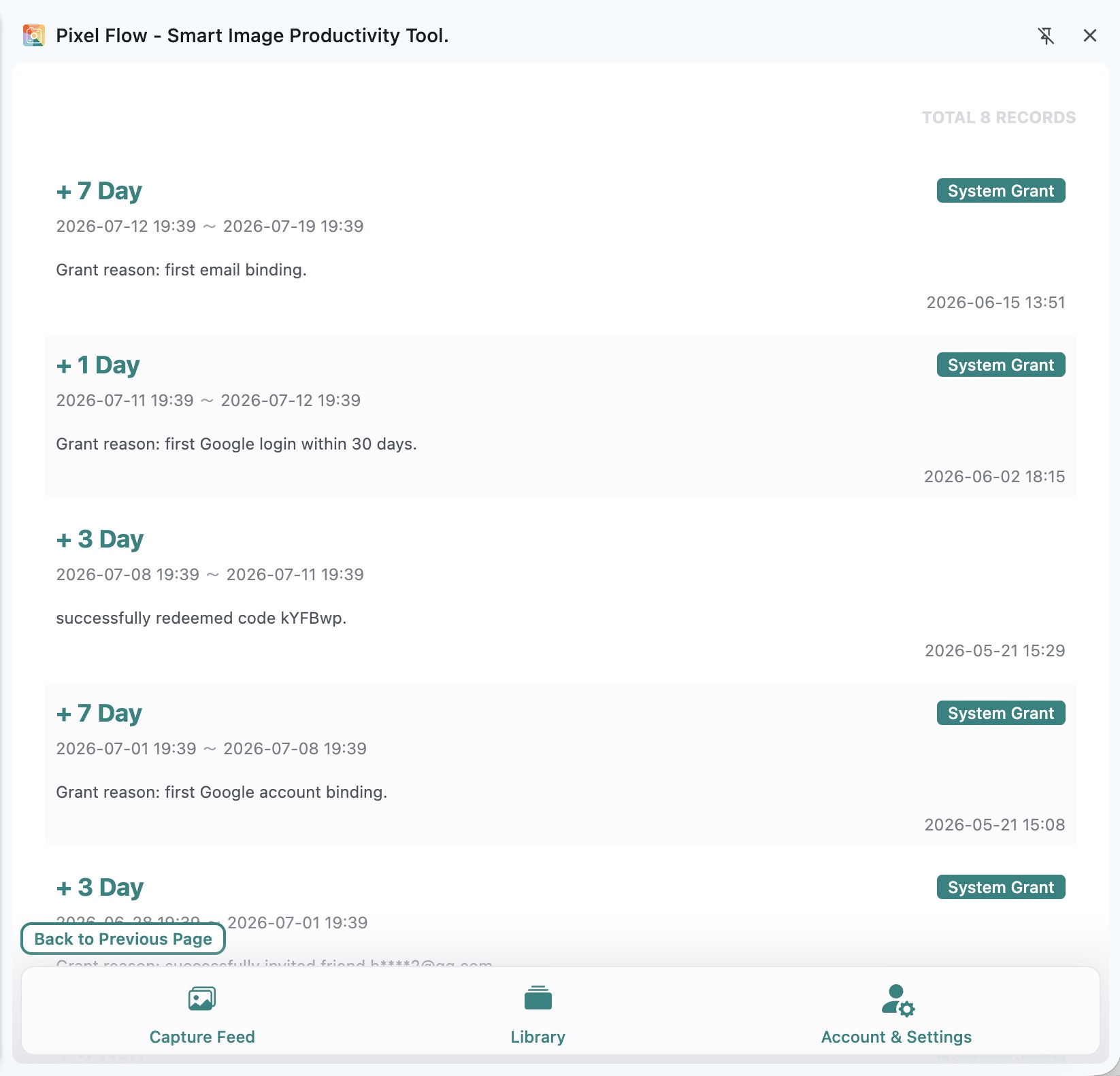
- Viewing PRO status, purchase records, system grants, invite rewards, and redemption code records.
- Creating a checkout and confirming payment status.
- Opening Google reverse image search; some images may need a temporary upload to create a searchable link.
- Sending verification codes or submitting support-related information.
These network requests let you complete account and entitlement actions, or use features that depend on external services. They do not mean Pixel Flow automatically uploads your whole library.
What Pixel Flow Cloud Services Store
To keep sign-in, PRO status, rewards, and payment records working, Pixel Flow cloud services store and process data such as:
- Account information.
- PRO expiration time, entitlement change records, invite rewards, redemption codes, and payment records.
- Transaction information returned by payment providers.
- File records and temporary access links used when Google reverse image search requires a temporary upload.
These cloud service records are not a cloud asset library. Pixel Flow does not treat your favorite images, tags, download history, and preferences as a cloud asset space by default. They are still mainly maintained in your local browser environment.
Multi-Device Sign-In Limits
Pixel Flow limits how many devices can stay signed in to the same account at the same time. In the current implementation, Free users can keep 1 device signed in, and PRO users can keep up to 3 devices signed in. When a new device signs in, an older device may need to sign in again.
This limit affects account sign-in and entitlement checks only. It does not mean your library automatically syncs across devices. If you need to move your library to another computer, use backup export and import.
How Google Reverse Image Search Handles Images
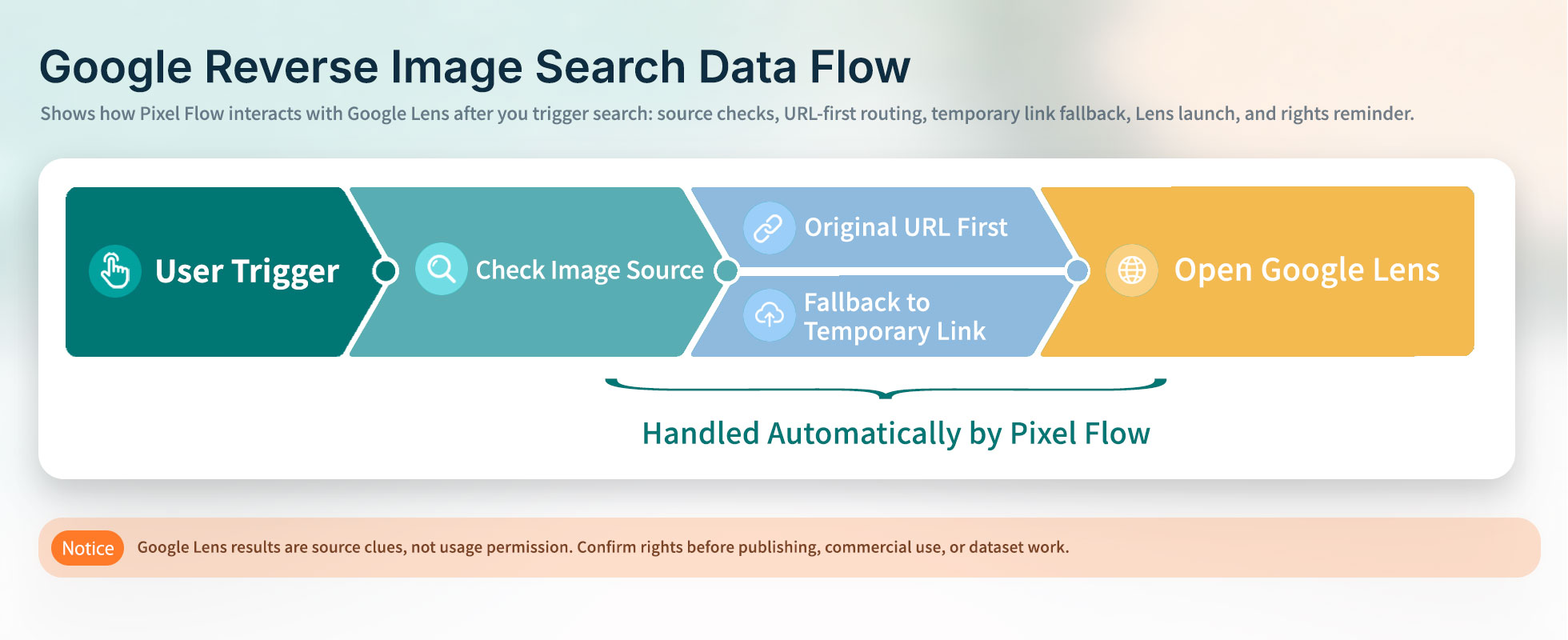
If you want the full workflow, read Google Reverse Image Search. When you use this feature, Pixel Flow first checks whether the image has a publicly reachable original link. If it does, Pixel Flow usually opens the Google search result by using that link directly.
If the image comes from your library, local cache, embedded data, or a source that is not suitable for direct URL search, Pixel Flow may temporarily upload the image to temporary storage used for reverse image search, then generate a short-lived accessible link for opening Google search results.
What Still Works Offline
When you are offline, you can still view some data that is already stored locally, such as your library, tags, download history, and some settings. Sign-in refresh, PRO status confirmation, payments, rewards, Google reverse image search, verification codes, and support-related features may be affected.
If Pixel Flow cannot reach online services temporarily, refresh account status or reopen the side panel after the network recovers.
Frequently Asked Questions
Q: Will my library automatically appear on another computer after I sign in?
No. Pixel Flow does not provide a data sync service, so it does not automatically sync your library to the cloud, and it does not automatically sync data across computers or browsers. Sign-in is mainly for account and entitlement checks. When moving computers, export a backup from the old computer first, then import it on the new one.
Q: Why does Google sign-in use browser identity features?
For the full list of sign-in options, see Login Methods. Google sign-in uses the browser identity feature so you can complete sign-in through Chrome’s authorization flow and reduce the steps needed to enter account information manually. After authorization succeeds, Pixel Flow sends the result to cloud services for verification and creates its own sign-in state.
Q: Why does an old device suddenly need to sign in again?
The number of devices signed in at the same time may have exceeded what your current account allows, or the sign-in state may have expired or failed account verification. Sign in again to continue using account-related features.